
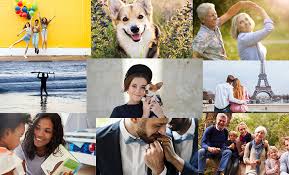
Have you ever imagined being in multiple cities in just a week, appearing in famous landmarks, or standing next to celebrities? While it may seem impossible, the power of photo montages allows you to bring those imaginations to life. With modern tools and apps, creating stunning, fun, or artistic photo montages is easier than ever—and often free!
This guide will walk you through how to create professional-looking photo montages using various online services and apps, so whether you’re a beginner or an expert, you’ll find the perfect tool to suit your needs.
Why Create Photo Montages?
Photo montages are a fun way to manipulate images, allowing you to insert yourself into exciting or humorous scenarios. Whether it’s for personal enjoyment, social media, or professional purposes, photo montages are an engaging form of digital expression.
Top Reasons to Create Photo Montages
- Entertainment: Play tricks on friends by showing them your “visit” to the Eiffel Tower.
- Creativity: Turn ordinary photos into creative masterpieces.
- Marketing: Businesses use montages to showcase their products in visually appealing ways.
Tools and Apps for Creating Free Photo Montages
Let’s dive into some of the best tools and apps available for creating photo montages. Each tool offers unique features, so whether you prefer to work on your computer or mobile device, there’s a solution for you.
1. PhotoFunia (Web, Android, iOS)
One of the easiest and most popular tools for creating photo montages is PhotoFunia. This tool allows users to create a variety of photo montages quickly and with great results.
How to Use PhotoFunia
- Visit the PhotoFunia website or download the app for Android or iOS.
- Browse through hundreds of pre-set effects and select the one you like.
- Upload your photo by clicking on Choose Photo, and adjust it according to the template.
- Hit Go to apply the effect. Once your montage is ready, download it in different sizes.
The tool is user-friendly, and the variety of effects allows you to be as creative as you want. Whether you’re turning yourself into a superhero or placing your face on a billboard, PhotoFunia has you covered.
2. Pixiz (Web)
Another excellent online option is Pixiz. This free platform makes it easy to combine multiple images into one or create fun, eye-catching photo montages.
How to Use Pixiz
- Visit Pixiz and browse their extensive collection of templates.
- Choose your preferred template and upload your photo.
- After the photo is uploaded, Pixiz will generate the final montage, which you can download directly.
Pixiz offers a range of templates that allow you to explore various effects. From seasonal themes like Christmas and Halloween to romantic or artistic designs, there’s something for everyone.
3. SuperPhoto – Effects & Filters (Android, iOS)
For those who prefer working directly from their smartphones, SuperPhoto is a fantastic app that offers a wide selection of filters and effects for photo montages.
How to Use SuperPhoto
- Download SuperPhoto from the Google Play Store or Apple App Store.
- Once the app is installed, browse through the effects available, including free and premium options.
- Select a photo from your gallery or take a new one.
- Apply the desired filter and save or share your montage.
While the free version offers plenty of effects, upgrading to the paid version unlocks additional features that may enhance your photo montages.
4. Photo Lab (Android, iOS)
Photo Lab is another mobile app that stands out for its rich library of photo effects and montages. It’s perfect for adding a professional touch to your pictures.
How to Use Photo Lab
- Download Photo Lab from the Google Play Store or Apple App Store.
- Open the app and explore effects categorized into themes like Love, Funny, and Artistic.
- Select your desired effect and upload your photo.
- Save the final result to your device or share it directly to social media.
Though the app is free, a VIP version is available for those wanting to remove ads and unlock extra features.
Comparing PhotoFunia and Pixiz
| Feature | PhotoFunia | Pixiz |
|---|---|---|
| Ease of Use | Very easy to use | Simple, but fewer customization options |
| Template Variety | Hundreds of templates | Large variety, but fewer artistic styles |
| Mobile Access | Available on Android and iOS | Web-only, no mobile app |
| Free Version | Yes, fully free | Yes, fully free |
| Customization Options | Moderate control over placement | Simple templates, no advanced edits |
5. Prisma (Android, iOS)
If you’re interested in transforming your photos into artistic creations, Prisma is a unique app that applies various art styles to your images.
How to Use Prisma
- Download Prisma from the Google Play Store or Apple App Store.
- Choose a photo from your gallery and apply one of the many artistic filters.
- After adjusting the intensity of the filter, save your photo or share it online.
Prisma is perfect for creating artistic montages, mimicking styles from famous painters like Picasso or Munch.
Creating Professional-Looking Photo Montages
While using free tools is a great way to create fun and quick montages, there are a few techniques you can implement to make your photos look even more professional.
1. High-Quality Images
Always start with a high-resolution photo. Grainy or low-quality images will make your final montage look unpolished.
2. Attention to Lighting
Ensure the lighting in your main photo matches the background or scene you’re adding it to. This will make the montage look more realistic.
3. Use Layering and Blending Tools
Some more advanced tools, like Adobe Photoshop or GIMP, allow you to manually blend layers, which gives you more control over the final result. Though they require more effort, they produce professional-grade montages.
Advanced Tools for Skilled Users
If you’re looking to go beyond the free and simple apps, you might want to explore more advanced software that offers professional-level features.
Adobe Photoshop
As the gold standard in image editing, Photoshop offers full control over every element of a photo montage. While it’s a paid tool, its advanced layering, masking, and blending options are unparalleled.
GIMP
For those who prefer free software, GIMP is an open-source alternative to Photoshop. It offers many of the same tools and capabilities, though it requires some learning.
Best Practices for Stunning Photo Montages
Creating a visually appealing photo montage involves more than just combining images. Here are some best practices to ensure your montages look flawless:
1. Keep It Simple
Sometimes, less is more. Don’t overcrowd your montage with too many elements. Stick to a clear theme or concept.
2. Experiment with Color
Experiment with color contrasts and harmony to make your montage stand out. Many tools allow you to adjust the color settings to match the background and foreground better.
3. Practice Makes Perfect
The more you experiment with different tools and styles, the better you’ll become at creating beautiful montages.
Conclusion
Creating a photo montage can be a fun and rewarding way to express your creativity. Whether you’re looking to create something simple and humorous or a more detailed and professional image, there are plenty of free tools available to help you bring your ideas to life.
With a range of options from PhotoFunia and Pixiz to more artistic tools like Prisma, the possibilities are endless. So, go ahead and dive into the world of photo montages—you’ll be surprised at what you can create!
FAQs
-
Are these photo montage tools free to use?
Yes, most of the tools mentioned, like PhotoFunia and Pixiz, offer free versions with plenty of features. -
Do I need advanced editing skills to create photo montages?
No, many of the tools listed, such as PhotoFunia and Pixiz, are designed for beginners and don’t require any advanced skills. -
Can I use these tools on mobile devices?
Yes, apps like SuperPhoto, Photo Lab, and Prisma are available for Android and iOS devices, making it easy to create montages on the go. -
Is it possible to create montages without watermarks?
Some free tools may add watermarks, but you can often remove them by upgrading to the premium versions. -
Which tool is best for creating artistic photo montages?
Prisma is an excellent choice if you want to apply artistic filters and transform your images into works of art. -
Can I edit photos directly in my web browser?
Yes, tools like Pixiz and PhotoFunia allow you to create montages directly from your browser without downloading any software. -
How do I make my photo montages look professional?
Use high-quality images, pay attention to lighting, and try more advanced tools like Photoshop or GIMP for professional-grade montages. -
Are there any limitations with the free versions of these tools?
Some apps, like SuperPhoto and Photo Lab, have additional premium features, but the free versions still offer plenty of functionality for creating stunning montages.


