
How to Take a Screenshot on Your PC
Are you tired of searching for ways to take a screenshot on your computer? Look no further! In this article, we will guide you through the process of taking a screenshot on both Windows and Mac computers.
What is a Screenshot?
A screenshot is an image that captures the current state of your computer screen. It can be used to capture important information, save images, or share moments with others.
Taking a Screenshot on Windows
If you’re using a Windows computer, taking a screenshot is a straightforward process. Here’s how:
Method 1: Using The Print Screen Button
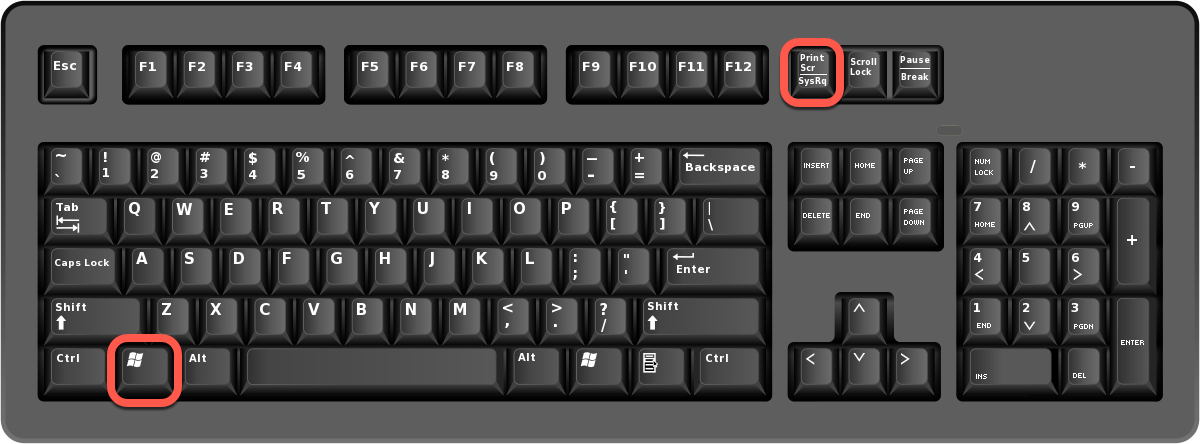
- Press the Print Screen (PrtScn) button on your keyboard.
- Open an image editing software like Paint or Adobe Photoshop.
- Paste the screenshot into the software by pressing Ctrl + V.
- Save the screenshot as a file.
Method 2: Using The Snipping Tool
- Press the Windows Key + S to open the Snipping Tool.
- Select the type of snip you want to take (full screen, window, or rectangular area).
- Click and drag the cursor over the area you want to capture.
- The screenshot will be saved as a file.
Method 3: Using Third-party Software
If you’re using Windows 10 or later, you can use the built-in screenshot tool called Snip & Sketch. This tool allows you to take screenshots and edit them with ease.
Taking a Screenshot on Mac
If you’re using a Mac computer, taking a screenshot is just as easy. Here’s how:
Method 1: Using Command + Shift + 3
- Press Command + Shift + 3 on your keyboard.
- The screenshot will be saved as a file on your desktop.
Method 2: Using Command + Shift + 4
- Press Command + Shift + 4 on your keyboard.
- Click and drag the cursor over the area you want to capture.
- The screenshot will be saved as a file.
Method 3: Using Third-party Software
If you’re looking for more advanced features, you can use third-party software like Cleanshot X or Skitch. These tools offer features like annotating and editing screenshots.
Taking a Screenshot on Android And Iphone
If you’re using an Android or iPhone device, taking a screenshot is also easy. Here’s how:
Android:
- Press the Power Button + Volume Down Button at the same time.
- The screenshot will be saved as a file in your gallery.
Iphone:
- Press the Sleep/wake Button + Home Button (or Volume up Button) at the same time.
- The screenshot will appear on your screen, and you can edit it before saving it to your photos library.
Tips And Tricks
Here are some additional tips and tricks to keep in mind:
Using The Snipping Tool
The Snipping Tool is a versatile tool that allows you to capture screenshots of specific areas or windows. It’s a great option if you need to capture sensitive information.
Saving Screenshots as Files
By default, screenshots are saved as files on your computer. However, you can also save them directly to the clipboard by pressing Ctrl + C (Windows) or Command + C (Mac).
Conclusion
Taking a screenshot is an essential skill in today’s digital age. Whether you’re using a Windows or Mac computer, or an Android or iPhone device, there are many ways to take a screenshot. By following the methods outlined above, you’ll be able to capture important moments and save them as files for future reference.
Faqs
Here are some frequently asked questions about taking screenshots:
Q: What is a Screenshot?
A: A screenshot is an image that captures the current state of your computer screen.
Q: How do I Take a Screenshot on Windows?
A: You can use the Print Screen button, Snipping Tool, or third-party software like Snip & Sketch.
Q: How do I Take a Screenshot on Mac?
A: You can use Command + Shift + 3 or Command + Shift + 4 to capture screenshots directly.
Q: Can I Edit Screenshots Before Saving Them?
A: Yes, you can edit screenshots using built-in tools like Paint (Windows) or Preview (Mac), or third-party software like Skitch.
Q: Where Are my Screenshots Saved?
A: By default, screenshots are saved as files on your computer. However, you can also save them directly to the clipboard by pressing Ctrl + C (Windows) or Command + C (Mac).
Q: Can I Take Screenshots of Sensitive Information?
A: Yes, but it’s recommended that you use a secure method like the Snipping Tool to capture specific areas or windows.
A: You can save your screenshots as files and share them via email, social media, or messaging apps.


