
The Ultimate Guide to Emojis: Mastering Keyboard Shortcuts on Windows, Mac, Android, Iphone, Facebook, And Outlook
Are you tired of using the same old boring text in your messages? Do you want to add some fun and personality to your online communications? Look no further! In this article, we’ll explore the world of emojis and show you how to master keyboard shortcuts on Windows, Mac, Android, iPhone, Facebook, and Outlook.
What Are Emojis?
Emojis are small digital images or icons used to express emotions or ideas in electronic communication. They can be used to add tone and personality to your messages, making them more engaging and fun to read.
How to Master Keyboard Shortcuts on Windows
If you’re using a Windows PC, you can easily access emojis by following these steps:
Method 1: Using The Emoji Map
If your PC is updated to Windows 11 or Windows 10, you can access emojis by pressing the Windows key + . (The symbol punctured). This will open the emoji map, where you can select the emoji you want to use. Simply click on the emoji and it will be inserted into your text.
Method 2: Using The Virtual Keyboard
You can also access emojis using the virtual keyboard on Windows. To do this:
- Click on an empty spot in the taskbar.
- Select “Display virtual keyboard” from the menu.
- Click on the emoji icon beside the clock.
- Select the emoji you want to use.
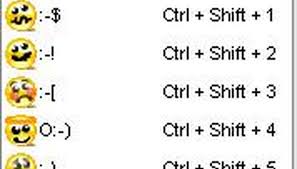
Method 3: Using Keyboard Shortcuts
You can also use keyboard shortcuts to access emojis. Here are a few combinations:
- Alt + 1 = ????
- Alt + 2 = ????
How to Master Keyboard Shortcuts on Mac
If you’re using a Mac, you can easily access emojis by following these steps:
Method 1: Using The Emoji And Symbols Menu
To access emojis on your Mac, follow these steps:
- Go to the menu bar.
- Select “Edit” > “Emoji and Symbols”.
- In the emoji and symbols menu, select the emoji you want to use.
Method 2: Using Keyboard Shortcuts
You can also use keyboard shortcuts to access emojis on your Mac. Here are a few combinations:
- Cmd + ctrl + blank = smiley face ????
- Cmd + shift + > = red heart ❤️
How to Master Keyboard Shortcuts on Android
If you’re using an Android device, you can easily access emojis by following these steps:
Method 1: Using The Virtual Keyboard
To access emojis on your Android device, follow these steps:
- Open the app of your interest (e.G. Messages, WhatsApp).
- Tap on the keyboard icon.
- Select the emoji category you want to use (e.G. Faces).
- Select the emoji you want to use.
Method 2: Using Keyboard Shortcuts
You can also use keyboard shortcuts to access emojis on your Android device. Here are a few combinations:
- Alt + 1 = ????
- Alt + 2 = ????
How to Master Keyboard Shortcuts on Iphone
If you’re using an iPhone, you can easily access emojis by following these steps:
Method 1: Using The Emoji Keyboard
To access emojis on your iPhone, follow these steps:
- Open the app of your interest (e.G. Messages).
- Tap on the keyboard icon.
- Select the emoji category you want to use (e.G. Faces).
- Select the emoji you want to use.
Method 2: Using Keyboard Shortcuts
You can also use keyboard shortcuts to access emojis on your iPhone. Here are a few combinations:
- Cmd + shift + > = red heart ❤️
- Cmd + shift + < = blue heart ????
How to Master Keyboard Shortcuts on Facebook And Outlook
To access emojis on Facebook and Outlook, follow the same steps as above for Windows, Mac, Android, and iPhone.
Conclusion
Mastering keyboard shortcuts is a great way to add some fun and personality to your online communications. By following the steps outlined in this article, you’ll be able to access emojis easily on Windows, Mac, Android, iPhone, Facebook, and Outlook. Happy typing!


