
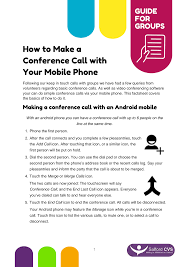
How to Make a Group Call on Your Smartphone: A Step-by-step Guide
Are you tired of having multiple conversations at once? Do you want to connect with multiple people simultaneously without the hassle of switching between different calls? Look no further! Making a group call, also known as a “called to three,” is a feature that allows you to speak with multiple contacts at the same time. In this article, we’ll guide you through the process of making a group call on your Android and iPhone devices.
Why Make a Group Call?
Making a group call can be incredibly useful in various situations. Whether it’s a family gathering, a business meeting, or a social event, being able to connect with multiple people at once can make communication easier and more efficient. Plus, it’s a great way to stay connected with friends and loved ones who are geographically far apart.
How to Make a Group Call on Android
Making a group call on your Android device is relatively simple. Here’s how:
- Open The Dialer App: Start by opening the dialer app on your Android device.
- Tap on The First Contact: Tap on the first contact you want to include in the group call.
- Add The Second Contact: If necessary, open the contacts list and choose the second contact you want to add.
- Initiate The Call: Once both contacts have answered, tap on the “Join” button to join them together into a single call.
How to Make a Group Call on Iphone
Making a group call on your iPhone is just as easy:
- Open The Phone App: Open the phone app on your iPhone.
- Tap on The First Contact: Tap on the first contact you want to include in the group call.
- Add The Second Contact: If necessary, open the contacts list and choose the second contact you want to add.
- Initiate The Call: Once both contacts have answered, tap on the “Join” button to join them together into a single call.
Other Apps For Group Calls
While Android and iPhone devices offer built-in features for making group calls, there are also several third-party apps that can help you achieve this functionality. Some popular options include:
- Skype: A video conferencing app that allows you to make voice and video calls with up to 24 participants.
- Messenger: A messaging app that allows you to make voice and video calls with up to 8 participants.
- Viber: A messaging app that allows you to make voice and video calls with up to 50 participants.
- Discord: A communication platform primarily used by gamers, but also suitable for group calls.
Additional Tips
Here are some additional tips to keep in mind when making a group call:
- Check With Your Operator: Before initiating a group call, check with your operator to ensure they support this feature and any associated costs.
- Use Headphones or Speakers: To avoid echo and ensure clear audio, consider using headphones or speakers for the group call.
- Set Up a Group Call on Whatsapp
How to Set Up a Group Call on Whatsapp
Making a group call on WhatsApp is relatively simple. Here’s how:
- Open Whatsapp: Open the WhatsApp app on your device.
- Tap on The Three Vertical Dots: Tap on the three vertical dots at the top-right corner of the screen.
- Select “New Group Call”: Select the “New group call” option.
- Add Contacts: Add the contacts you want to include in the group call.
How to Set Up a Group Call on Telegram
Making a group call on Telegram is also relatively simple:
- Open Telegram: Open the Telegram app on your device.
- Tap on The Three Vertical Dots: Tap on the three vertical dots at the top-right corner of the screen.
- Select “New Message”: Select the “New message” option.
- Choose Contacts: Choose the contacts you want to include in the group call.
How to Set Up a Group Call on Teams
Making a group call on Microsoft Teams is also relatively simple:
- Open Teams: Open the Teams app on your device.
- Tap on The Three Vertical Dots: Tap on the three vertical dots at the top-right corner of the screen.
- Select “New Call”: Select the “New call” option.
- Choose Contacts: Choose the contacts you want to include in the group call.
Conclusion
Making a group call is a feature that can greatly enhance your communication experience, especially when it comes to family gatherings, business meetings, or social events. By following the steps outlined above, you’ll be able to make group calls on both Android and iPhone devices using built-in features and third-party apps like Skype, Messenger, Viber, and Discord.
Frequently Asked Questions
Here are some frequently asked questions related to making a group call:
- Q: Can I Make a Group Call With More Than 3 People?
A: Yes, some apps allow you to make group calls with up to 24 participants. - Q: How do I Know if my Operator Supports Group Calls?
A: Check with your operator to ensure they support this feature and any associated costs. - Q: Can I Use Headphones or Speakers For The Group Call?
A: Yes, using headphones or speakers can help avoid echo and ensure clear audio. - Q: Can I Make a Group Call on Whatsapp?
A: Yes, you can set up a group call on WhatsApp by following the steps outlined above.


