
How to Create, Align, And Join Two Columns on Microsoft Word
As a busy professional or student, you often need to create documents with multiple columns to make your content more readable and organized. In this article, we will guide you through the process of creating, aligning, and joining two columns on Microsoft Word, both for desktop and mobile versions.
Understanding The Basics
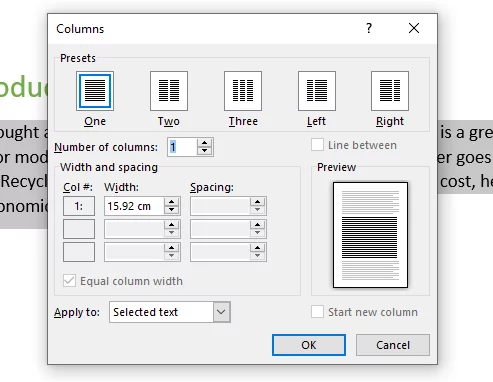
Before we dive into the tutorials, it’s essential to understand that creating two columns in Microsoft Word involves using a feature called “Columns” under the Layout tab. This feature allows you to split your page into multiple columns, making it easy to format your content in a visually appealing way.
Creating Two Columns on Microsoft Word For Desktop And Mac
To create two columns on Microsoft Word for PC or Mac, follow these steps:
- Open your document in Microsoft Word.
- Click on the “Layout” tab in the top menu bar.
- Select “Columns” from the drop-down menu.
- Choose the number of columns you want to create (in this case, two).
- You can also select the width and spacing between columns.
Creating Two Columns on Microsoft Word Online
If you’re using Microsoft Word online, follow these steps:
- Log in to your Microsoft account and access the word online version.
- Open a new document or edit an existing one.
- Click on the “Layout” tab in the top menu bar.
- Select “Columns” from the drop-down menu.
- Choose the number of columns you want to create (in this case, two).
- You can also select the width and spacing between columns.
Creating Two Columns on Microsoft Word Mobile For Smartphone And Tablet
If you’re using Microsoft Word mobile on your smartphone or tablet, follow these steps:
- Open the document you want to edit.
- Tap on the “Home” icon (represented by a home symbol).
- Select “Layout” from the menu.
- Choose the number of columns you want to create (in this case, two).
- You can also select the width and spacing between columns.
Aligning Two Columns on Microsoft Word
Once you have created your two columns, you may need to align them for better readability. Here’s how:
Aligning Two Columns on Microsoft Word For Desktop And Mac
To align your two columns on Microsoft Word for PC or Mac, follow these steps:
- Select the text in both columns.
- Go to the “Home” tab in the top menu bar.
- Click on “Paragraph” in the top-right corner of the Home tab.
- Select one of the alignment options: Left, Center, Right, or Justify.
Aligning Two Columns on Microsoft Word Online
If you’re using Microsoft Word online, follow these steps:
- Select the text in both columns.
- Click on the “Home” icon (represented by a home symbol).
- Select “Paragraph” from the menu.
- Choose one of the alignment options: Left, Center, Right, or Justify.
Aligning Two Columns on Microsoft Word Mobile For Smartphone And Tablet
If you’re using Microsoft Word mobile on your smartphone or tablet, follow these steps:
- Select the text in both columns.
- Tap on the “Home” icon (represented by a home symbol).
- Select “Paragraph” from the menu.
- Choose one of the alignment options: Left, Center, Right, or Justify.
Joining Two Columns on Microsoft Word
If you want to join two columns together, here’s how:
Joining Two Columns on Microsoft Word For Desktop And Mac
To join two columns on Microsoft Word for PC or Mac, follow these steps:
- Select the text in both columns.
- Click on the “Layout” tab in the top menu bar.
- Select “Columns” from the drop-down menu.
- Choose the option to “Merge” the columns.
Joining Two Columns on Microsoft Word Online
If you’re using Microsoft Word online, follow these steps:
- Select the text in both columns.
- Click on the “Layout” tab in the top menu bar.
- Select “Columns” from the drop-down menu.
- Choose the option to “Merge” the columns.
Joining Two Columns on Microsoft Word Mobile For Smartphone And Tablet
If you’re using Microsoft Word mobile on your smartphone or tablet, follow these steps:
- Select the text in both columns.
- Tap on the “Home” icon (represented by a home symbol).
- Select “Layout” from the menu.
- Choose the option to “Merge” the columns.
Conclusion
In conclusion, creating, aligning, and joining two columns on Microsoft Word is a straightforward process that can be done using various versions of the software, including desktop, online, and mobile. By following these tutorials, you’ll be able to create professional-looking documents with ease.
Frequently Asked Questions (FAQs)
- Q: How do I Create Two Columns in Microsoft Word?
A: To create two columns in Microsoft Word, go to the “Layout” tab and select “Columns”. Choose the number of columns you want to create (in this case, two). - Q: How do I Align Two Columns in Microsoft Word?
A: To align two columns in Microsoft Word, select the text in both columns and go to the “Home” tab. Click on “Paragraph” and choose one of the alignment options: Left, Center, Right, or Justify. - Q: How do I Join Two Columns in Microsoft Word?
A: To join two columns in Microsoft Word, select the text in both columns and go to the “Layout” tab. Select “Columns” and choose the option to “Merge” the columns.
Additional Resources
For more information on using Microsoft Word, including tutorials and guides, visit the official Microsoft website.
We hope this article has been helpful in answering your questions about creating, aligning, and joining two columns on Microsoft Word. If you have any further queries or need additional assistance, feel free to ask!


