
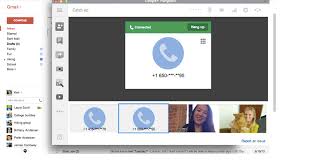
How to Do Video Calls With Hangouts: A Step-by-step Guide
Are you tired of using traditional phone calls or messaging apps to communicate with friends, family, or colleagues? Look no further than Google’s popular video calling service, Hangouts! In this article, we’ll show you how to do video calls with Hangouts on your smartphone, tablet, and computer.
What is Hangouts?
Hangouts is a free video conferencing service offered by Google that allows you to make voice or video calls to friends, family, or colleagues who also have a Google account. With Hangouts, you can make one-on-one video calls, group video calls, or even send text messages and share files.
Getting Started With Hangouts
Before you start making video calls with Hangouts, you’ll need to set up the app on your device. Here’s how:
On Android Devices
- Open the Google Play Store and search for “Hangouts”.
- Tap the Install button to download and install the app.
- Once installed, tap the icon to open the app.
- Sign in with your Google account credentials.
- Grant Hangouts permission to access your contacts.
On Iphone or Ipad Devices
- Open the App Store and search for “Hangouts”.
- Tap the Get button to download and install the app.
- Once installed, tap the icon to open the app.
- Sign in with your Google account credentials.
- Grant Hangouts permission to access your contacts.
On Computer Devices
- Go to the Google website (www.Google.Com) and sign in with your Google account credentials.
- Click on the Hangouts icon in the top right corner of the page.
- Sign in with your Google account credentials.
- Grant Hangouts permission to access your contacts.
How to Make a Video Call With Hangouts
Making a video call with Hangouts is easy! Here’s how:
- Open the Hangouts app on your device.
- Tap the + button in the top right corner of the screen (on Android devices) or tap the icon in the bottom left corner (on iPhone or iPad devices).
- Select the person you want to call from your contacts list.
- Tap the video call icon to initiate a video call.
How to Make a Group Video Call With Hangouts
Want to chat with multiple people at once? Here’s how:
- Open the Hangouts app on your device.
- Tap the + button in the top right corner of the screen (on Android devices) or tap the icon in the bottom left corner (on iPhone or iPad devices).
- Select the group you want to call from your contacts list.
- Tap the video call icon to initiate a group video call.
How to Use Hangouts on Computer Devices
Using Hangouts on computer devices is similar to using it on mobile devices:
- Go to the Google website (www.Google.Com) and sign in with your Google account credentials.
- Click on the Hangouts icon in the top right corner of the page.
- Sign in with your Google account credentials.
- Grant Hangouts permission to access your contacts.
Tips And Tricks
Here are some tips and tricks for using Hangouts:
- Use a Stable Internet Connection: Make sure you have a strong internet connection before making a video call.
- Choose The Right Device: Use the best device available to ensure high-quality video calls.
- Be Prepared: Have any necessary equipment or materials ready before starting a group video call.
Frequently Asked Questions (FAQs)
Here are some frequently asked questions about Hangouts:
Q: What is The Maximum Number of People I Can Invite to a Video Call?
A: The maximum number of people you can invite to a video call is 25.
Q: Can I Use Hangouts on my Computer?
A: Yes, you can use Hangouts on your computer by going to the Google website and signing in with your Google account credentials.
Q: How do I Add New Participants to an Ongoing Video Call?
A: To add new participants to an ongoing video call, tap the icon of three dots (⋯) at the top right corner of the screen, then select “Invite” from the menu.
Conclusion
In conclusion, Hangouts is a fantastic service for making voice or video calls with friends, family, or colleagues. With its user-friendly interface and robust features, you’ll be able to stay in touch with loved ones no matter where they are in the world.
Additional Faqs
Here are some additional frequently asked questions about Hangouts:
Q: Is Hangouts Free?
A: Yes, Hangouts is a free service offered by Google.
Q: Can I Use Hangouts on my Tablet?
A: Yes, you can use Hangouts on your tablet just like you would on a smartphone or computer.
Q: How do I End a Video Call?
A: To end a video call, tap the red button in the bottom right corner of the screen (on Android devices) or tap the icon at the top left corner (on iPhone or iPad devices).
We hope this article has helped you understand how to use Hangouts for making video calls. If you have any further questions or need additional assistance, please don’t hesitate to reach out!


