
Unlocking The Power of Whatsapp Video Messages
Are you tired of using plain text messages on WhatsApp? Do you want to take your communication to the next level? Look no further! With the introduction of WhatsApp video messages, you can now share quick videos with your contacts directly in chat. In this article, we’ll show you how to use this innovative feature and unlock its full potential.
What Are Whatsapp Video Messages?
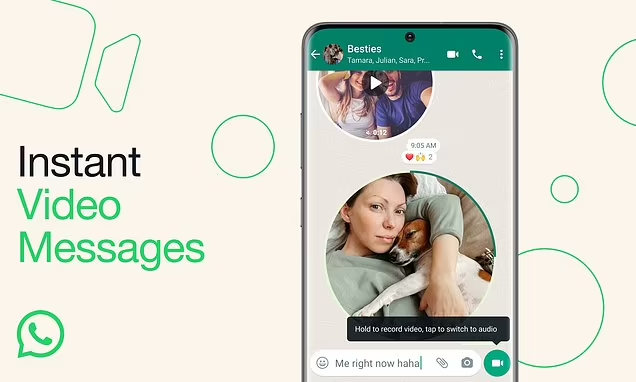
WhatsApp video messages, also known as “video messages” or “instantaneous videos,” are a new way to interact and communicate with your contacts on the popular messaging app. These quick videos can be recorded and shared in real-time, allowing you to express yourself more effectively and engage with others in a more dynamic way.
How Do Whatsapp Video Messages Work?
To use WhatsApp video messages, simply tap on the contact you want to share a message with and select the video camera icon from the chat screen. Hold your finger on the record button to start recording your message, and then release it when you’re finished. The video will be automatically forwarded to the recipient’s chat window.
Recording And Sharing Whatsapp Video Messages
To record a WhatsApp video message on Android:
- Open WhatsApp and navigate to the chat with the person you want to share a message with.
- Tap on the contact’s name to access the chat screen.
- Look for the green button with the microphone icon and tap it once to activate the video recording feature.
- Hold your finger on the record button to start recording your message, and then release it when you’re finished.
- The video will be automatically forwarded to the recipient’s chat window.
To record a WhatsApp video message on iPhone:
- Open WhatsApp and navigate to the chat with the person you want to share a message with.
- Tap on the contact’s name to access the chat screen.
- Look for the blue button with the microphone icon and tap it once to activate the video recording feature.
- Hold your finger on the record button to start recording your message, and then release it when you’re finished.
- The video will be automatically forwarded to the recipient’s chat window.
Tips And Tricks
- To avoid having to hold your finger on the record button during the entire recording process, simply tap the lock icon to block the camera while still allowing you to continue recording.
- If you want to cancel a recording, swipe left on the video preview screen to delete it.
- You can also share videos that are already recorded or saved on your device by selecting them from your media library.
Benefits of Whatsapp Video Messages
Using WhatsApp video messages offers several benefits, including:
- Increased Engagement: By sharing quick videos, you can engage with others in a more dynamic way and increase the likelihood of a response.
- Improved Communication: WhatsApp video messages allow you to express yourself more effectively and convey your thoughts and emotions more clearly.
- Convenience: Sharing videos directly in chat saves time and effort compared to other methods.
Conclusion
WhatsApp video messages are an innovative feature that can revolutionize the way we communicate on this popular messaging app. By understanding how to use this feature, you can unlock its full potential and take your communication to new heights. Whether you’re a business owner, marketer, or simply someone who wants to stay in touch with friends and family, WhatsApp video messages offer a powerful tool for engaging and interacting with others.
Frequently Asked Questions
- Q: What Are Whatsapp Video Messages?
A: WhatsApp video messages are quick videos that can be recorded and shared directly in chat. - Q: How do I Record a Whatsapp Video Message on Android?
A: To record a WhatsApp video message on Android, tap the green button with the microphone icon to activate the video recording feature. - Q: Can I Share Videos From my Media Library?
A: Yes! You can share videos that are already recorded or saved on your device by selecting them from your media library. - Q: What Happens if I Cancel a Recording?
A: If you cancel a recording, the video will be deleted and won’t be shared with anyone. - Q: Can I Use Whatsapp Video Messages on Pc?
A: Unfortunately, no! For now, WhatsApp video messages are only available on mobile devices. - Q: How do I Delete a Whatsapp Video Message?
A: To delete a WhatsApp video message, swipe left on the video preview screen and select “Delete.” - Q: Can I Forward a Whatsapp Video Message to Multiple Contacts at Once?
A: No! Each WhatsApp video message can only be shared with one contact at a time. - Q: How do I Report a Problem or Issue With Whatsapp Video Messages?
A: If you experience any issues with WhatsApp video messages, please contact the WhatsApp support team for assistance.


