
How to Do Video With Animoji: A Step-by-step Guide
Are you tired of using boring avatars in your videos? Look no further! In this article, we’ll show you how to create and use Animoji on both iOS and Android devices.
What Are Animoji?
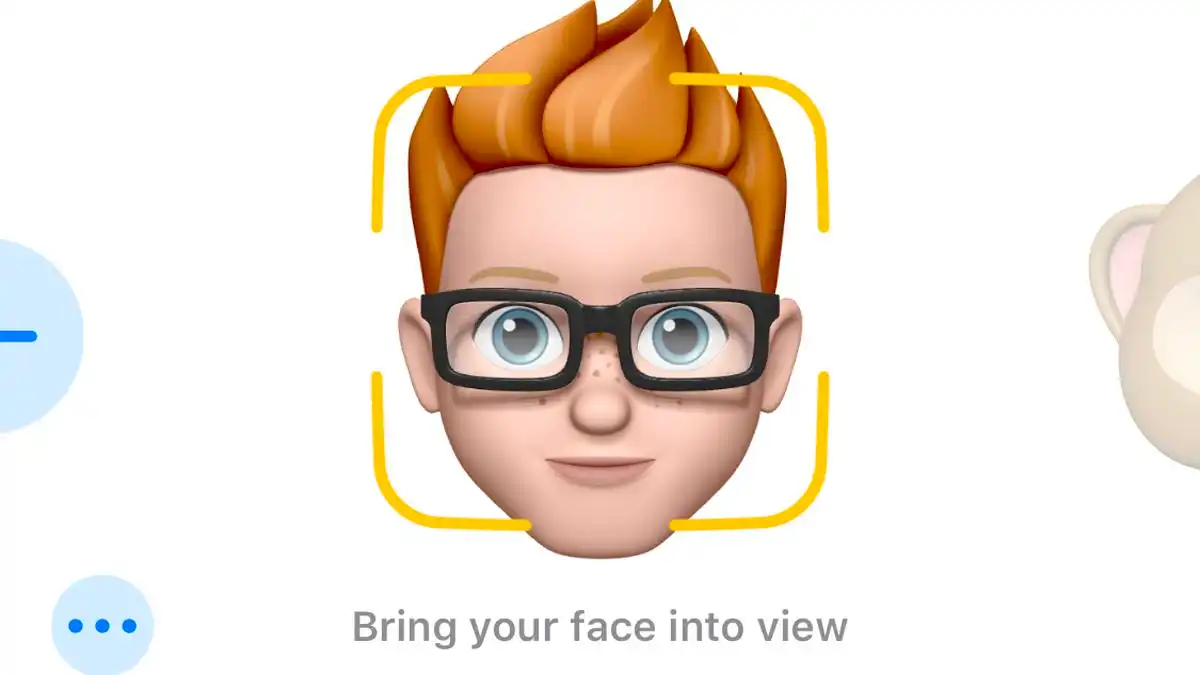
Before we dive into the tutorial, let’s first understand what Animoji are. Animoji are 3D animated emojis that can be used in videos to represent your face and facial expressions. They were introduced by Apple in 2017 and have since become a popular feature among iPhone users.
How to Use Animoji on Ios Devices
To use Animoji on your iOS device, follow these steps:
- Open The Messages App: First, open the Messages app on your iPhone or iPad.
- Start a New Conversation: Tap on the “New Message” button in the top right corner of the screen to start a new conversation.
- Tap on The Camera Icon: Tap on the camera icon at the bottom left corner of the screen to access the Animoji feature.
- Choose Your Animoji: Select an Animoji from the list provided, or create your own by tapping on the “+” button and following the prompts.
- Record Your Video: Tap on the red ring button to start recording your video with Animoji.
How to Use Animoji on Android Devices
While Animoji are not natively available on Android devices, there are some workarounds you can use:
- Use a Third-party App: There are several third-party apps available for Android that allow you to create and use Animoji-style avatars.
- Use The Samsung AR Emoji Feature: If you have a Samsung device with an AR emoji feature, you can use it to create and use Animoji-style avatars.
Other Apps to Use With Animoji
If you’re looking for other apps to use with Animoji, here are some options:
- Emoji Face Recorder: This app allows you to record videos with Animoji-style avatars on both iOS and Android devices.
- Zepeto: This app is a social media platform that also allows you to create and use Animoji-style avatars.
- Mirror: This app for Android allows you to create avatar in several styles, including pixel art and 3D.
Tips And Tricks
Here are some tips and tricks to keep in mind when using Animoji:
- Use The Right Lighting: Make sure the lighting is good before recording your video with Animoji.
- Smile And Have Fun: Don’t be afraid to smile and have fun while using Animoji!
- Experiment With Different Emojis: Try out different emojis and see which one works best for you.
Conclusion
In conclusion, Animoji are a fun and creative way to add personality to your videos. Whether you’re on an iOS or Android device, there are plenty of ways to use Animoji. With these tips and tricks, you’ll be well on your way to creating amazing videos with Animoji.
Frequently Asked Questions (FAQs)
Here are some frequently asked questions about using Animoji:
- Q: What is The Difference Between Animoji And Emojis?
A: Animoji are 3D animated emojis that can be used in videos, while regular emojis are static images. - Q: Can I Use Animoji on Android Devices?
A: While there isn’t a native Animoji feature on Android devices, you can use third-party apps or the Samsung AR emoji feature to create and use Animoji-style avatars. - Q: How do I Record a Video With Animoji on Ios Devices?
A: To record a video with Animoji on iOS devices, follow the steps outlined in this article. - Q: Can I Save my Recorded Video With Animoji?
A: Yes, you can save your recorded video with Animoji by tapping on the “Save” button after recording is complete.
Conclusion
We hope this article has been helpful in showing you how to use Animoji on both iOS and Android devices. With a little practice, you’ll be creating amazing videos with Animoji in no time!


