
Measuring With Iphone: A Comprehensive Guide
As a tech-savvy individual, you might have wondered if it’s possible to measure objects or spaces using your iPhone. The answer is yes! With the right features and apps, your iPhone can be an intelligent and advanced measuring tool.
In this article, we’ll explore the various ways to measure with iPhone, including object measurement, altitude measurement, decibel measurement, heart rate measurement, blood pressure measurement, and temperature measurement. We’ll also discuss some additional tips and tricks to help you get the most out of your iPhone’s measuring capabilities.
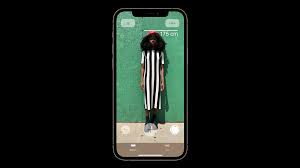
Measuring Objects With Iphone
The first thing to know is that iPhone comes with a built-in app called Metro, which allows you to measure objects using the camera. This feature is available on all iPhones, but some models have additional features like the Pro and Pro Max series, which include advanced measurement modes.
To start measuring an object, launch the Metro app, ensure it has access to your location services, and follow these steps:
- Hold the iPhone steady and aim the camera at the object you want to measure.
- Tap on the “+” button to start measuring.
- Move the iPhone around the object until it’s fully in view.
- Tap again on the “+” button to stop measuring and see the results.
Measuring Altitude With Iphone
If you’re wondering how to measure altitude with your iPhone, the answer is simple: Use the Compass app! This pre-installed app shows your current location, including altitude.
To measure altitude using the Compass app:
- Launch the Compass app.
- Ensure it has access to your location services.
- Look for the altitude reading at the bottom of the screen.
Measuring Decibels With Iphone
Starting from iOS 15 and later versions, you can also use your iPhone to measure decibel levels using the “Hearing” feature in Control Center.
To measure decibels:
- Open Control Center by swiping down from the top-right corner or up from the bottom.
- Tap on the “+” button next to the Hearing icon.
- Connect a pair of headphones or earbuds to your iPhone.
- Play some audio and see the decibel level displayed in real-time.
Measuring Heart Rate With Iphone
Unfortunately, iPhone cannot measure heart rate directly. However, you can use third-party apps that utilize the camera flash to estimate heart rate. Keep in mind that these apps might not be as accurate as dedicated devices like Apple Watch or other smartwatches.
If you want a more reliable reading, consider investing in an Apple Watch or another compatible device, which can provide accurate heart rate measurements and send notifications if there are any unusual changes.
Measuring Blood Pressure With Iphone
As of now, iPhone cannot measure blood pressure directly. You’ll need to use a dedicated blood pressure monitor that can sync with your iPhone through the Health app.
Check out our guide on the best apps for tracking blood pressure for more information on this topic!
Measuring Temperature With Iphone
While Apple Watch Ultra has a feature for monitoring temperature during sleep, there is no built-in function for measuring ambient temperature. You can, however, use third-party apps that show temperature readings from nearby weather stations.
To measure temperature accurately, consider investing in a smart thermometer that can sync with your iPhone and provide real-time temperature data!
Additional Tips And Tricks
- Use Good Lighting: Ensure the area you’re measuring is well-lit to get accurate results.
- Keep it Steady: Hold the iPhone steadily while taking measurements for better accuracy.
- Experiment With Different Apps: Try out various measurement apps available in the App Store to see what works best for your needs.
By following these tips and using the right features and apps, you can transform your iPhone into a powerful measuring tool that will make your life easier!
Conclusion
Measuring with iPhone is not only possible but also incredibly convenient. From object measurement to altitude measurement, decibel measurement, heart rate measurement, blood pressure measurement, and temperature measurement, we’ve covered it all in this article.
Remember to always use the best apps for your specific needs and experiment with different features to get the most out of your iPhone’s measuring capabilities.
Happy measuring!
Frequently Asked Questions (FAQs)
- Can I Measure Objects That Are Not Visible on Camera?
No, you’ll need to have the object in view of the camera for accurate measurement. - How do I Know if my Iphone is Accurately Measuring Something?
Make sure you’re using good lighting and holding the iPhone steadily while taking measurements. - Can I Use Third-party Apps to Measure Decibels or Heart Rate?
Yes, there are several apps available that can help with these measurements, but keep in mind their accuracy might vary. - How do I Sync my Smart Thermometer With my Iphone?
Check the manufacturer’s instructions for specific guidance on syncing your thermometer with your iPhone. - Can I Measure Temperature With my Iphone?
Unfortunately, there is no built-in feature for measuring ambient temperature using your iPhone. - What Are Some Other Features of The Metro App Besides Measurement?
The Metro app also has a leveling tool that can help you determine if an object is level, plumb, or in plane. - Can I Use my Iphone to Measure Altitude While Hiking?
Yes, but make sure you have good GPS reception and keep your iPhone steady for accurate readings. - How do I Reset The Measurements Taken With The Metro App?
You can reset all measurements by tapping on the “X” button in the top-left corner of the screen.
Hope this helps!


