
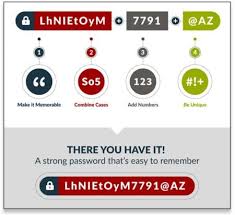
How to Memorize Passwords: A Step-by-step Guide
Are you tired of constantly forgetting your passwords? Do you find yourself wasting time trying to remember multiple login credentials? Look no further! In this article, we will explore the best ways to memorize passwords on various devices and browsers.
The Problem of Forgotten Passwords
We’ve all been there – struggling to recall our password, only to have it slip our minds at the most inopportune moment. This can be frustrating, especially when you need to access important information or complete tasks online.
Solutions For Memorizing Passwords
Fortunately, there are several solutions available that can help you memorize passwords easily and securely. In this article, we will discuss:
- Password Management Tools: We’ll explore popular password management tools like NordPass, Bitwarden, 1Password, and KeePass.
- Browser Features: We’ll examine the built-in password management features of various browsers, including Google Chrome, Mozilla Firefox, Microsoft Edge, and Safari.
- Device-specific Solutions: We’ll provide device-specific solutions for memorizing passwords on computers, smartphones, and tablets.
Password Management Tools
- Nordpass: A user-friendly password manager that allows you to store and generate strong passwords. It’s available on all major operating systems and browsers.
- Bitwarden: A highly secure password manager that offers features like encryption, two-factor authentication, and sharing with family members.
- 1Password: A popular password manager that integrates seamlessly with various browsers and devices.
- Keepass: An open-source password manager that’s available on multiple platforms and offers robust security features.
Browser Features
- Google Chrome: Chrome has a built-in password management feature that allows you to save and recall passwords for frequently visited websites.
- Mozilla Firefox: Firefox also has a password management feature that lets you save and recall passwords for popular websites.
- Microsoft Edge: Edge offers a similar password management feature, allowing you to save and recall passwords for frequently visited sites.
- Safari: Safari’s password management feature is specifically designed for Mac users, allowing them to save and recall passwords for various websites.
Device-specific Solutions
- Windows Computers: Windows has a built-in password manager that allows you to store and recall passwords for frequently used applications.
- Mac Computers: Macs also have a built-in password manager that integrates seamlessly with Safari.
- Android Devices: Android devices offer various password management apps, including Google Authenticator and LastPass.
- Ios Devices: IOS devices have a built-in password manager that allows you to save and recall passwords for frequently used apps.
Tips For Memorizing Passwords
- Use a Password Manager: Consider using a reputable password manager like NordPass or Bitwarden to securely store your login credentials.
- Create Strong Passwords: Make sure to create strong, unique passwords that are difficult to guess.
- Enable Two-factor Authentication: Enable two-factor authentication whenever possible to add an extra layer of security.
- Use a Password Generator: Consider using a password generator like LastPass to generate strong, unique passwords.
Conclusion
In conclusion, memorizing passwords can be a daunting task, but with the right tools and strategies, it’s easier than ever. By exploring the solutions outlined in this article, you’ll be able to securely store and recall your login credentials, saving you time and frustration in the long run.
Frequently Asked Questions (FAQs)
- Q: What is The Best Password Management Tool?
A: The best password management tool depends on individual preferences and needs. - Q: How do I Enable Two-factor Authentication?
A: Enabling two-factor authentication varies depending on the device or service you’re using. - Q: Can I Use a Password Manager on my Smartphone?
A: Yes, many popular password managers offer mobile apps for Android and iOS devices. - Q: How do I Create Strong Passwords?
A: Create strong, unique passwords that are difficult to guess by combining uppercase and lowercase letters, numbers, and special characters. - Q: Can I Use a Password Manager on Multiple Devices?
A: Yes, many popular password managers offer cross-platform compatibility, allowing you to access your login credentials from any device. - Q: How do I Enable Password Saving in my Browser?
A: Enable password saving in your browser by following the instructions provided for Google Chrome, Mozilla Firefox, Microsoft Edge, and Safari. - Q: Can I Use a Password Generator to Create Strong Passwords?
A: Yes, consider using a reputable password generator like LastPass to generate strong, unique passwords. - Q: How do I Access my Saved Passwords in my Browser?
A: Access your saved passwords by following the instructions provided for Google Chrome, Mozilla Firefox, Microsoft Edge, and Safari.
Further Reading
If you’re interested in learning more about password management tools and strategies, consider checking out our comprehensive guide to password security:
- Password Management Tools: A list of reputable password management tools that offer robust security features.
- Browser Features: An overview of the built-in password management features offered by various browsers.
- Device-specific Solutions: Device-specific solutions for memorizing passwords on computers, smartphones, and tablets.
We hope this article has been helpful in providing you with a comprehensive guide to memorizing passwords. Remember to stay vigilant and keep your login credentials secure!


