
How to Join Multiple Pdfs Into One Document: A Step-by-step Guide
Are you tired of dealing with multiple PDF files that need to be combined into one document? Look no further! In this article, we’ll show you how to join multiple PDFs into one file using various methods, including free online tools and dedicated software.
Method 1: Using Adobe Acrobat (Windows/macOS)
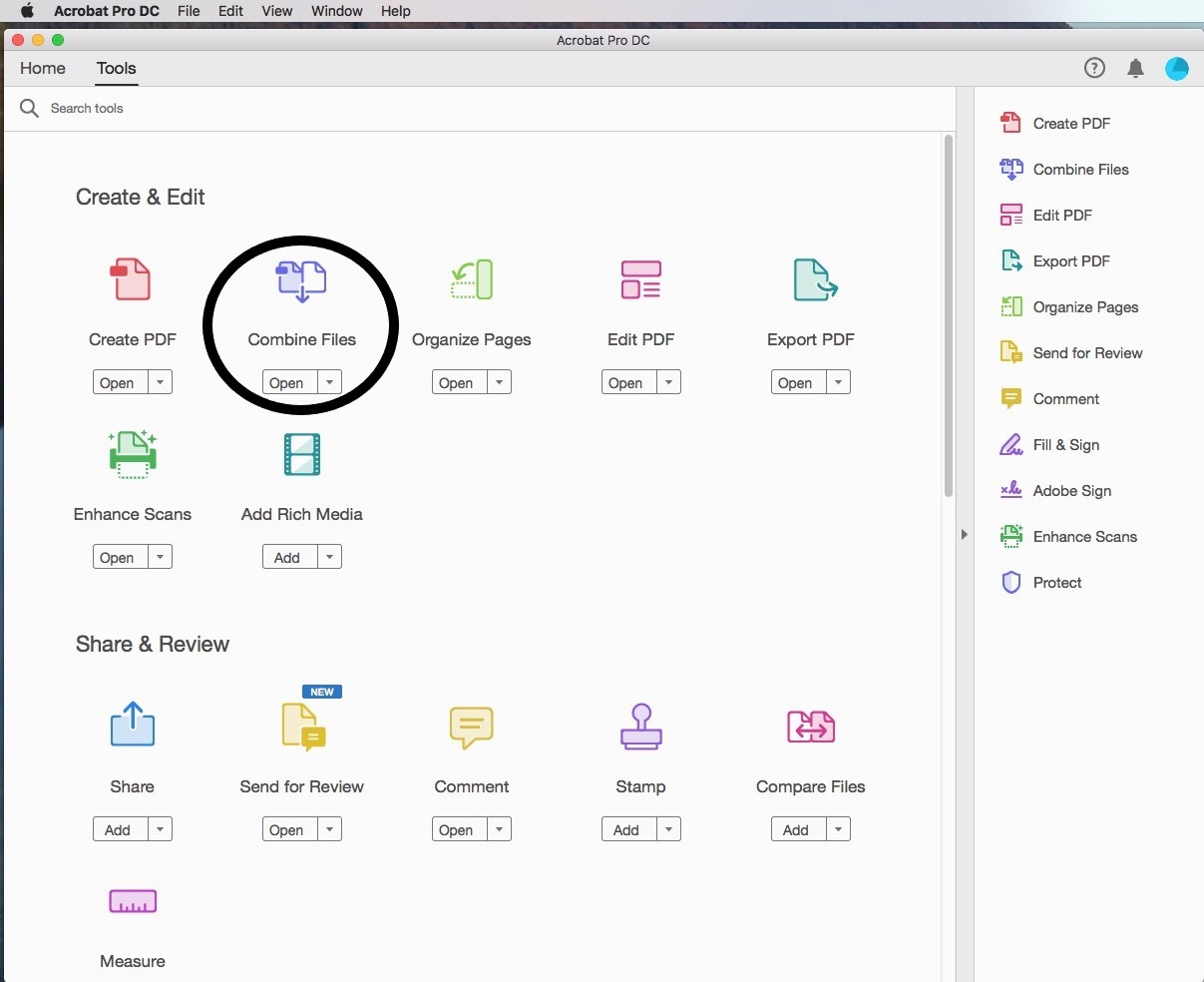
Adobe Acrobat is a popular software for creating, editing, and managing PDF files. If you have Adobe Acrobat installed on your computer, you can use it to combine multiple PDFs into one document.
- Open Adobe Acrobat: Launch Adobe Acrobat on your Windows or macOS device.
- Select The Files: Choose the first PDF file that you want to join from the list of available files.
- Add More Files: Click on the “Add” button to select and add more PDF files to the document.
- Arrange The Pages: Arrange the pages of the individual PDFs in the order you want them to appear in the final combined file.
- Save The Document: Once you’ve added all the desired PDFs, click on the “File” menu and choose “Save As” to save the combined document.
Method 2: Using Trailer (macOS)
If you’re using a Mac, you can use the built-in application called Trailer to combine multiple PDF files into one document.
- Open The First Pdf: Launch the first PDF file that you want to join.
- Add More Files: Click on the “File” menu and choose “Open with…” To select and add more PDF files to the document.
- Arrange The Pages: Arrange the pages of the individual PDFs in the order you want them to appear in the final combined file.
- Save The Document: Once you’ve added all the desired PDFs, click on the “File” menu and choose “Save As” to save the combined document.
Method 3: Using Free Online Tools
If you don’t have Adobe Acrobat or Trailer installed on your device, you can use free online tools to combine multiple PDF files into one document. Here are some popular options:
- Pdftool: A free online tool that allows you to upload and combine multiple PDFs into one file.
- Pdf24: Another free online tool that enables you to join multiple PDFs into one document, as well as perform other tasks like splitting, merging, and rotating files.
- Online2pdf: A web-based service that allows you to upload and combine multiple PDFs into one file.
Method 4: Using Mobile Apps
If you prefer to use a mobile app to combine multiple PDF files into one document, here are some popular options:
- Ilovepdf (Android/iOS): A free app that allows you to join multiple PDFs into one file, as well as perform other tasks like splitting, merging, and rotating files.
- Pdf Merge (Android/iOS): An app that enables you to combine multiple PDFs into one document, with an in-app purchase option to remove the 60-minute waiting period for large files.
Method 5: Using Other Software
If none of the above methods appeal to you, there are other software options available that can help you combine multiple PDF files into one document. Some popular alternatives include:
- Pdfill Free Pdf Tools (Windows): A free software that allows you to join, split, and merge PDFs, as well as perform other tasks like rotating and inserting pages.
- Pdf Toolkit+ (macOS): A paid app that enables you to combine multiple PDF files into one document, with a range of additional features.
Conclusion
Combining multiple PDF files into one document can be a hassle, but it doesn’t have to be! With the methods outlined in this article, you can easily join multiple PDFs into one file using free online tools, dedicated software, or mobile apps. Whether you’re working on a personal project or a professional task, these options will help you streamline your workflow and save time.
Faqs
- Q: What is The Best Method For Combining Multiple Pdf Files?
A: The best method depends on your specific needs and preferences. If you have Adobe Acrobat installed, using it to combine PDFs might be the most efficient option. - Q: Can I Use a Free Online Tool to Combine Pdfs?
A: Yes, there are several free online tools available that can help you combine multiple PDF files into one document, such as PDFTool and Online2PDF. - Q: Are Mobile Apps Suitable For Combining Pdfs?
A: Yes, there are many mobile apps available that allow you to combine multiple PDF files into one document, such as iLovePDF and PDF Merge. - Q: Can I Use Other Software to Combine Pdfs?
A: Yes, there are various software options available that can help you combine multiple PDF files into one document, such as PDFill Free PDF Tools and PDF Toolkit+. - Q: How do I Save The Combined Pdf File?
A: Once you’ve completed combining your PDF files, click on the “File” menu and choose “Save As” to save the final document. - Q: Can I Use a Free Trial Version of Adobe Acrobat to Combine Pdfs?
A: Yes, Adobe offers a free trial version of its software that allows you to try out its features before committing to a purchase. - Q: Are There Any Limitations on Using Free Online Tools to Combine Pdfs?
A: Some free online tools may have limitations on file size or the number of files you can upload at once. Be sure to check the specific tool’s requirements before using it. - Q: Can I Use a Mobile App to Combine Large Pdf Files?
A: Yes, some mobile apps like iLovePDF and PDF Merge allow you to combine large PDF files, although you may need to wait for a short period of time for the file to process.


