
How to Join Two Columns in Excel: A Step-by-step Guide
Are you tired of dealing with multiple columns in Excel? Do you want to combine them into a single column without losing any data? Look no further! In this article, we’ll show you how to join two columns in Excel using various methods.
Why Join Two Columns in Excel?
There are many reasons why you might want to join two columns in Excel. Perhaps you have a list of names and addresses that you want to combine into a single column for easier analysis. Or maybe you have two separate lists of data that you want to merge into one. Whatever your reason, we’ll show you how to do it.
Method 1: Using The Concatenate Function
The most common way to join two columns in Excel is by using the CONCATENATE function. This function allows you to combine two or more texts in a single cell without losing any data.
To use this method:
- Select the cell where you want to join the two columns.
- Type the formula
=CONCATENATE(A1, B1)(assuming A1 and B1 are the first cells of the two columns you want to join). - Press Enter to apply the formula.
Example:
Suppose you have two columns, C and D, that contain names and addresses. You can use the CONCATENATE function to combine them into a single column as follows:
=CONCATENATE(C1, D1)
This will result in the cell containing the combined data, such as “John Smith, 123 Main St”.
Method 2: Using The & Operator
Another way to join two columns in Excel is by using the & operator. This method is similar to the CONCATENATE function but uses a simpler syntax.
To use this method:
- Select the cell where you want to join the two columns.
- Type the formula
=A1 & B1(assuming A1 and B1 are the first cells of the two columns you want to join). - Press Enter to apply the formula.
Example:
Suppose you have two columns, C and D, that contain names and addresses. You can use the & operator to combine them into a single column as follows:
=C1 & D1
This will result in the cell containing the combined data, such as “John Smith, 123 Main St”.
Method 3: Using External References
If you have two columns on different sheets or workbooks, you can use external references to join them.
To use this method:
- Open a new sheet or workbook.
- Select the cell where you want to join the two columns.
- Type the formula
=Sheet1!A1 & Sheet2!B1(assuming A1 and B1 are the first cells of the two columns you want to join). - Press Enter to apply the formula.
Example:
Suppose you have two columns, C and D, on different sheets that contain names and addresses. You can use external references to combine them into a single column as follows:
=Sheet1!C1 & Sheet2!D1
This will result in the cell containing the combined data, such as “John Smith, 123 Main St”.
Method 4: Using The Link Function
Another way to join two columns in Excel is by using the link function. This method allows you to create a dynamic connection between the two columns.
To use this method:
- Select the column that contains the data you want to link.
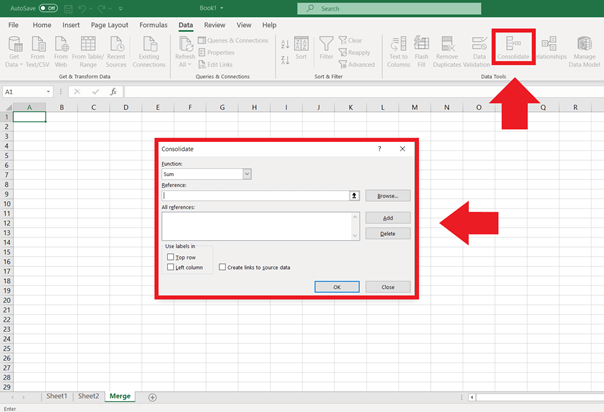
- Go to the Data tab and click on “Link”.
- Select the column that contains the data you want to link to.
- Click OK to apply the link.
Example:
Suppose you have two columns, C and D, that contain names and addresses. You can use the link function to combine them into a single column as follows:
- Select column C.
- Go to the Data tab and click on “Link”.
- Select column D.
- Click OK to apply the link.
This will result in the data from column D being linked to column C, allowing you to update both columns simultaneously.
Conclusion
In this article, we’ve shown you four different methods for joining two columns in Excel. Whether you use the CONCATENATE function, the & operator, external references, or the link function, you can easily combine multiple columns into a single column without losing any data. Try these methods out and see what works best for your needs!


