
How to Join Two Rows in Excel: A Step-by-step Guide
Are you tired of having multiple rows in Excel and wanting to combine them into one? Look no further! In this article, we will show you how to join two rows in Excel, both on your PC and on your smartphone or tablet.
Why Join Two Rows in Excel?
Joining two rows in Excel can be incredibly useful when working with large datasets. By combining multiple rows, you can simplify your data and make it easier to analyze and understand. Whether you’re a seasoned Excel user or just starting out, this guide will walk you through the process of joining two rows in Excel.
How to Join Two Rows in Excel on Your PC
To join two rows in Excel on your PC, follow these steps:
- Open Excel: Open Microsoft Excel on your PC and select the two rows that you want to join.
- Select The Data: Select all the data from both rows, including headers and formulas.
- Copy And Paste: Copy the selected data and paste it into a new row or column in your worksheet.
- Format The Data: Format the pasted data as needed to match the rest of your worksheet.
How to Join Two Rows in Excel on Your Smartphone or Tablet
To join two rows in Excel on your smartphone or tablet, follow these steps:
- Open Excel: Open Microsoft Excel on your mobile device and select the two rows that you want to join.
- Copy And Paste: Copy the selected data and paste it into a new row or column in your worksheet.
- Format The Data: Format the pasted data as needed to match the rest of your worksheet.
Using Consolidate in Excel
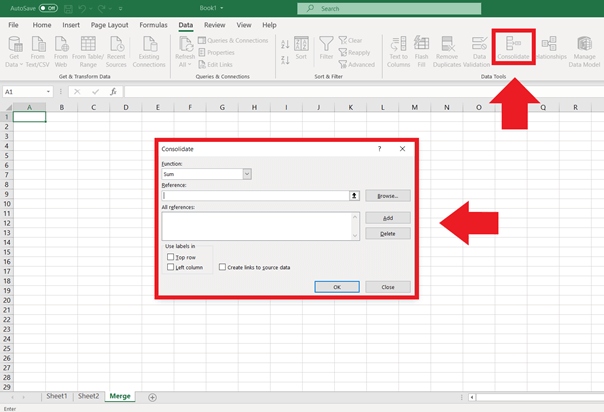
If you have multiple rows with similar data, using the Consolidate feature can be an even easier way to join them. To use Consolidate:
- Select The Data: Select all the data from both rows.
- Go to Data: Go to the “Data” tab and click on the “Consolidate” button.
- Choose a Function: Choose a function such as Sum, Average, or Count to combine the data.
Using Search & Vert in Excel
Another way to join two rows in Excel is by using the Search & VERT function. This function allows you to search for a specific value in one row and return it from another row.
- Open Excel: Open Microsoft Excel on your PC or mobile device.
- Select The Data: Select all the data from both rows.
- Enter The Formula: Enter the Search & VERT formula, using the syntax =SEARCH(lookup_value, search_array, [match_mode], [search_mode]).
Joining Two Rows in Excel With Access
If you have a large dataset and want to join it with another database or spreadsheet, you can use Microsoft Access to combine them. To do this:
- Open Access: Open Microsoft Access on your PC.
- Select The Data: Select all the data from both rows.
- Link The Data: Link the selected data to a new table in Access.
Conclusion
Joining two rows in Excel can be a powerful way to simplify and analyze large datasets. Whether you’re using Consolidate, Search & VERT, or linking with Access, these methods can help you combine your data into one easy-to-understand format. Remember, practice makes perfect, so don’t be afraid to experiment and try different techniques until you find what works best for you.
Faqs
- Q: Can I Join Two Rows in Excel on my Smartphone or Tablet?
A: Yes! Microsoft Excel allows you to join two rows on your mobile device. - Q: How do I Use The Consolidate Feature in Excel?
A: To use Consolidate, select all the data from both rows and go to the “Data” tab. Click on the “Consolidate” button and choose a function such as Sum or Average. - Q: What is The Search & Vert Function in Excel?
A: The Search & VERT function allows you to search for a specific value in one row and return it from another row. - Q: How do I Link Data With Access?
A: To link data with Access, open Microsoft Access on your PC and select the data from both rows. Link the selected data to a new table in Access.


