
How to Join Two Facebook Pages: A Step-by-step Guide
Are you tired of managing multiple Facebook pages, each with its own separate content and audience? Do you want to merge two or more pages into one, while preserving the likes and engagement they’ve earned over time? Look no further! In this article, we’ll guide you through the process of joining two Facebook pages, both on desktop and mobile devices.
Prerequisites For Joining Two Facebook Pages
Before we dive into the step-by-step instructions, it’s essential to meet some prerequisites. To join two Facebook pages, you must be an administrator of both pages. Additionally, the pages must have similar names, represent the same topic or subject matter, and ideally share a physical address.
Checking Page Roles And Administrator Status
To ensure you meet the prerequisites, follow these steps:
- Log in to your Facebook account on desktop or mobile.
- Go to one of the pages you want to join.
- Click on the three dots (⋯) at the top right corner of the page.
- Select “Settings” from the dropdown menu.
- Scroll down to the “Roles” section and check if your name is listed as an administrator.
If you’re not an administrator, you’ll need to appoint someone who is or request the current administrator to add you as an admin.
Downloading a Page’s Content
Before merging two pages, it’s a good idea to download each page’s content, including posts, photos, and videos. This will help preserve the data and prevent any potential loss during the merge process.
To download a page’s content:
- Log in to your Facebook account on desktop.
- Go to the settings of the page you want to download.
- Click on “General” and scroll down to the “Download a copy of this page” section.
- Select the type of data you want to download (posts, photos, videos, etc.).
- Choose the format of your download (HTML or JSON).
- Select the quality of multimedia content (high, medium, or low).
- Click on “Request a Download.”
- Once the download is complete, you’ll receive an email with a link to access the downloaded data.
Joining Two Facebook Pages on Desktop
Now that we’ve covered the prerequisites and downloading content, let’s move on to joining two pages on desktop:
- Log in to your Facebook account on desktop.
- Go to one of the pages you want to join.
- Click on the three dots (⋯) at the top right corner of the page.
- Select “Settings” from the dropdown menu.
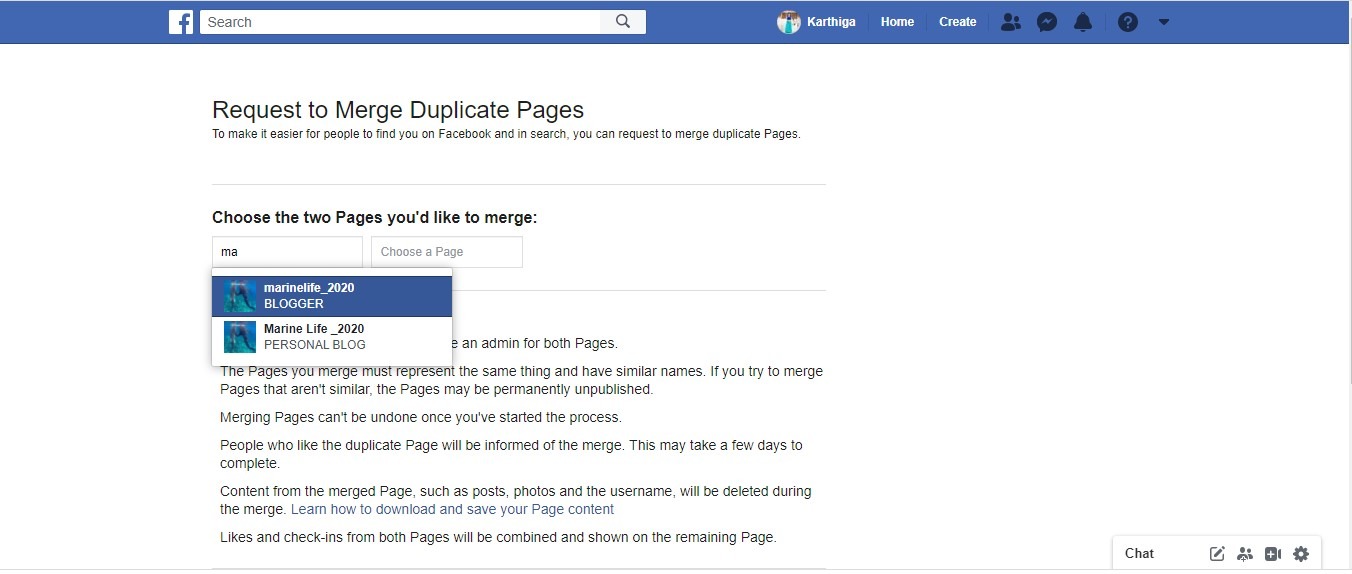
- Scroll down to the “General” section and click on “Modify.”
- Select the “Merge Pages” option.
- Choose the two pages you want to merge, making sure they have similar names.
- Enter your password and click on “Continue.”
- Review the merging process and confirm by clicking on “Forward.”
Joining Two Facebook Pages on Mobile
If you’re using a mobile device, follow these steps:
- Open the Facebook app on your smartphone or tablet.
- Go to one of the pages you want to join.
- Tap on the three dots (⋯) at the top right corner of the page.
- Select “Settings” from the dropdown menu.
- Scroll down to the “General” section and tap on “Merge Pages.”
- Choose the two pages you want to merge, making sure they have similar names.
- Enter your password and tap on “Continue.”
- Review the merging process and confirm by tapping on “Request Union.”
Changing a Page’s Name
In some cases, you might not be able to merge two pages due to different names. Don’t worry! You can change the name of one or both pages to make them eligible for merging.
To change a page’s name:
- Log in to your Facebook account on desktop.
- Go to the settings of the page you want to rename.
- Click on “General” and scroll down to the “Modify Page” section.
- Enter the new name for the page.
- Review the changes and confirm by clicking on “Request Modification.”
Conclusion
Joining two Facebook pages can be a bit tricky, but with these step-by-step instructions, you should be able to merge your desired pages successfully. Remember to meet the prerequisites, download each page’s content, and follow the merging process carefully.
If you have any further questions or concerns, feel free to ask in the comments section below.
Frequently Asked Questions (FAQs)
- Q: Can I Join Two Facebook Pages That Have Different Names?
A: No, both pages must have similar names to be eligible for merging. - Q: What Happens to my Page’s Likes And Engagement During The Merge Process?
A: Your likes and engagement will be preserved after the merge is complete. - Q: Can I Change a Page’s Name Before Merging it With Another Page?
A: Yes, you can change a page’s name before attempting to merge it with another page. - Q: Will I Lose Any Content or Data During The Merge Process?
A: No, your content and data will be preserved after the merge is complete. - Q: Can I Merge Multiple Facebook Pages Into One?
A: Yes, you can merge multiple pages into one, but make sure to follow the prerequisites and merging process carefully.
Recommended Reading
- How to Change a Page’s Name on Facebook
- What Happens When You Merge Two Facebook Pages?
- Tips for Managing Multiple Facebook Pages


