
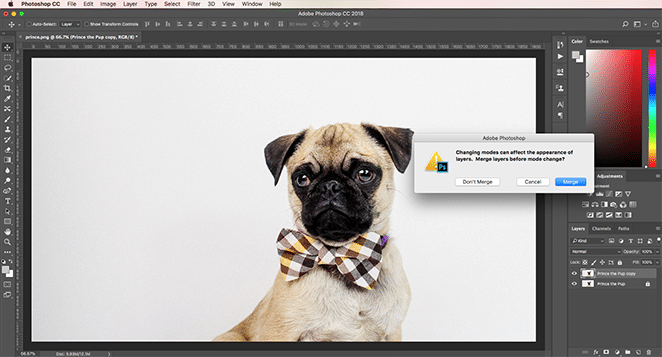
How to Melt Two Images With Photoshop
Are you interested in creating stunning photo montages like a pro? Look no further! In this article, we’ll guide you through the process of melting two images with Photoshop, both on your computer and online.
The Art of Photo Montage
Photo montage is an art form that involves combining multiple images to create a new, visually appealing image. With the rise of social media, photo montages have become increasingly popular, and photographers are using them to tell stories, convey emotions, and add context to their photos.
Getting Started With Photoshop
To melt two images with Photoshop on your computer, you’ll need to have Adobe Photoshop installed on your device. If you don’t have it, don’t worry! We’ve got you covered in the next section.
Melt Two Images With Photoshop Online
If you don’t want to install Photoshop on your computer or prefer a more convenient option, you can use online services that allow you to merge images without downloading any software. One popular option is Photopea, which offers a user-friendly interface and a range of features similar to Photoshop.
How to Melt Two Images With Photoshop Online
To melt two images with Photopea:
- Go to the Photopea website and sign up for an account.
- Choose the first image as your background and upload it to the platform.
- Select the second image and upload it to the platform.
- Use the pen tool or other selection tools to separate the two images.
- Adjust the opacity, contrast, and other settings to achieve the desired effect.
- Export your final image in the format of your choice.
Melt Two Images With Photoshop on Smartphone And Tablet
If you want to melt two images with Photoshop on your smartphone or tablet, there are several options available. One popular choice is Snapseed, a photo editing app that allows you to merge images and apply various effects.
How to Melt Two Images With Snapseed
To melt two images with Snapseed:
- Download and install the Snapseed app on your device.
- Choose the first image as your background and upload it to the app.
- Select the second image and upload it to the app.
- Use the double exposure tool or other selection tools to separate the two images.
- Adjust the opacity, contrast, and other settings to achieve the desired effect.
- Export your final image in the format of your choice.
Tips And Tricks
Here are some tips and tricks to keep in mind when melting two images with Photoshop:
- Use a clear and contrasting background to make the merged image more visually appealing.
- Adjust the opacity and contrast levels carefully to achieve the desired effect.
- Experiment with different selection tools, such as the pen tool or magic wand, to separate the images accurately.
- Don’t be afraid to try out different effects and settings until you get the desired result.
Conclusion
Merging two images with Photoshop is a fun and creative way to tell stories, convey emotions, and add context to your photos. Whether you’re using the desktop version or online services like Photopea or Snapseed, the process is relatively simple and requires minimal technical expertise. With these tips and tricks, you’ll be well on your way to creating stunning photo montages that will leave your audience amazed.
Frequently Asked Questions
- What is The Best Software For Melting Two Images?
The best software for melting two images depends on your specific needs and preferences. Adobe Photoshop is a popular choice, but online services like Photopea or Snapseed can also be effective. - How do I Choose The Right Background Image?
Choose a background image that complements the subject of the second image and adds context to the story you’re trying to tell. - What Are Some Tips For Adjusting Opacity And Contrast Levels?
Adjusting opacity and contrast levels carefully is crucial when melting two images. Experiment with different settings until you achieve the desired effect. - Can I Use Other Software to Merge Images?
Yes, there are several other software options available that allow you to merge images, including GIMP, Canva, and PicMonkey. - How do I Save my Merged Image?
Save your merged image in a format that’s suitable for sharing on social media or printing, such as JPEG or PNG. - Can I Use Melted Images in Commercial Projects?
Yes, you can use melted images in commercial projects, but be sure to check the terms and conditions of any software or online service you’re using. - How do I Protect my Intellectual Property When Sharing Melted Images?
Protect your intellectual property by watermarking your images and specifying the usage rights clearly. - Can I Create Multiple Versions of a Merged Image?
Yes, you can create multiple versions of a merged image with different settings or effects to experiment and find the best result.


