
How to Join Two Pdf Files: A Step-by-step Guide
Are you tired of having multiple PDF files that you need to combine into one? Look no further! In this article, we will show you how to join two PDF files using various methods, both online and offline.
Why Join Pdf Files?
Joining PDF files can be useful in a variety of situations. For example, if you have multiple documents that you need to combine into one report or presentation, joining them together can save you time and effort. Additionally, joining PDF files can also help you reduce clutter on your computer by combining multiple files into one.
Methods For Joining Pdf Files
There are several methods for joining PDF files, both online and offline. Here are some of the most popular methods:
Pdfill Free Pdf Tools (Windows)
PDFill FREE PDF Tools is a free software that allows you to create, modify, convert, and elaborate PDF files. To use this tool, follow these steps:
- Download and install PDFill FREE PDF Tools on your Windows computer.
- Launch the software and click on “Merge PDF Files”.
- Drag and drop the two PDF files you want to join into the software window.
- Use the “Move up” and “Move down” buttons to arrange the files in the order you want them to appear.
- Click on “Save as” to export the joined PDF file.
Pdfill Free Pdf Tools (Windows) – Key Features
- Free software
- Available for Windows only
- Can join, split, protect, and rotate PDF pages
Pdftk Builder (Windows)
PDFTK Builder is a free, open-source software that allows you to join, split, protect, and rotate PDF pages. To use this tool, follow these steps:
- Download and install PDFTK Builder on your Windows computer.
- Launch the software and click on “Join Files”.
- Select the two PDF files you want to join and arrange them in the order you want them to appear.
- Click on “Save as” to export the joined PDF file.
Pdftk Builder (Windows) – Key Features
- Free, open-source software
- Available for Windows only
- Can join, split, protect, and rotate PDF pages
Foxit Pdf Reader (Windows, Macos, Mobile)
Foxit PDF Reader is a popular PDF viewer that allows you to view and edit PDF files. While it does not have a built-in feature to join PDF files, there is a premium version called Foxit PDF Editor that can perform this task.
Foxit Pdf Reader (Windows, Macos, Mobile) – Key Features
- Free software
- Available for Windows, macOS, Linux, Android, iOS/iPadOS, and mobile devices
- Can view and edit PDF files
Adobe Acrobat Pro (Windows, Macos)
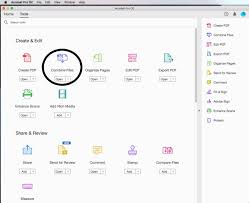
Adobe Acrobat Pro is a powerful PDF editor that allows you to view, edit, and manipulate PDF files. To use this tool, follow these steps:
- Download and install Adobe Acrobat Pro on your Windows or macOS computer.
- Launch the software and click on “Open” in the menu bar.
- Select the two PDF files you want to join from your computer.
- Use the “Combine” button to join the files together.
- Click on “Save as” to export the joined PDF file.
Adobe Acrobat Pro (Windows, Macos) – Key Features
- Powerful PDF editor
- Available for Windows and macOS only
- Can view, edit, and manipulate PDF files
Trailer (macOS)
Trailer is a built-in application on macOS that allows you to view and edit PDF files. To use this tool, follow these steps:
- Open the first PDF file on your Mac.
- Select “Miniatures” from the menu bar.
- Drag the second PDF file into the miniatures window.
- Arrange the miniatures in the order you want them to appear.
- Click on “Export as PDF” to export the joined PDF file.
Trailer (macOS) – Key Features
- Built-in application on macOS
- Can view and edit PDF files
Online Methods
If you don’t want to install any software on your computer, there are several online methods for joining PDF files. Here are some of the most popular methods:
Online2pdf
Online2PDF is a free service that allows you to join PDF files online. To use this service, follow these steps:
- Go to the Online2PDF website.
- Select the two PDF files you want to join from your computer.
- Use the “Join” button to join the files together.
- Click on “Download” to export the joined PDF file.
Online2pdf – Key Features
- Free service
- No software installation required
- Can join up to 20 PDF files with a total weight of 150 MB
Ilovepdf
ILovePDF is another popular online service that allows you to join PDF files. To use this service, follow these steps:
- Go to the iLovePDF website.
- Select the two PDF files you want to join from your computer.
- Use the “Join” button to join the files together.
- Click on “Download” to export the joined PDF file.
Ilovepdf – Key Features
- Free service
- No software installation required
- Can join up to 10 PDF files with a total weight of 100 MB
Other Methods
There are several other methods for joining PDF files, both online and offline. Here are some of the most popular methods:
Pdf Candy
PDF Candy is a free service that allows you to join PDF files online. To use this service, follow these steps:
- Go to the PDF Candy website.
- Select the two PDF files you want to join from your computer.
- Use the “Join” button to join the files together.
- Click on “Download” to export the joined PDF file.
Pdf Candy – Key Features
- Free service
- No software installation required
- Can join up to 10 PDF files with a total weight of 100 MB
Pdf24
PDF24 is another online service that allows you to join PDF files. To use this service, follow these steps:
- Go to the PDF24 website.
- Select the two PDF files you want to join from your computer.
- Use the “Join” button to join the files together.
- Click on “Download” to export the joined PDF file.
Pdf24 – Key Features
- Free service
- No software installation required
- Can join up to 10 PDF files with a total weight of 100 MB
Pdf2go
PDF2Go is an online service that allows you to join PDF files. To use this service, follow these steps:
- Go to the PDF2Go website.
- Select the two PDF files you want to join from your computer.
- Use the “Join” button to join the files together.
- Click on “Download” to export the joined PDF file.
Pdf2go – Key Features
- Free service
- No software installation required
- Can join up to 5 PDF files with a total weight of 50 MB
Smallpdf
SmallPDF is an online service that allows you to join PDF files. To use this service, follow these steps:
- Go to the SmallPDF website.
- Select the two PDF files you want to join from your computer.
- Use the “Join” button to join the files together.
- Click on “Download” to export the joined PDF file.
Smallpdf – Key Features
- Free service
- No software installation required
- Can join up to 10 PDF files with a total weight of 100 MB
Conclusion
In conclusion, joining two PDF files can be done using various methods, both online and offline. From free services like Online2PDF and iLovePDF to powerful software like Adobe Acrobat Pro, there are many options available. Whether you’re looking to combine multiple documents into one or simply want to reduce clutter on your computer, joining PDF files is a simple process that can be completed in just a few steps.
Faqs
- Q: Can I Join More Than Two Pdf Files at Once?
A: Yes, most online services and software allow you to join multiple PDF files at once. - Q: What is The Maximum Weight of a Single Pdf File That Can be Joined?
A: The maximum weight of a single PDF file varies depending on the service or software used. - Q: Can I Use Any Software or Service to Join Pdf Files?
A: Yes, there are many free and paid options available for joining PDF files. - Q: Is it Safe to Download Software From Unknown Sources?
A: No, it’s not recommended to download software from unknown sources as it may contain malware or viruses. - Q: Can I Join Encrypted Pdf Files?
A: Yes, most online services and software allow you to join encrypted PDF files. - Q: How Long Does The Joining Process Take?
A: The joining process typically takes a few seconds to complete. - Q: Can I Join Pdf Files With Different Layouts or Orientations?
A: Yes, some software and services allow you to join PDF files with different layouts or orientations.
Conclusion
In conclusion, joining two PDF files is a simple process that can be completed using various methods, both online and offline. Whether you’re looking to combine multiple documents into one or simply want to reduce clutter on your computer, there are many options available for joining PDF files.


