
How to Join Two Photos With Adobe Photoshop: A Step-by-step Guide
Are you looking for a way to combine two photos into one stunning image? Look no further than Adobe Photoshop! With its powerful tools and user-friendly interface, you can easily join two photos together and create a unique and eye-catching image. In this article, we will show you how to join two photos with Adobe Photoshop on your computer, online, and even on your smartphone or tablet.
Why Join Two Photos?
Joining two photos can be a great way to create a new and interesting image. Whether you want to combine two pictures of the same place, merge two images into one panoramic photo, or simply create a unique collage, joining two photos with Adobe Photoshop is a fun and easy process.
How to Join Two Photos With Adobe Photoshop on Your Computer
If you have Adobe Photoshop installed on your computer, you can easily join two photos together. Here’s how:
- Open Adobe Photoshop: First, open Adobe Photoshop on your computer.
- Go to The Menu: In the top menu bar, go to Automate > Photomerge.
- Select The Images: In the new window that opens, click on Browse and select both images you want to join.
- Align The Images: Photoshop will automatically align the two images together.
- Save Your Image: Once the images are aligned, save your new image by going to File > Save As.
Alternatively, you can also manually join the two images together by following these steps:
- Open Adobe Photoshop: Open Adobe Photoshop on your computer.
- Go to File > Open: Go to File > Open and select one of the images you want to join.
- Go to Image > Canvas Size: Go to Image > Canvas Size and add a new canvas size that is large enough to fit both images.
- Paste The Second Image: Paste the second image into the new canvas size.
- Adjust The Proportions: Adjust the proportions of the two images so they match up perfectly.
How to Join Two Photos With Adobe Photoshop Online
If you don’t have Adobe Photoshop installed on your computer, you can still join two photos together using the online version of Adobe Photoshop. Here’s how:
- Go to The Adobe Photoshop Website: Go to the Adobe Photoshop website and sign in with your Adobe ID.
- Click on Create: Click on the “Create” button and select the type of image you want to create (e.G. Rectangular).
- Select The Images: Select both images you want to join and drag them into the online editor.
- Align The Images: Photoshop will automatically align the two images together.
- Save Your Image: Once the images are aligned, save your new image by clicking on the “Save” button.
How to Join Two Photos With Adobe Photoshop on Your Smartphone or Tablet
If you have an iPad or Android device, you can also join two photos together using the mobile version of Adobe Photoshop. Here’s how:
- Download Adobe Photoshop Express: Download Adobe Photoshop Express from the App Store (for iPad) or Google Play Store (for Android devices).
- Open The App: Open the app and select the “Combine” option.
- Select The Images: Select both images you want to join and drag them into the editor.
- Align The Images: Photoshop will automatically align the two images together.
- Save Your Image: Once the images are aligned, save your new image by clicking on the “Save” button.
Tips And Variations
When joining two photos together, you can also experiment with different techniques such as:
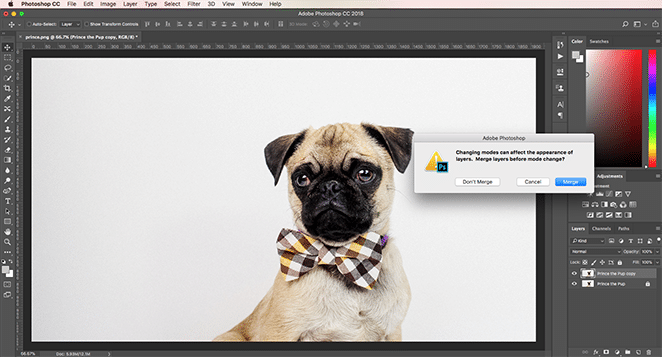
- Using the “Merge Layers” option to combine multiple layers into one image
- Applying filters or effects to enhance the image
- Adjusting the colors and contrast of the image
By following these steps and experimenting with different techniques, you can create unique and eye-catching images that will stand out from the crowd.
Conclusion
Joining two photos together is a fun and easy process that can be done using Adobe Photoshop on your computer, online, or even on your smartphone or tablet. With its powerful tools and user-friendly interface, you can easily combine multiple images into one stunning image. Whether you’re a beginner or an experienced photographer, joining two photos with Adobe Photoshop is a great way to create unique and eye-catching images.
Frequently Asked Questions (FAQs)
Q: What is the difference between Photomerge and manually joining two images together?
A: Photomerge is a feature in Adobe Photoshop that automatically aligns multiple images together. Manually joining two images together involves selecting both images, adjusting their proportions, and then combining them into one image.
Q: Can I join more than two images together using Adobe Photoshop?
A: Yes! Using the “Merge Layers” option or manually merging layers, you can combine multiple images into one image.
Q: How do I save my joined image in Adobe Photoshop?
A: To save your joined image, go to File > Save As and select a location where you want to save it. You can also export your image directly to social media platforms such as Facebook or Instagram.
Q: Can I join images together using Adobe Photoshop on my smartphone or tablet?
A: Yes! Using the mobile version of Adobe Photoshop (Adobe Photoshop Express), you can join two photos together and even apply filters or effects to enhance the image.
Q: What are some tips for joining images together in Adobe Photoshop?
A: Some tips include using the “Merge Layers” option, applying filters or effects to enhance the image, and adjusting the colors and contrast of the image. Experimenting with different techniques can help you create unique and eye-catching images.
Q: Can I join images together without having Adobe Photoshop installed on my computer?
A: Yes! Using the online version of Adobe Photoshop, you can join two photos together even if you don’t have the software installed on your computer.
Q: How do I join images together using Adobe Photoshop online?
A: To join images together using Adobe Photoshop online, go to the website and sign in with your Adobe ID. Click on the “Create” button and select the type of image you want to create (e.G. Rectangular). Select both images you want to join and drag them into the editor.


