
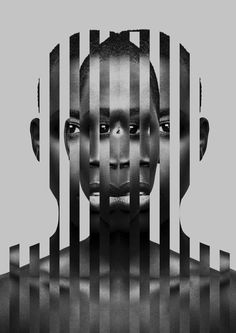
The Art of Joining Two Photos: A Comprehensive Guide
Are you looking for ways to join two photos together? Whether it’s for a project, a social media post, or simply to create a beautiful memory, joining two photos can be a fun and creative process. In this article, we’ll take you through the various methods to join two photos on your PC, smartphone, and even online.
Why Join Two Photos?
Before we dive into the different ways to join two photos, let’s explore why it’s worth doing in the first place. Joining two photos can be a great way to:
- Create a unique and personalized gift for a loved one
- Enhance your social media posts with visually appealing graphics
- Add an extra layer of meaning to your favorite memories
Methods to Join Two Photos
Now that we’ve covered the benefits, let’s move on to the different methods to join two photos.
Method 1: Using Adobe Photoshop
If you’re familiar with Adobe Photoshop, joining two photos can be a breeze. Here’s how:
- Open Photoshop and go to Automate > Photomerge
- Select the two photos you want to join and click OK
- Photoshop will automatically align the photos and merge them into one
Method 2: Using Collagerator
If you don’t have Adobe Photoshop, don’t worry! Collagerator is a free program available for Windows and macOS that can help you join two photos.
- Download and install Collagerator on your computer
- Open the program and select the two photos you want to join
- Choose an orientation (vertical or horizontal) and click OK
Method 3: Using Online Tools
If you don’t want to download any software, there are several online tools that can help you join two photos. Here are a few options:
- FilesMerge: A simple and intuitive tool that allows you to merge multiple files (including photos)
- Quick Picture Tools: A website that offers a range of tools for photo editing, including merging photos
- Canva: A popular graphic design platform that allows you to create collages and join photos
Method 4: Using Mobile Apps
If you’re on-the-go, there are several mobile apps that can help you join two photos. Here are some options:
- Image Combiner (Android): A free app that allows you to merge multiple photos
- Layout (iOS, Android): A popular photo editing app that offers a range of tools for merging photos
- PicCollage (iOS, Android): A creative app that allows you to create collages and join photos
Method 5: Using Pdf Tools
If you want to join two photos in a PDF format, there are several online tools available. Here’s one option:
- ILovePDF: A free online tool that allows you to merge multiple files (including photos) into a single PDF document.
Conclusion
Joining two photos can be a fun and creative process, whether it’s for a project or simply to create a beautiful memory. With the various methods outlined above, you can join two photos on your PC, smartphone, and even online. So go ahead, get creative, and join those photos!
Frequently Asked Questions
-
Q: What is The Best Method to Join Two Photos?
A: The best method depends on your personal preference and the tools available to you. -
Q: Can I Join More Than Two Photos?
A: Yes, many of the methods outlined above can be used to join multiple photos. -
Q: How do I Edit my Merged Photo?
A: Depending on the method you use, you may be able to edit your merged photo using a range of tools and software. -
Q: Can I Save my Merged Photo in Different Formats?
A: Yes, most methods allow you to save your merged photo in different formats, including JPEG, PNG, and PDF. -
Q: Is Joining Two Photos Safe?
A: Joining two photos is generally a safe process, but be careful when using online tools and software to ensure your data is secure. -
Q: Can I Use This Method For Commercial Purposes?
A: Please check the terms of service for each method to ensure you are allowed to use it for commercial purposes. -
Q: How Long Does it Take to Join Two Photos?
A: The time it takes to join two photos depends on the method and tool used, but most methods can be completed in a matter of minutes. -
Q: Can I Undo my Merged Photo if I Change my Mind?
A: Depending on the method you use, you may be able to undo your merged photo or edit it further using a range of tools and software.


