
How to Join Multiple Word Documents: A Comprehensive Guide
Are you tired of dealing with multiple versions of a single document? Do you struggle to combine revisions from different authors? Look no further! In this article, we’ll show you how to join multiple Word documents using various methods.
The Challenges of Combining Word Documents
When working on collaborative projects, it’s not uncommon for team members to create their own version of a document. However, when it comes time to combine these revisions, the process can be frustrating and time-consuming. That’s where our guide comes in – we’ll walk you through the different ways to join multiple Word documents.
Method 1: Using Microsoft Word
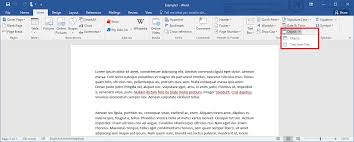
Microsoft Word offers a built-in feature called “Combine” that allows you to merge multiple documents into one. Here’s how to use it:
- Open the first document and go to the Review tab.
- Click on the Compare button and select Combine from the dropdown menu.
- Choose the second document and select the revisions you want to combine.
- Adjust any formatting issues by clicking on the “Another” button.
- Save the combined document.
Method 2: Using Libreoffice
LibreOffice is a free and open-source alternative to Microsoft Office. It also has a feature called “Join document” that allows you to merge multiple documents into one. Here’s how to use it:
- Open the first document and go to the Modify menu.
- Select Revisions > Join present document.
- Choose the second document and select the revisions you want to combine.
- Save the combined document.
Method 3: Using Online Services
If you don’t have Microsoft Word or LibreOffice installed on your computer, there are still options available. You can use online services like Aspose File Format or FileFormat to join multiple Word documents. These services allow you to upload your files and combine them into one without having to download any software.
- Upload your files to the service’s website.
- Select the option to join multiple documents.
- Choose the output format (e.G., DOCX, PDF).
- Download or save the combined document.
Method 4: Using Copy-and-paste
If you’re dealing with a smaller number of documents, you can try using the copy-and-paste method. This involves copying and pasting the content from one document into another.
- Open the first document.
- Insert an interruption page to create space for the new text.
- Copy the content from the second document.
- Paste the copied content into the first document.
- Repeat this process for each additional document.
Method 5: Using Pdf Conversion
If you need to convert your combined Word documents into a single PDF file, there are services available that can help. For example, iLovePDF allows you to upload your files and combine them into one PDF without having to install any software.
- Upload your files to the service’s website.
- Select the option to join multiple documents.
- Choose the output format (e.G., PDF).
- Download or save the combined document.
Conclusion
Joining multiple Word documents can be a daunting task, but with these methods, you’ll be able to combine revisions from different authors in no time. Whether you use Microsoft Word, LibreOffice, online services, copy-and-paste, or PDF conversion, we’ve got you covered.
Faqs
- What is The Best Method For Joining Multiple Word Documents?
The best method depends on your specific needs and preferences. If you’re working with a large number of documents, using Microsoft Word’s Combine feature may be the most efficient option. However, if you’re dealing with a smaller number of documents or prefer to use online services, other methods may be more suitable. - Can I Join Multiple Word Documents Without Installing Any Software?
Yes, you can use online services like Aspose File Format or FileFormat to join multiple Word documents without having to download any software. - How do I Convert a Combined Word Document Into a Single Pdf File?
You can use services like iLovePDF that allow you to upload your files and combine them into one PDF without having to install any software.
We hope this guide has been helpful in showing you how to join multiple Word documents. If you have any further questions or need additional assistance, please don’t hesitate to ask!


