
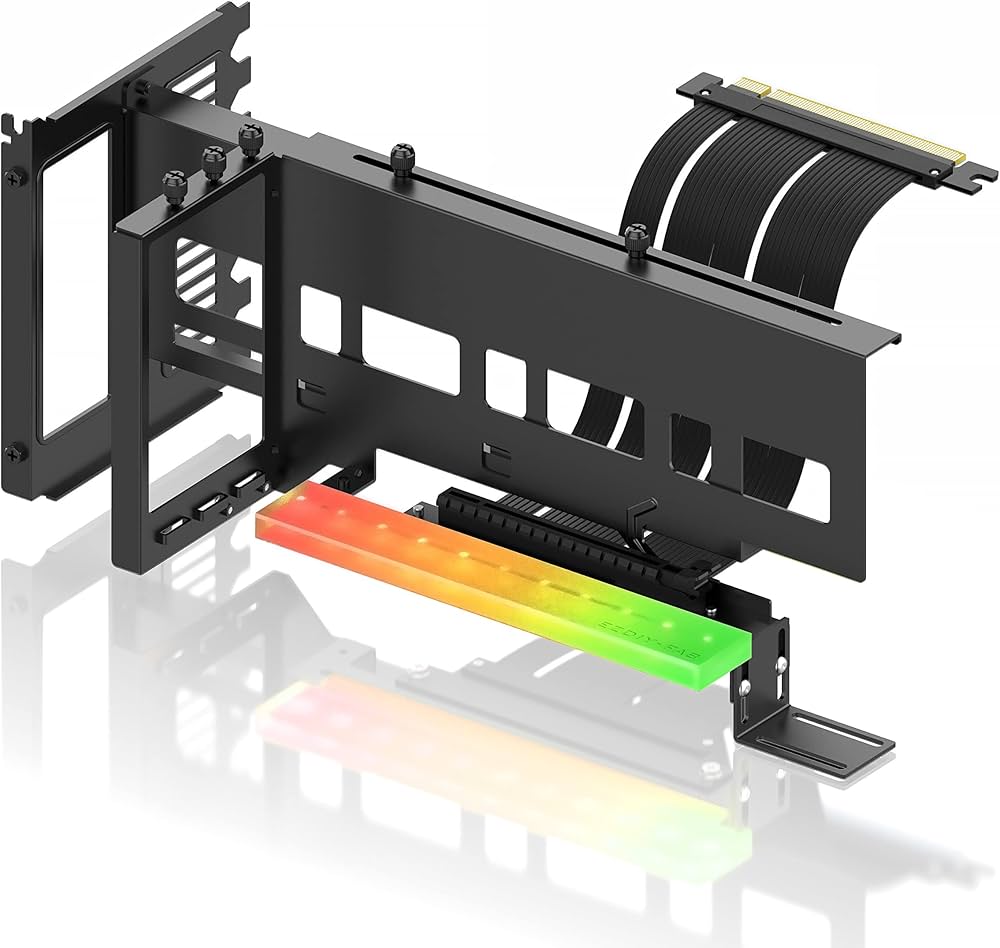
How to Mount a Graphics Card on Your PC or Laptop
Are you tired of playing games that run slowly on your computer? Do you want to experience seamless graphics and smooth gameplay? If so, it’s time to consider mounting a new graphics card (also known as a GPU) on your PC or laptop.
In this article, we’ll guide you through the process of installing a graphics card on both desktop computers and laptops. We’ll cover the necessary steps, precautions, and considerations to ensure a successful installation.
Before You Begin
Before we dive into the installation process, there are a few things you should consider:
- Compatibility: Make sure the new graphics card is compatible with your computer’s motherboard and power supply.
- Power Supply: Ensure that your power supply can handle the increased power requirements of the new graphics card. A minimum of 600W is recommended for most modern GPUs.
- Cooling System: If you’re using a liquid cooling system, ensure it’s compatible with the new graphics card.
Installing a Graphics Card on Your PC
- Prepare Your Workspace: Clear a stable and spacious workspace to prevent accidental damage or injury.
- Ground Yourself: Static electricity can damage your components. Touch a grounded metal object or wear an anti-static wrist strap.
- Turn Off Your Computer: Shut down your computer and unplug it from the power source.
- Remove Side Panels: Take out the side panels of your computer case to access the internal components.
- Locate The Pcie Slot: Identify the available PCIe slot on your motherboard that matches the graphics card’s compatibility (x16, x8, or x4).
- Install The Graphics Card:
- Carefully remove any protective covering from the new graphics card.
- Align the gold contacts on the graphics card with the corresponding slot on the motherboard.
- Gently push the graphics card into place until it clicks into position.
- Secure The Graphics Card: Use screws to secure the graphics card to the case and prevent it from shifting during use.
Installing a Graphics Card on Your Laptop
Mounting a graphics card on your laptop is more complex than installing one on a desktop PC. Laptops often have limited upgrade options, and this process may require professional assistance.
- Check For Compatibility: Verify that your laptop’s model supports external graphics cards.
- Purchase an External Graphics Card:
- These cards are specifically designed for laptops and connect via Thunderbolt 3 or USB-C ports.
- Ensure the external graphics card is compatible with your laptop’s operating system.
- Connect The External Graphics Card:
- Use a Thunderbolt 3 cable to connect the external graphics card to your laptop’s port.
- Follow the manufacturer’s instructions for proper installation and configuration.
Tips And Precautions
- Always follow safety guidelines when working with electrical components.
- Ground yourself to prevent static electricity damage.
- Handle cables carefully to avoid accidental disconnections.
- Consider seeking professional help if you’re unsure about any part of the process.
Conclusion
Installing a new graphics card on your PC or laptop can significantly improve gaming performance and overall computing experience. By following these steps, precautions, and considerations, you’ll be able to enjoy seamless graphics and smooth gameplay on your upgraded machine.
Frequently Asked Questions (FAQs)
- Q: What is The Best Type of Graphics Card For my Pc?
A: The best graphics card for your PC depends on your specific needs, such as gaming requirements or video editing. - Q: Can I Install a Graphics Card on my Laptop?
A: Yes, but it requires an external graphics card specifically designed for laptops and may need professional assistance. - Q: How do I Ensure Compatibility Between The Graphics Card And my Motherboard?
A: Check the specifications of both components to ensure they match (e.G., PCIe slot and GPU compatibility). - Q: What Power Supply Wattage is Recommended For a Graphics Card Installation?
A: A minimum of 600W is recommended for most modern GPUs. - Q: Can I Upgrade my Laptop’s Cooling System if It’s Not Compatible With The New Graphics Card?
A: It depends on your specific laptop model and available upgrades. Consult with a professional or manufacturer documentation before proceeding. - Q: How do I Secure The Graphics Card in Place After Installation?
A: Use screws to secure the graphics card to the case and prevent it from shifting during use. - Q: Are There Any Safety Precautions I Should Take When Working With Electrical Components?
A: Yes, always follow safety guidelines, ground yourself to prevent static electricity damage, and handle cables carefully to avoid accidental disconnections.
Note: Please consult the manufacturer’s documentation or a professional for specific instructions on installing a graphics card on your PC or laptop.


