
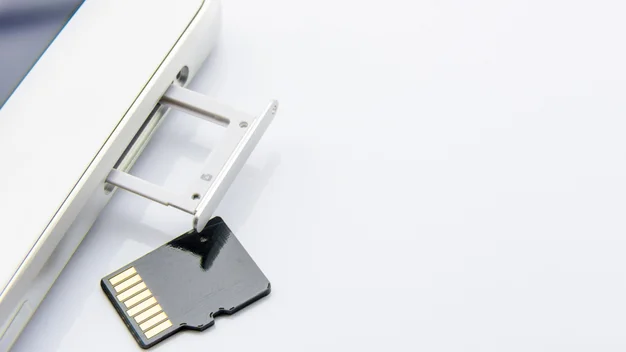
How to Displace App on SD Card Android: A Step-by-step Guide
Are you tired of running out of storage space on your Android device? Do you want to free up some memory by moving apps to an external SD card? Look no further! In this article, we will guide you through the process of displacing app on SD card Android, covering various devices such as Samsung, HUAWEI, and Xiaomi.
Understanding The Basics
Before we dive into the details, let’s understand why we need to displace apps on an external SD card. As you know, Android devices have limited internal storage capacity. When you download new apps or take photos and videos, your device’s storage space fills up quickly. This is where the external SD card comes in – it allows you to expand your device’s storage capacity and free up some memory.
Displacing Apps on External SD Card: A Brief History
In the past, Android devices allowed users to install apps directly onto an external SD card. However, with the release of Android 9.0, This feature was removed. Now, users can’t install new apps directly onto an external SD card without rooting their device.
Displacing Apps on Samsung Devices: A Step-by-step Guide
If you own a Samsung device and want to displace apps on an external SD card, follow these steps:
- Open Settings: Go to your device’s Settings app.
- Click on Applications: Look for the “Applications” or “Apps” option and click on it.
- Select App Storage: In the Apps menu, select the option that says “Storage.”
- Choose SD Card: From the storage options, choose the external SD card where you want to move your apps.
Displacing Apps on Huawei Devices: A Step-by-step Guide
If you own a HUAWEI device and want to displace apps on an external SD card, follow these steps:
- Open Settings: Go to your device’s Settings app.
- Click on Advanced Settings: Look for the “Advanced Settings” option and click on it.
- Select Memory & Storage: In the Advanced Settings menu, select the option that says “Memory & Storage.”
- Choose SD Card: From the storage options, choose the external SD card where you want to move your apps.
Displacing Apps on Xiaomi Devices: A Step-by-step Guide
If you own a Xiaomi device and want to displace apps on an external SD card, follow these steps:
- Open Settings: Go to your device’s Settings app.
- Click on Other Settings: Look for the “Other settings” option and click on it.
- Select Options & Sviluppatore: In the Other settings menu, select the option that says “Options & sviluppatore.”
- Enable Force Authorisation: Enable the “Force authorisation app on external file” option to allow apps to be installed directly onto an external SD card.
Common Questions And Answers
- Q: Can I displace apps on an external SD card without rooting my device?
A: Unfortunately, no. You need to have a rooted device or enable the Force Authorisation option in your device’s settings. - Q: What happens if an app doesn’t support external storage?
A: Some apps might not support external storage, so you won’t be able to move them to an SD card.
Conclusion
Displacing apps on an external SD card is a great way to free up some memory on your Android device. With these step-by-step guides for Samsung, HUAWEI, and Xiaomi devices, you can easily move your apps to an external SD card and enjoy more storage space.
Frequently Asked Questions (FAQs)
- Q: What is the maximum size of an external SD card that I can use?
A: The maximum size of an external SD card varies depending on your device’s specifications. Check your device’s manual or manufacturer’s website for details. - Q: Can I move apps to an external SD card if they are installed on my internal storage?
A: Yes, you can move apps from your internal storage to an external SD card.
Additional Tips And Tricks
- Always make sure to backup your data before moving apps to an external SD card.
- Some apps might not work properly after being moved to an external SD card. Check the app’s settings or manufacturer’s website for details on compatibility.
- If you encounter any issues while trying to displace apps, restart your device and try again.
By following these step-by-step guides and tips, you can enjoy more storage space on your Android device by displacing apps on an external SD card.


