
How to Displace Apps on SD Card: A Comprehensive Guide
As a smartphone or tablet user, you’ve likely experienced the euphoria of acquiring a new device only to be met with the frustration of running out of memory. The solution often lies in displacing apps on the SD card, but is it really that simple? In this article, we’ll explore the world of app displacement and provide you with a comprehensive guide on how to do it effectively.
Understanding App Displacement
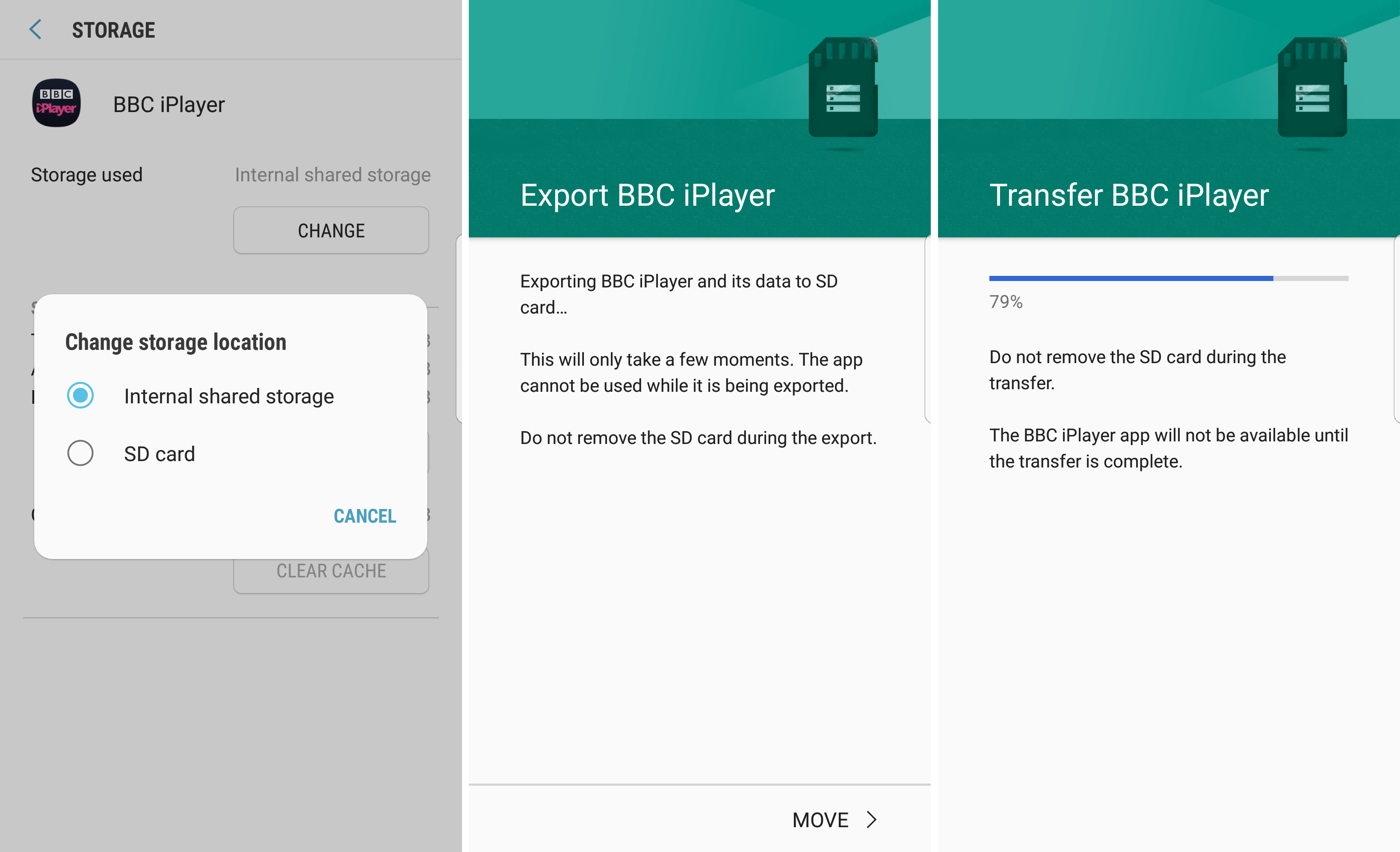
App displacement refers to the process of moving apps from the internal memory of your device to an external storage medium, such as an SD card. This can help free up space on your device’s internal memory, allowing you to install more apps or games without running out of room.
Why Displace Apps?
Displacing apps on the SD card offers several benefits, including:
- Freeing up Internal Memory: By moving apps to an external storage medium, you can free up space on your device’s internal memory for other apps, photos, and videos.
- Improving Performance: Displacing apps can help improve your device’s overall performance by reducing the load on the internal memory.
- Enhancing Storage Capacity: With more apps stored on the SD card, you can extend the storage capacity of your device.
How to Displace Apps on Different Devices
While the process of displacing apps may vary slightly depending on your device manufacturer and model, we’ll provide a general guide on how to do it on popular devices.
Displacing Apps on Android Devices
If you’re using an Android device, here’s how to displace apps:
- Insert Your SD Card: Make sure your SD card is inserted into the correct slot.
- Go to Settings: Navigate to your device’s settings app.
- Select Storage: Choose the storage option from the menu.
- Select External Storage: Select the external storage option, which should be your SD card.
- Move Apps to SD Card: Look for the “Move” or “Copy” button and select it to move apps to the SD card.
Displacing Apps on Huawei Devices
If you’re using a HUAWEI device, here’s how to displace apps:
- Go to Settings: Navigate to your device’s settings app.
- Select Advanced Settings: Choose the advanced settings option from the menu.
- Select Memory & Storage: Select the memory and storage option.
- Enable External Memory: Enable external memory as the default storage location for apps.
- Move Apps to SD Card: Look for the “Move” or “Copy” button and select it to move apps to the SD card.
Displacing Apps on Samsung Devices
If you’re using a Samsung device, here’s how to displace apps:
- Go to Settings: Navigate to your device’s settings app.
- Select Storage: Choose the storage option from the menu.
- Select External Storage: Select the external storage option, which should be your SD card.
- Move Apps to SD Card: Look for the “Move” or “Copy” button and select it to move apps to the SD card.
Displacing Apps on Xiaomi Devices
If you’re using a Xiaomi device, here’s how to displace apps:
- Go to Settings: Navigate to your device’s settings app.
- Select Info System: Choose the info system option from the menu.
- Select Version Miui: Select the version MIUI option.
- Enable External File: Enable external file as the default storage location for apps.
- Move Apps to SD Card: Look for the “Move” or “Copy” button and select it to move apps to the SD card.
Displacing Apps on Android 8 Devices
If you’re using an Android 8 device, here’s how to displace apps:
- Insert Your SD Card: Make sure your SD card is inserted into the correct slot.
- Go to Settings: Navigate to your device’s settings app.
- Select Memory & Storage: Select the memory and storage option.
- Enable External Storage: Enable external storage as the default storage location for apps.
- Move Apps to SD Card: Look for the “Move” or “Copy” button and select it to move apps to the SD card.
Troubleshooting App Displacement
While displacing apps is generally a straightforward process, you may encounter some issues along the way. Here are some common problems and their solutions:
- App Not Moving to SD Card: Check if your device supports app displacement or if the app is not compatible with external storage.
- SD Card Not Recognized: Ensure that your SD card is properly inserted and that it’s being recognized by your device.
- App Performance Issues: Displacing apps may affect app performance. If you experience any issues, try uninstalling and reinstalling the app.
Conclusion
Displacing apps on an SD card is a simple yet effective way to free up internal memory, improve performance, and enhance storage capacity. By following our comprehensive guide, you can easily move your favorite apps to an external storage medium, giving you more space to play with.
Faqs
Q: What are the benefits of displacing apps on an SD card?
A: Displacing apps on an SD card helps free up internal memory, improves performance, and enhances storage capacity.
Q: How do I displace apps on different devices?
A: The process of displacing apps may vary depending on your device manufacturer and model. Follow our guide for specific instructions.
Q: What if my app is not compatible with external storage?
A: Check the app’s compatibility or contact the developer for assistance.
Q: Why are some SD cards not recognized by my device?
A: Ensure that your SD card is properly inserted and that it’s being recognized by your device.
Q: Will displacing apps affect their performance?
A: Displacing apps may affect app performance. If you experience any issues, try uninstalling and reinstalling the app.
Additional Resources
- Google Support: Learn more about app displacement on Android devices.
- Xiaomi Support: Find out how to displace apps on Xiaomi devices.
- Samsung Support: Get instructions for displacing apps on Samsung devices.


