
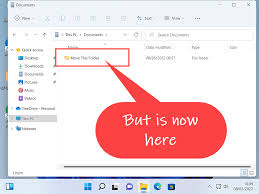
Displacing The Folder Documents on Windows: A Step-by-step Guide
Are you tired of having your documents saved in the same partition as your operating system? Do you want to keep your files organized and separate from your Windows installation? Look no further! In this article, we will guide you through the process of displacing the folder Documents on Windows.
Why Displace The Folder Documents?
Displacing the folder Documents can be beneficial in several ways. First, it allows you to keep your documents and other files separate from your operating system. This can help prevent data loss in case of a system crash or failure. Additionally, having your documents in a separate partition can improve performance and reduce clutter.
Step 1: Open The File Explorer
To get started, open the File Explorer on your Windows computer. You can do this by clicking on the File Explorer icon in the taskbar or by searching for it in the Start menu.
Step 2: Select This Pc/computer
In the File Explorer window, select “This PC/Computer” from the left-hand menu. This will show you all the drives and partitions connected to your computer.
Step 3: Right-click on The Documents Folder
Right-click on the Documents folder in the File Explorer window. A context menu will appear with several options.
Step 4: Select Properties
From the context menu, select “Properties”. This will open a new window where you can manage the properties of the Documents folder.
Step 5: Select Move
In the Properties window, click on the “Move” button. This will allow you to move the Documents folder to a different location on your computer.
Step 6: Choose The New Location
Select the partition where you want to move the Documents folder. You can choose from the existing partitions or create a new one.
Step 7: Create a New Folder
If you want to keep the original name and structure of the Documents folder, create a new folder with the same name in the chosen location.
Step 8: Copy The Files
Copy all the files from the original Documents folder to the new folder. This will ensure that all your documents are safely moved to the new location.
Displacing The Folder of Onedrive on Another Partition
If you use Microsoft’s cloud storage service, OneDrive, and want to move it to a different partition, follow these steps:
- Disconnect your PC from OneDrive by clicking on the OneDrive icon in the system tray and selecting “Settings”.
- Select the account settings and click on the “Disconnect” button.
- Open the File Explorer and navigate to the OneDrive folder (usually located at C:\Users\YourUsername).
- Right-click on the OneDrive folder and select “Properties”.
- In the Properties window, click on the “Move” button and choose the new partition.
Alternative Procedure: Creating a Symbolic Link
Another way to displace the Documents folder is by creating a symbolic link. This allows you to create a shortcut to the original folder without moving it.
- Open the Command Prompt as an administrator.
- Type
mklinkfollowed by the path to the original Documents folder and the new location (e.G.,Mklink "C:\Users\YourUsername\Documents" "F:\Documents"). - Press Enter to create the symbolic link.
Displacing The Folder Documents on Macos
If you’re using a Mac, displacing the Documents folder is also possible. Follow these steps:
- Open the Finder and navigate to the Documents folder.
- Copy the contents of the Documents folder to a new location (e.G., Another partition).
- Create a symbolic link by running the
ln -scommand in the Terminal (e.G.,Ln -s /Volumes/NewPartition/Documents ~/Documents).
Conclusion
Displacing the folder Documents on Windows or macOS can be beneficial for keeping your files organized and separate from your operating system. By following these steps, you can safely move your documents to a different partition without risking data loss.
Frequently Asked Questions (FAQs)
- Q: Will Displacing The Documents Folder Affect my Onedrive Syncing?
A: Yes, if you’re using OneDrive, moving the Documents folder will break its synchronization with iCloud. - Q: Can I Move Other System Folders Like Desktop And Downloads as Well?
A: Yes, you can move these folders too, but be cautious not to disrupt system functionality. - Q: What Happens if I Delete a File From The Original Documents Folder After Moving It?
A: If you delete a file from the original location, it will also disappear from the new location, as symbolic links point to the same content.
By following these steps and understanding the implications, you can safely displace your Documents folder on Windows or macOS.


