
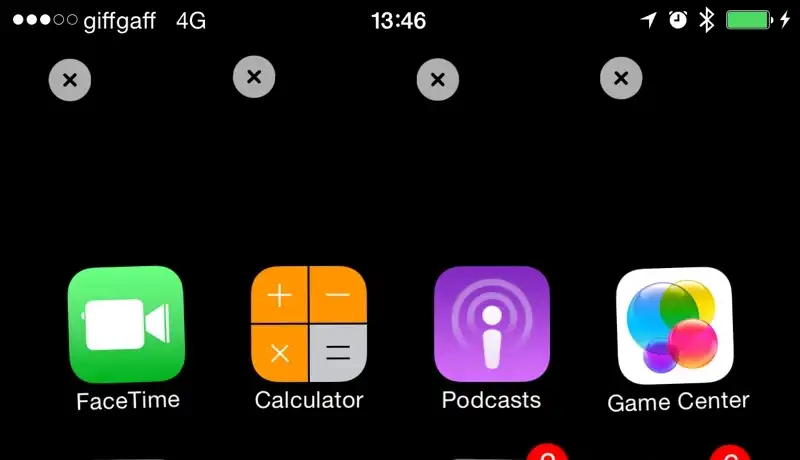
The Ultimate Guide to Personalizing Your Iphone
Are you tired of having a cluttered home screen on your iPhone? Do you want to learn how to personalize your device and make it truly yours? Look no further! In this comprehensive guide, we will show you how to displace icons on your iPhone, create folders, and customize your device to suit your needs.
Why Personalize Your Iphone?
Personalizing your iPhone can make a huge difference in your overall user experience. By customizing the look and feel of your device, you can improve productivity, reduce distractions, and enhance enjoyment. Whether you’re a busy professional or an avid gamer, personalization can help you get the most out of your iPhone.
How to Displace Icons on Your Iphone
Displacing icons on your iPhone is a straightforward process that can be completed in just a few steps. Here’s how:
- Long Press: Long press on any icon on your home screen until it starts to jiggle.
- Select: Select the “Edit Home Screen” option from the menu.
- Drag And Drop: Drag and drop the icons to their new location.
Creating Folders on Your Iphone
In addition to displacing icons, you can also create folders to organize your apps and games. Here’s how:
- Long Press: Long press on any icon until it starts to jiggle.
- Drag And Drop: Drag and drop the icon onto another app or game to create a folder.
- Rename: Rename the folder by tapping on its title.
Placing Icons in Alphabetical Order
Want to tidy up your home screen? Place your icons in alphabetical order with these simple steps:
- Settings: Go to Settings > General > Transfer or Reset iPhone.
- Restore Home Screen Layout: Tap on “Restore Home Screen Layout” and then select “Restore Home Screen.”
- Alphabetize: Your icons will now be arranged alphabetically.
Hiding Icons
Tired of seeing certain apps or games on your home screen? Hide them with these easy steps:
- Settings: Go to Settings > Weather & Location.
- Restrictions: Tap on “Restrictions” and enable the option for each app you want to hide.
- Turn Off: Turn off the restrictions for the apps you want to see.
Using The Bookshelf App
In iOS 14 and later, a new Bookshelf app allows you to automatically organize your apps into folders. Here’s how:
- Long Press: Long press on an icon until it starts to jiggle.
- Tap Edit Home Screen: Tap “Edit Home Screen” from the menu.
- Select: Select the folder you want to add the icon to.
Displacing Icons With Itunes or Finder
If you’re using a PC, you can’t directly displace icons on your iPhone using iTunes or Finder. However, you can still customize your device’s home screen by following the steps outlined in our previous sections.
Conclusion
In this comprehensive guide, we’ve shown you how to personalize your iPhone and make it truly yours. From displacing icons to creating folders and customizing your device, these tips will help you get the most out of your iPhone. Whether you’re a seasoned iPhone user or just starting out, this guide has something for everyone.
Frequently Asked Questions (FAQs)
- Q: Can I Displace Icons on my Iphone With Itunes or Finder?
A: Unfortunately, no. However, you can customize your device’s home screen by following the steps outlined in our previous sections. - Q: How do I Create a Folder on my Iphone?
A: To create a folder, long press on an icon until it starts to jiggle, then drag and drop it onto another app or game. - Q: Can I Hide Icons on my Iphone?
A: Yes! Go to Settings > Weather & Location, then tap on “Restrictions” and enable the option for each app you want to hide.


