
How to Move Large Files: A Step-by-step Guide
Are you struggling to move large files from one computer to another? Do you find yourself getting frustrated with the process, especially when dealing with big files? You’re not alone! In this article, we’ll show you how to move large files easily and efficiently, regardless of whether you’re using a Windows or Mac computer.
Understanding The Problem
Moving large files can be a challenge, especially if you’re new to computers or haven’t worked with file transfers before. The process can be confusing, and it’s easy to lose track of where your files are going. But don’t worry; we’ve got you covered!
Solutions For Moving Large Files
There are several solutions to moving large files, depending on your needs and preferences. Let’s explore some options:
1. Using a Cloud Storage Service
Services like Google Drive, OneDrive, and Dropbox offer cloud storage solutions that allow you to upload and share files across devices. This is an excellent option if you need to move large files between computers or want to access them from anywhere.
2. Utilizing File Sharing Software
Software like TeraCopy allows you to copy, move, and delete files with ease. It’s a great tool for moving large files quickly and efficiently.
3. Transferring Files Via Usb Drive
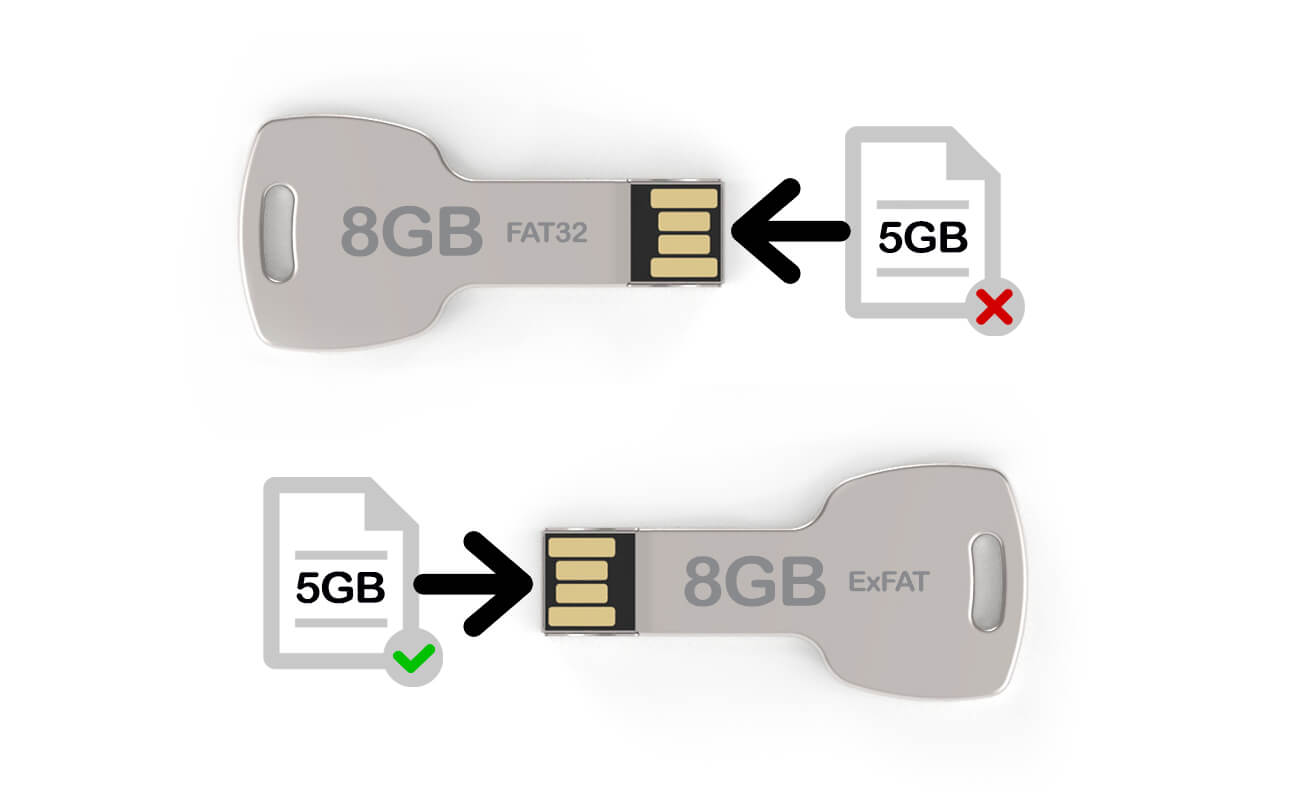
If you prefer physical storage, transferring files to a USB drive is another option. This method works well for smaller files but may take longer for larger ones.
Step-by-step Instructions For Moving Large Files
Now that we’ve discussed the solutions, let’s dive into the step-by-step process:
Windows Computers:
- Find the file you want to move.
- Right-click on the file and select “Copy.”
- Navigate to the destination folder and right-click on it.
- Select “Paste” or “Move Here.”
Alternatively, you can use the keyboard shortcuts:
Ctrl + Cfor CopyCtrl + Xfor Cut (move)Ctrl + Vfor Paste
Mac Computers:
- Find the file you want to move.
- Right-click on the file and select “Copy.”
- Navigate to the destination folder and right-click on it.
- Select “Paste” or “Move Here.”
Alternatively, you can use the keyboard shortcuts:
Cmd + Cfor CopyCmd + Xfor Cut (move)Cmd + Vfor Paste
Tips And Tricks
Here are some additional tips to keep in mind when moving large files:
- Make sure your computer has enough free space on the destination drive.
- Consider using a cloud storage service or file sharing software for larger files.
- If you’re using a USB drive, ensure it’s compatible with both computers.
Conclusion
Moving large files doesn’t have to be a hassle. By following these simple steps and exploring different solutions, you can easily transfer your files between computers. Remember to always check the compatibility of your devices and storage options before attempting to move large files.
Frequently Asked Questions (FAQs)
Here are some frequently asked questions and answers related to moving large files:
Q1: What is The Best Way to Move Large Files?
A1: The best method depends on your needs. Cloud storage services, file sharing software, or transferring files via USB drive can work well.
Q2: Can I Use a Usb Drive to Transfer Large Files?
A2: Yes, but make sure it’s compatible with both computers and has enough free space for the file.
Q3: How do I Move Files Between Windows And Mac Computers?
A3: Use cloud storage services or file sharing software to transfer files across platforms.


