
How to Displace Programs From One Hard Disk to Another on Windows
Are you tired of dealing with cluttered hard disks? Do you want to free up some space by moving programs from one disk to another? Look no further! In this article, we’ll guide you through the process of displacing programs from one hard disk to another on Windows.
Why Displace Programs?
Displacing programs is a great way to free up space on your hard disk and keep your computer organized. By moving programs to another disk, you can:
- Free up space on your original disk
- Improve the performance of your computer
- Keep your programs organized and easy to find
How to Displace Programs Using Link Symbolic And Giunzioni
To displace programs using link symbolic and giunzioni, follow these steps:
- Verify That Your Hard Disk is Formatted With Ntfs: Open File Explorer, right-click on the disc or partition you want to control, and select “Properties.” Make sure the file system type is NTFS.
- Create a Link Symbolic And/or Giunzione: Right-click on an empty spot in the window, select “New” > “Link,” and follow the prompts to create a link to the program folder.
- Cut The Program Folder: Right-click on the program folder you want to displace, select “Cut,” and then right-click on the destination disk or partition, select “Paste.”
- Verify That The Link is Working Correctly: Right-click on the original program folder and select “Properties” to ensure that the link is working correctly.
Using Steam Mover
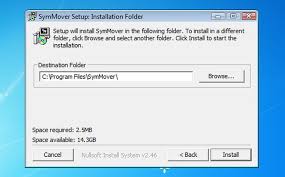
If you’re not comfortable with the process above, you can use a free tool called Steam Mover to displace programs easily. Here’s how:
- Download Steam Mover: Go to the Steam Mover website and download the software.
- Launch Steam Mover: Run the software and select the program folder you want to displace.
- Select The Destination Disk or Partition: Choose the disk or partition where you want to move the program.
- Click “Move”: The software will handle the rest.
Using Freemove
Another free tool that can help you displace programs is FreeMove. Here’s how to use it:
- Download Freemove: Go to the FreeMove website and download the software.
- Launch Freemove: Run the software and select the program folder you want to displace.
- Select The Destination Disk or Partition: Choose the disk or partition where you want to move the program.
- Click “Move”: The software will handle the rest.
Displacing Programs on Macos And Linux
If you’re using a Mac or Linux computer, you can displace programs using link symbolic. Here’s how:
- Open Terminal: Go to Applications > Utilities > Terminal.
- Enter The Command: Type
ln -s /path/to/original/folder /path/to/destination/folderand press Enter. - Verify That The Link is Working Correctly: Right-click on the original program folder and select “Properties” to ensure that the link is working correctly.
Conclusion
Displacing programs from one hard disk to another on Windows is a straightforward process that can be accomplished using link symbolic and giunzioni or free tools like Steam Mover and FreeMove. By following these steps, you can free up space on your original disk, improve the performance of your computer, and keep your programs organized.
Frequently Asked Questions
- What Happens if I Displace a Program That is Still in Use?
- If you displace a program while it’s still in use, the program will continue to run from its new location.
- Can I Displace Multiple Programs at Once?
- Yes, most of the tools mentioned above allow you to displace multiple programs at once.
- Will Displacing Programs Affect my Computer’s Performance?
- Displacing programs should not affect your computer’s performance. However, if you’re displacing a large number of programs, it may take some time for the process to complete.
Additional Resources
For more information on displacing programs, check out these additional resources:


