
How to Open a File With a Data Program: A Step-by-step Guide
Are you tired of dealing with file associations that just won’t stick? Do you find yourself constantly switching between different programs to open the same type of file? Look no further! In this article, we’ll show you how to easily change the default program associated with a specific file type on various operating systems.
Understanding File Associations
Before we dive into the step-by-step guide, let’s quickly understand what file associations are. A file association is a link between a file extension (e.G., .Docx) and the program that should open it by default (e.G., Microsoft Word). This allows your computer to automatically launch the correct program when you double-click on a file with that particular extension.
Opening a File With a Data Program: Windows 11
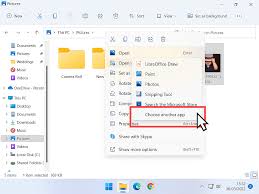
On Windows 11, you can easily change the default program associated with a specific file type. Here’s how:
- Right-click on The File: Open File Explorer and right-click on the file you want to associate with a new program.
- Select “Open With”: From the context menu, select “Open with”.
- Choose The New Program: In the window that appears, choose the new program you want to associate with this file type.
- Select “Always Use This App to Open .Filetype”: Make sure to select the option to always use this app to open files of this type.
Opening a File With Another Program: Windows 11
If you want to open a file using a different program from the one currently associated with it, follow these steps:
- Right-click on The File: Open File Explorer and right-click on the file you want to open with another program.
- Select “Open With”: From the context menu, select “Open with”.
- Choose a Different Program: In the window that appears, choose a different program from the list of available options.
- Select “Always Use This App to Open .Filetype”: Make sure to select the option to always use this app to open files of this type.
Opening a File With a Data Program: Windows 10
On Windows 10, you can also change the default program associated with a specific file type by following these steps:
- Open Settings: Click on the Start menu and select “Settings”.
- Select “Apps”: From the Settings window, select “Apps”.
- Choose “Default Apps”: In the Apps window, choose “Default apps”.
- Select a Different Program: Select a different program from the list of available options to associate with this file type.
Opening a File With Another Program: Windows 10
If you want to open a file using a different program from the one currently associated with it on Windows 10, follow these steps:
- Right-click on The File: Open File Explorer and right-click on the file you want to open with another program.
- Select “Open With”: From the context menu, select “Open with”.
- Choose a Different Program: In the window that appears, choose a different program from the list of available options.
- Select “Always Use This App to Open .Filetype”: Make sure to select the option to always use this app to open files of this type.
Opening a File With a Data Program: Windows 7
On Windows 7, you can change the default program associated with a specific file type by following these steps:
- Open Control Panel: Click on the Start menu and select “Control Panel”.
- Select “Programs”: From the Control Panel window, select “Programs”.
- Choose “Default Programs”: In the Programs window, choose “Default programs”.
- Select a Different Program: Select a different program from the list of available options to associate with this file type.
Opening a File With Another Program: Windows 7
If you want to open a file using a different program from the one currently associated with it on Windows 7, follow these steps:
- Right-click on The File: Open File Explorer and right-click on the file you want to open with another program.
- Select “Open With”: From the context menu, select “Open with”.
- Choose a Different Program: In the window that appears, choose a different program from the list of available options.
Opening a File With a Data Program: Mac
On Mac, you can easily change the default program associated with a specific file type by following these steps:
- Right-click on The File: Open Finder and right-click on the file you want to associate with a new program.
- Select “Get Info”: From the context menu, select “Get Info”.
- Choose a Different Program: In the window that appears, choose a different program from the list of available options.
Opening a File With Another Program: Mac
If you want to open a file using a different program from the one currently associated with it on Mac, follow these steps:
- Right-click on The File: Open Finder and right-click on the file you want to open with another program.
- Select “Open With”: From the context menu, select “Open with”.
- Choose a Different Program: In the window that appears, choose a different program from the list of available options.
Opening a File With Another App: Smartphone And Tablet
On Android devices, you can change the default app associated with a specific file type by following these steps:
- Open Settings: Tap on the settings icon.
- Select “Apps”: From the Settings window, select “Apps”.
- Choose “Default Apps”: In the Apps window, choose “Default apps”.
- Select a Different App: Select a different app from the list of available options to associate with this file type.
On iOS devices, you can open a file using a different app by following these steps:
- Open The File: Open the file in question.
- Tap on The Share Icon: Tap on the share icon.
- Choose a Different App: Choose a different app from the list of available options to open the file.
Conclusion
Changing the default program associated with a specific file type is easier than you think! Whether you’re using Windows 11, Windows 10, Windows 7, or Mac, we’ve provided step-by-step guides on how to do it. Remember to follow these tips to ensure smooth sailing:
- Right-click on the file
- Choose “Open with”
- Select a different program
- Make sure to select the option to always use this app to open files of this type
Faqs
- Q: How do I Change The Default Program Associated With a Specific File Type on Windows 11?
A: Right-click on the file, choose “Open with”, and select a different program. - Q: Can I Open a File Using a Different Program From The One Currently Associated With it on Windows 10?
A: Yes! Follow the same steps as for Windows 11. - Q: How do I Change The Default App Associated With a Specific File Type on Android Devices?
A: Open Settings, select “Apps”, choose “Default apps”, and select a different app. - Q: Can I Open a File Using a Different App From The One Currently Associated With it on Ios Devices?
A: Yes! Open the file, tap on the share icon, and choose a different app. - Q: What if I Don’t See The Option to Change The Default Program Associated With a Specific File Type?
A: Check your operating system’s settings or consult online resources for further assistance. - Q: Will Changing The Default Program Associated With a Specific File Type Affect Other Files of The Same Type?
A: No, it will only affect the specific file you’re working with at that moment. - Q: Can I Change The Default Program Associated With a Specific File Type on Mac?
A: Yes! Right-click on the file, choose “Get Info”, and select a different program.
Bonus Tip
If you find yourself constantly switching between different programs to open the same type of file, consider creating shortcuts or custom folders to streamline your workflow. Happy computing!


