
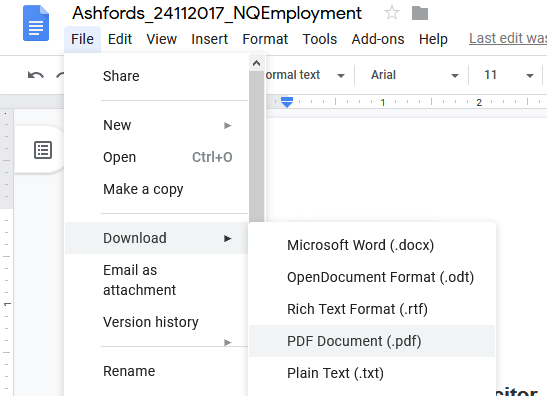
How to Open a Pdf in Word: A Step-by-step Guide
Are you struggling to open a PDF file in Microsoft Word? Do you find yourself stuck between trying to figure out how to convert the file or simply giving up? Well, you’re not alone! Many people face this challenge every day. But fear not, dear reader, for we have got the solution for you.
Understanding The Basics
Before we dive into the nitty-gritty of opening a PDF in Word, it’s essential to understand the basics. A PDF (Portable Document Format) file is a type of document that contains text, images, and other elements in a single, self-contained package. Microsoft Word, on the other hand, is a word processing program that allows you to create and edit documents.
Why Can’t I Open My Pdf in Word?
There are several reasons why you might not be able to open your PDF file in Word:
- Incompatible File Format: The PDF file might not be compatible with the version of Microsoft Word you’re using.
- Corrupted File: The PDF file might be corrupted, which can prevent it from being opened in Word or any other program.
- Missing Plugins: You might need to install additional plugins or software to enable PDF opening in Word.
Solutions: Opening a Pdf in Word
Now that we’ve covered the possible reasons for not being able to open your PDF file in Word, let’s move on to the solutions:
1. Using Microsoft Word
Microsoft Word has built-in capabilities to open and edit PDF files. Here’s how to do it:
- Open Microsoft Word.
- Click on “File” and then select “Open.”
- Navigate to the location of your PDF file.
- Select the file, click “OK,” and then follow the prompts.
2. Using External Software
If you’re unable to open the PDF in Word, there are several external software options available that can help you convert the file:
- Doxillion Document Converter: A free program that allows you to convert PDFs into editable Word documents.
- Pdfelement: A user-friendly program that enables you to create, modify, and convert PDF files with ease.
3. Using Online Services
If you’re short on time or prefer a hassle-free experience, consider using online services like:
- Ilovepdf: An online converter that allows you to open PDFs in Word format without requiring any software installation.
Tips And Tricks
Here are some additional tips and tricks to keep in mind when opening PDF files in Microsoft Word:
- Always Save a Copy: Before making any changes, save a copy of the original PDF file.
- Choose The Right Conversion Settings: Select the right conversion settings for your PDF file to ensure optimal results.
- Keep Your Software Up-to-date: Regularly update Microsoft Word and other software to prevent compatibility issues.
Conclusion
Opening a PDF in Microsoft Word might seem daunting at first, but with these steps and tips, you’ll be well on your way to successfully converting your files. Don’t hesitate to reach out if you have any further questions or need additional guidance.
Frequently Asked Questions (FAQs)
- Q: Can I Open a Pdf File in Microsoft Word?
A: Yes, you can open a PDF file in Microsoft Word, but the results might vary depending on the version of Word and the type of PDF. - Q: What Are Some External Software Options For Converting Pdfs to Word Documents?
A: Some popular external software options include Doxillion Document Converter and PDFElement. - Q: Can I Use Online Services to Convert Pdfs to Word Format?
A: Yes, there are several online services available that allow you to open PDFs in Word format without requiring any software installation.
References
For more information on opening PDF files in Microsoft Word, refer to the following resources:


