
How to Open Acsm Files: A Comprehensive Guide
Are you struggling to open ACSM files on your PC, online, or mobile device? You’re not alone! In this article, we’ll walk you through the process of opening ACSM files, a type of protected digital book file. We’ll cover the steps for Windows and macOS PCs, as well as Android and iOS devices.
What is an Acsm File?
An ACSM (Adobe Content Server Message) file is a protected digital book file that contains licensing information and encryption keys. It’s used by Adobe to protect eBooks from unauthorized copying or sharing.
Opening Acsm Files on PC
To open ACSM files on your Windows or macOS PC, you’ll need to download and install the Adobe Digital Editions software.
Step 1: Download And Install Adobe Digital Editions
- Go to the Adobe Digital Editions website.
- Click on the “Download” button for your operating system (Windows or macOS).
- Follow the installation instructions to install the software.
Step 2: Authorize Your Pc
- Launch Adobe Digital Editions and click on the “Authorize” button.
- Enter your Adobe ID credentials to authorize your PC.
- If you don’t have an Adobe ID, create one by clicking on the “Create a new account” link.
Step 3: Open The Acsm File
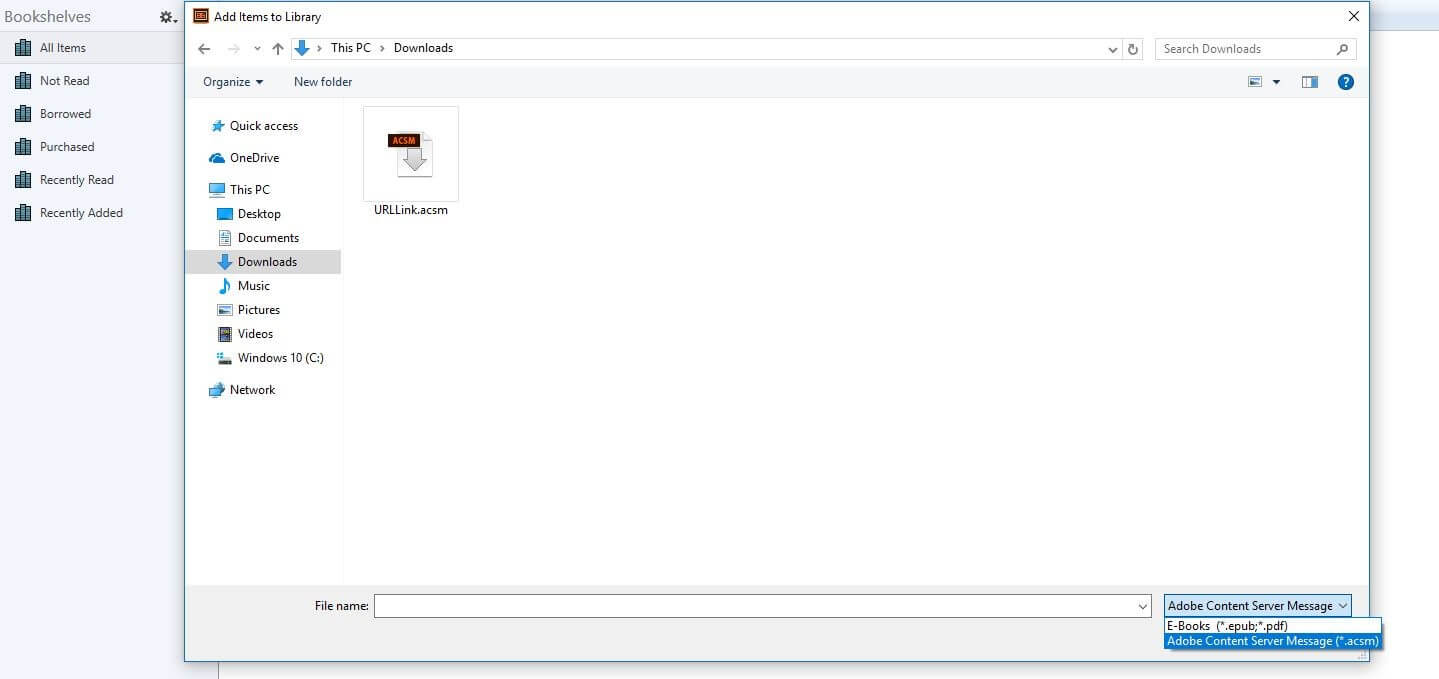
- Locate the ACSM file you want to open and double-click on it.
- The file should now be opened in Adobe Digital Editions, and you can start reading your eBook.
Opening Acsm Files Online
Unfortunately, there is no online service that allows you to open ACSM files directly. However, you can try using the Adobe Acrobat Reader service to view the file.
Step 1: Go to The Adobe Acrobat Reader Service
- Visit the Adobe Acrobat Reader website.
- Click on the “Open” button and select your ACSM file from your computer.
Step 2: Enter Your Adobe ID Credentials
- You’ll be prompted to enter your Adobe ID credentials to access the file.
- If you don’t have an Adobe ID, create one by clicking on the “Create a new account” link.
Opening Acsm Files on Android Devices
To open ACSM files on your Android device, you can use the Adobe Digital Editions app.
Step 1: Download And Install The Adobe Digital Editions App
- Go to the Google Play Store website.
- Search for “Adobe Digital Editions” and click on the “Install” button.
- Follow the installation instructions to install the app.
Step 2: Authorize Your Device
- Launch the Adobe Digital Editions app and tap on the “Authorize” button.
- Enter your Adobe ID credentials to authorize your device.
- If you don’t have an Adobe ID, create one by tapping on the “Create a new account” link.
Step 3: Open The Acsm File
- Locate the ACSM file you want to open and tap on it.
- The file should now be opened in Adobe Digital Editions, and you can start reading your eBook.
Opening Acsm Files on Ios Devices
To open ACSM files on your iOS device, you can use the Adobe Digital Editions app.
Step 1: Download And Install The Adobe Digital Editions App
- Go to the App Store website.
- Search for “Adobe Digital Editions” and click on the “Get” button.
- Follow the installation instructions to install the app.
Step 2: Authorize Your Device
- Launch the Adobe Digital Editions app and tap on the “Authorize” button.
- Enter your Adobe ID credentials to authorize your device.
- If you don’t have an Adobe ID, create one by tapping on the “Create a new account” link.
Step 3: Open The Acsm File
- Locate the ACSM file you want to open and tap on it.
- The file should now be opened in Adobe Digital Editions, and you can start reading your eBook.
Conclusion
Opening ACSM files may seem complicated, but with the right software and steps, it’s a straightforward process. Remember to always download and install the latest version of Adobe Digital Editions for your operating system, and follow the authorization instructions carefully. Happy reading!
Additional Tips And Resources
- Make sure you have the latest version of Adobe Digital Editions installed on your device.
- If you’re having trouble opening an ACSM file, try checking the Adobe Digital Editions settings or contacting Adobe support for assistance.
- Consider using a different eBook reader app or service if you encounter issues with Adobe Digital Editions.


