
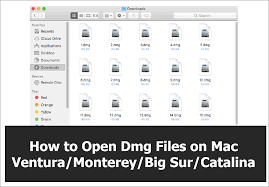
How to Open .DMG Files on Your Computer: A Step-by-step Guide
Are you struggling to open a .DMG file on your computer? You’re not alone! Many people face this issue, especially when trying to access files from macOS or other Apple devices. In this article, we’ll guide you through the process of opening .DMG files on both Windows and Mac operating systems.
Understanding .DMG Files
Before we dive into the solutions, it’s essential to understand what a .DMG file is. A .DMG file is an image file format used by Apple devices, similar to ISO files used by other operating systems. These files are designed for macOS and can be challenging to open on Windows computers.
Opening .DMG Files on Windows
If you’re trying to access a .DMG file on a Windows computer, there are several options available:
Option 1: Using 7-Zip
One of the most popular solutions is using 7-Zip, a free and open-source software that can extract files from compressed archives. To use 7-Zip:
- Download and install 7-Zip on your Windows computer.
- Right-click on the .DMG file and select “Open with” > “7-Zip Archive Manager”.
- The contents of the .DMG file will be displayed in a new window.
- You can extract the files to a desired location by selecting them and choosing the “Extract” option.
Option 2: Using Dmg Extractor
Another option is using DMG Extractor, a specialized software designed specifically for opening .DMG files on Windows.
- Download and install DMG Extractor from its official website.
- Run the program and select the .DMG file you want to open.
- The contents of the file will be displayed in a new window.
- You can extract the files to a desired location by selecting them and choosing the “Extract” option.
Option 3: Using Online Services
If you’re unable to install software on your Windows computer, there are online services that allow you to open .DMG files without downloading any software.
- Visit the website of a service like 123apps or DMG Extractor.
- Select the .DMG file you want to open from your computer or enter its URL.
- The contents of the file will be displayed in a new window.
- You can extract the files to a desired location by selecting them and choosing the “Download” option.
Opening .DMG Files on Mac
If you’re using a Mac, opening a .DMG file is relatively straightforward:
- Double-click on the .DMG file to mount it as a disk image.
- The contents of the file will be displayed in a new window.
- You can extract the files to a desired location by selecting them and choosing the “Extract” option.
Troubleshooting Tips
If you’re experiencing issues opening .DMG files on your Mac or Windows computer, try the following troubleshooting tips:
- Ensure that the file is not corrupted or damaged.
- Check if the file has been properly downloaded or transferred.
- Try using a different software or service to open the file.
Conclusion
Opening .DMG files can be challenging, but with the right tools and knowledge, it’s achievable on both Windows and Mac operating systems. Whether you choose to use 7-Zip, DMG Extractor, or online services, we hope this guide has helped you overcome any obstacles and successfully access your .DMG files.
Frequently Asked Questions (FAQs)
- Q: What is a .DMG File?
A: A .DMG file is an image file format used by Apple devices. - Q: Can I Open a .DMG File on Windows?
A: Yes, you can use 7-Zip or DMG Extractor to open a .DMG file on Windows. - Q: How do I Extract Files From a .DMG File?
A: Use the “Extract” option in 7-Zip or DMG Extractor to extract files from a .DMG file. - Q: Can I Use an Online Service to Open a .DMG File?
A: Yes, services like 123apps or DMG Extractor allow you to open .DMG files without installing software. - Q: Why am I Unable to Open a .DMG File on my Mac?
A: Try checking if the file is corrupted or damaged, and ensure that it has been properly downloaded or transferred. - Q: Can I Transfer a .DMG File From an Ios Device to a Windows Computer?
A: Yes, you can transfer the file using a service like Dropbox or Google Drive. - Q: How do I Protect Myself From Malware When Opening .DMG Files?
A: Use trusted software and services, and ensure that the file is not corrupted or damaged.
I hope this article has been informative and helpful in understanding how to open .DMG files on your computer. If you have any further questions or need assistance with troubleshooting issues, feel free to ask!


