
How to Open Downloaded Files on Android: A Step-by-step Guide
Are you struggling to find your downloaded files on your Android device? Do you want to know how to open them without any hassle? Look no further! In this article, we will guide you through the process of opening downloaded files on your Android smartphone or tablet.
Understanding Downloaded Files
Before we dive into the step-by-step guide, it’s essential to understand what downloaded files are. Downloaded files are documents, images, videos, audio files, and other types of content that you’ve retrieved from the internet using a web browser. These files can be saved in various locations on your device, such as the Downloads folder or other apps’ folders.
Method 1: Using The Pre-installed File Manager App
The pre-installed file manager app on Android devices allows you to access and manage downloaded files with ease. Here’s how:
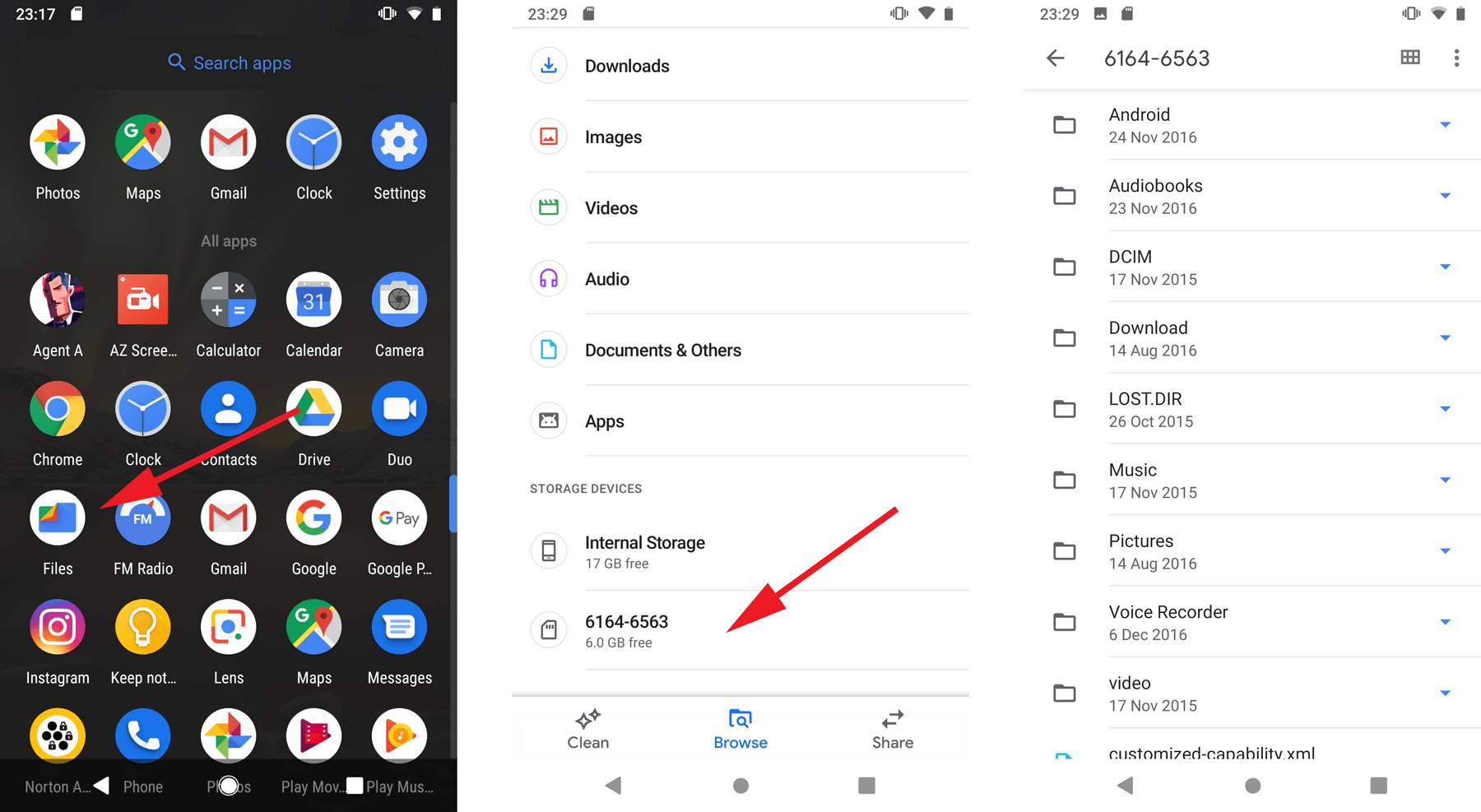
- Locate The File Manager App: Look for the File Manager app icon on your home screen or in the drawer. The icon typically features a folder or a file cabinet.
- Open The File Manager App: Tap on the File Manager app icon to open it.
- Access The Downloads Folder: In the File Manager app, scroll through the list of folders and locate the “Downloads” folder.
- Find Your Downloaded Files: Inside the Downloads folder, you’ll find all your downloaded files. Simply tap on a file to open it.
Method 2: Using Google Files
Google Files is another excellent option for managing downloaded files on Android devices. Here’s how:
- Download And Install Google Files: Tap on this link to download and install the Google Files app on your device.
- Open Google Files: Launch the Google Files app by tapping on its icon.
- Access The Downloads Folder: In the Google Files app, tap on the “Downloads” tab to access all your downloaded files.
- Find Your Downloaded Files: Browse through the list of files and tap on a file to open it.
Method 3: Using Chrome
You can also use the Chrome browser to access and manage downloaded files directly. Here’s how:
- Open Chrome: Launch the Google Chrome app on your device.
- Tap on The ⋮ Icon: In the Chrome app, tap on the three-dot icon in the top-right corner of the screen.
- Select “Downloads”: From the drop-down menu, select “Downloads.”
- Find Your Downloaded Files: Browse through the list of files and tap on a file to open it.
Troubleshooting Tips
If you’re having trouble finding your downloaded files or opening them, try these troubleshooting tips:
- Check The Downloads Folder: Ensure that your downloaded files are saved in the correct folder.
- Restart Your Device: Sometimes, simply restarting your device can resolve issues with accessing downloaded files.
- Clear Cache And Data: Clearing cache and data for the File Manager app or Google Files app might help resolve any issues.
Conclusion
Opening downloaded files on Android devices is a straightforward process. By using the pre-installed file manager app, Google Files, or Chrome, you can easily access and manage your downloaded content. Remember to troubleshoot any issues by checking the Downloads folder, restarting your device, or clearing cache and data for the relevant apps.


