
How to Open Enclosed Email: A Step-by-step Guide
Are you struggling to open enclosed email on your computer or smartphone? Don’t worry, we’ve got you covered! In this article, we’ll walk you through the step-by-step process of opening enclosed email using popular email services like Gmail, Outlook, Yahoo Mail, and more.
Understanding Enclosed Email
Before we dive into the nitty-gritty, let’s quickly understand what enclosed email is. Enclosed email refers to an email that contains attachments or files that can be downloaded or viewed directly in the email client. These attachments can be images, documents, videos, or any other type of file.
Opening Enclosed Email on PC And Mac
If you’re using a computer or laptop with a Windows or macOS operating system, opening enclosed email is relatively straightforward. Here’s how:
- Open your email client (e.G., Outlook, Apple Mail) and navigate to the message containing the attachment.
- Double-click on the attachment icon to view it directly in the email client.
- Alternatively, you can download the attachment by clicking on the “Save” or “Download” button.
Opening Enclosed Email on Android And Iphone
If you’re using a smartphone with an Android or iOS operating system, opening enclosed email is just as easy. Here’s how:
- Open your email app (e.G., Gmail, Outlook) and navigate to the message containing the attachment.
- Tap on the attachment icon to view it directly in the email client.
- Alternatively, you can download the attachment by tapping on the “Download” button or sharing it with another app.
Opening Enclosed Email on Web-based Services
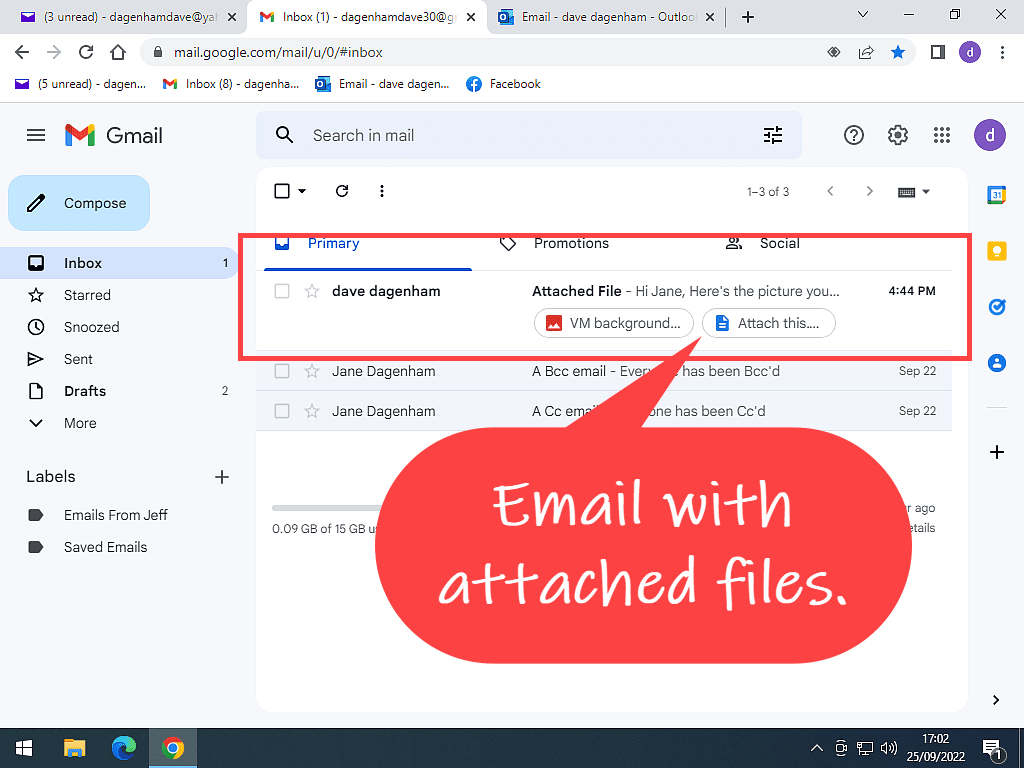
If you’re using a web-based email service like Gmail, Outlook, or Yahoo Mail, opening enclosed email is also straightforward. Here’s how:
- Log in to your email account and navigate to the message containing the attachment.
- Click on the attachment icon to view it directly in the email client.
- Alternatively, you can download the attachment by clicking on the “Save” or “Download” button.
Tips And Tricks
Here are some additional tips and tricks to keep in mind when opening enclosed email:
- Always be cautious when downloading attachments from unknown senders, as they may contain malware or viruses.
- Use strong passwords and two-factor authentication to protect your email account.
- Regularly update your operating system and email client software to ensure you have the latest security patches.
Conclusion
Opening enclosed email is a straightforward process that can be completed using popular email services like Gmail, Outlook, Yahoo Mail, and more. By following these simple steps, you’ll be able to view and download attachments directly in your email client or on your smartphone. Remember to always be cautious when downloading attachments from unknown senders and use strong passwords and two-factor authentication to protect your email account.
Frequently Asked Questions
- What is Enclosed Email?
Enclosed email refers to an email that contains attachments or files that can be downloaded or viewed directly in the email client. - How do I Open Enclosed Email on my Pc?
To open enclosed email on your PC, navigate to the message containing the attachment and double-click on the attachment icon to view it directly in the email client. - Can I Download Attachments From my Email Account?
Yes, you can download attachments by clicking on the “Save” or “Download” button in your email client. - How do I Open Enclosed Email on my Smartphone?
To open enclosed email on your smartphone, navigate to the message containing the attachment and tap on the attachment icon to view it directly in the email client. - What Should I be Cautious About When Opening Enclosed Email?
When opening enclosed email from unknown senders, be cautious of attachments that may contain malware or viruses. - How Can I Protect my Email Account?
To protect your email account, use strong passwords and two-factor authentication to ensure only authorized users can access your account. - Can I Open Enclosed Email on Web-based Services Like Gmail?
Yes, you can open enclosed email on web-based services like Gmail by navigating to the message containing the attachment and clicking on the attachment icon to view it directly in the email client.
I hope this article has helped you understand how to open enclosed email using popular email services. If you have any further questions or concerns, please don’t hesitate to ask!


