
How to Open Eml Files on Pc, Mac, Android, And Iphone
Are you struggling to open EML files on your device? Don’t worry; I’ve got the solution for you! In this article, we will explore how to open EML files on various platforms, including Windows, macOS, Android, and iPhone.
What is an Eml File?
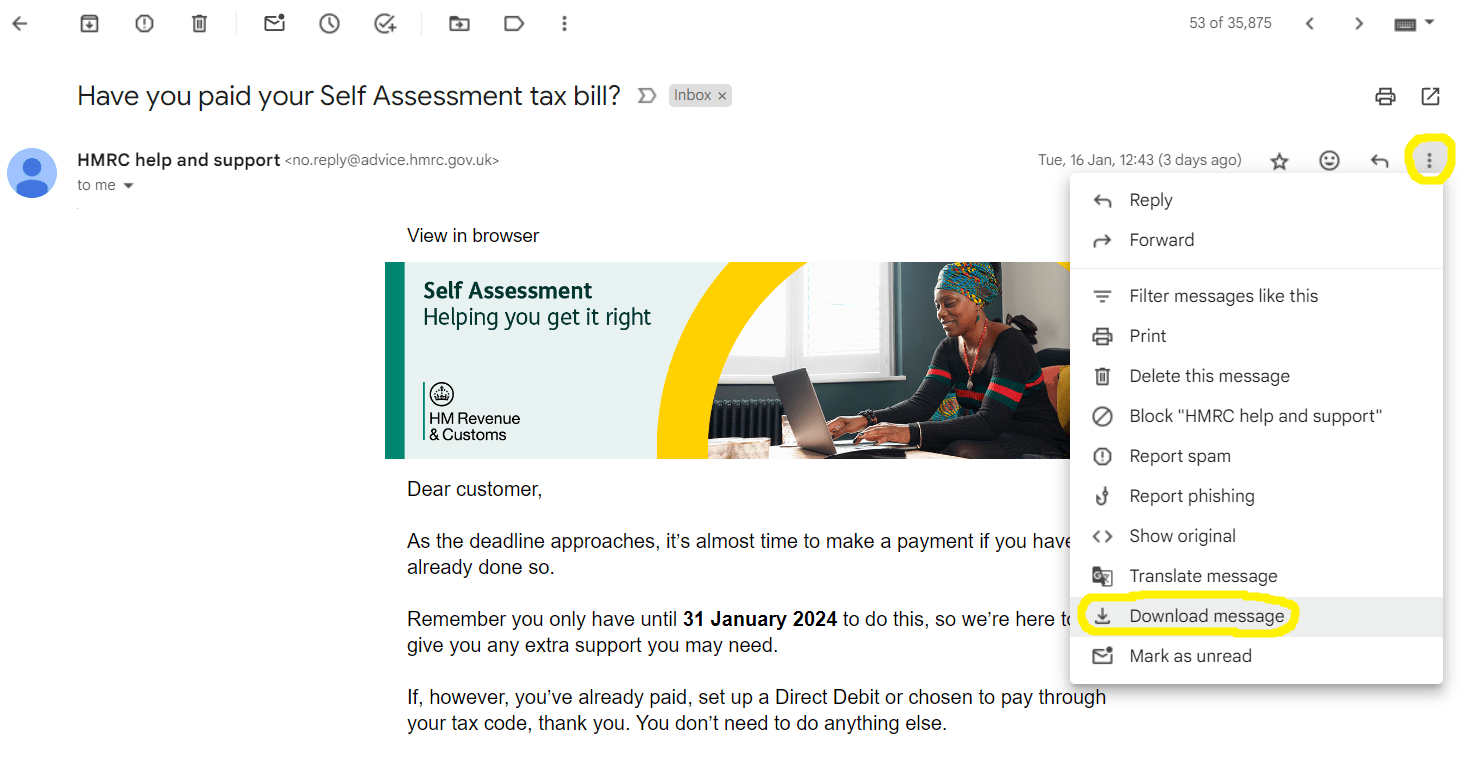
An EML file is a type of email message that contains formatted text, images, and attachments. It’s similar to a PDF file but specifically designed for emails. These files are generated by email clients like Microsoft Outlook, Apple Mail, or Mozilla Thunderbird.
Opening Eml Files on Windows PC
If you have a Windows PC and want to open an EML file, it’s relatively easy. Here’s what you need to do:
- Ensure that the email client you’re using is installed on your computer. This could be Microsoft Outlook, Mail for Windows 10, or another similar application.
- Double-click the EML file icon to open it in the email client. If the file doesn’t open automatically, right-click on the icon and select “Open with” > “Your Email Client” (e.G., Outlook).
- If you don’t have an email client installed, download a free software like Thunderbird, which supports opening EML files.
Opening Eml Files on Macos
On your Mac, follow these steps to open an EML file:
- Ensure that Mail for Apple is installed on your computer.
- Double-click the EML file icon to open it in Mail. If it doesn’t open automatically, right-click on the icon and select “Open with” > “Mail.”
- Alternatively, download Thunderbird or another email client that supports opening EML files.
Opening Eml Files on Android
To open an EML file on your Android device:
- Ensure that you have a compatible email client installed, such as Gmail.
- Tap on the EML file icon to open it in the email client. If it doesn’t open automatically, tap on the file and select “Open with” > “Gmail.”
- Download an app like EML Reader FREE if your device doesn’t have a compatible email client installed.
Opening Eml Files on Iphone
To open an EML file on your iPhone:
- Ensure that you don’t have Mail installed as it doesn’t support opening EML files directly.
- Download the EML Viewer Pro app from the App Store (available for 1,99€).
- Tap on the EML file icon to open it in the EML Viewer Pro app. Alternatively, use the sharing menu and select “EML Viewer Pro” to open the file.
Conclusion
Opening EML files is relatively easy once you know how. Whether you’re using a Windows PC, macOS, Android, or iPhone, there are compatible email clients and apps available to help you access these files. Remember to double-click the EML file icon to open it in your chosen application, or use alternative methods like right-clicking on the icon and selecting “Open with.”
Faqs
- Q: What is an Eml File?
A: An EML file is a type of email message containing formatted text, images, and attachments. - Q: Which Email Clients Support Opening Eml Files?
A: Microsoft Outlook, Mail for Apple (on macOS), Gmail (on Android), Thunderbird, and other compatible email clients. - Q: How do I Open an Eml File on my Iphone?
A: Download the EML Viewer Pro app from the App Store, or use the sharing menu to select “EML Viewer Pro.” - Q: Can I Open an Eml File With a Browser Like Chrome or Firefox?
A: Yes, you can try opening an EML file using these browsers, but compatibility might vary. - Q: What if my Email Client Doesn’t Support Opening Eml Files?
A: Download an app or software that specifically supports opening EML files, such as Thunderbird or EML Reader FREE. - Q: Can I Modify The Association For Eml File Types to Open Them in a Different Application?
A: Yes, you can change the default application associated with EML file types by right-clicking on an EML file icon and selecting “Open with” > “Choose another app.” - Q: What if I’m Experiencing Issues Opening an Eml File?
A: Try checking for compatibility issues with your email client or software, or contact the support team of the respective application.
I hope this comprehensive guide has helped you understand how to open EML files on various devices!


