
Unlocking The Power of Fastweb: A Step-by-step Guide to Opening Doors on Your Router
Are you tired of being restricted by your internet service provider? Do you want to unlock new possibilities with your Fastweb connection? Look no further! In this article, we’ll take you through a step-by-step guide on how to open doors on your router and get the most out of your Fastweb experience.
Why Open Doors on Your Router?
Before we dive into the nitty-gritty, let’s talk about why opening doors on your router is essential. By doing so, you’ll be able to access a world of possibilities, including:
- Unlocking new services and applications
- Improving your online gaming experience
- Enhancing your streaming capabilities
- Increasing your overall internet speed
Understanding Your Router
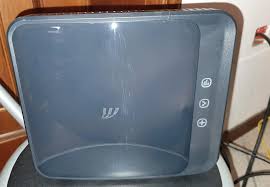
To begin with, it’s crucial to understand what your router is and how it works. Your router is the device that connects your devices to the internet, acting as a gateway between your home network and the wider online world.
Accessing Your Router
The first step in opening doors on your router is to access its administrative area. This can be done using the Fastweb app or through a web browser. Here’s how:
- Download and install the Fastweb app on your smartphone or tablet.
- Launch the app and follow the instructions to log in with your credentials.
- Alternatively, open a web browser and type in the address bar: 192.168.1.254 (Or http://Myfastgate).
Navigating Your Router’s Administrative Area
Once you’re logged in, you’ll find yourself in the administrative area of your router. This is where you can configure various settings, including opening doors for specific services and applications.
- If you’re using the Fastweb app, tap on the menu icon ☰ and select “NeXXt” from the drop-down list.
- If you’re accessing through a web browser, navigate to the “Settings” tab and click on “Advanced Settings.”
Opening Doors on Your Router
Now that we’ve accessed the administrative area, it’s time to open doors for specific services and applications. Here’s how:
- If you’re using the Fastweb app, tap on the menu icon ☰ and select “NeXXt” from the drop-down list.
- If you’re accessing through a web browser, navigate to the “Settings” tab and click on “Advanced Settings.”
- Click on the “Port Mapping” button and fill in the required information:
- Rule Name
- Local IP Address of the device for which you want to open doors
- External Door Number and Protocol (TCP/UDP)
Saving Your Changes
After filling in the necessary details, click on the “Save Settings” button to save your changes. This will open the specified door and allow you to access the desired service or application.
Alternative Methods For Opening Doors
If you’re not comfortable with using the Fastweb app or accessing through a web browser, don’t worry! You can also use alternative methods to open doors on your router:
- For NeXXt routers, you can download the eMule program and follow its instructions.
- For FASTGate modems, you can access the administrative area by opening a web browser and typing in the address bar: 192.168.1.254.
Conclusion
Opening doors on your Fastweb router may seem daunting at first, but with this step-by-step guide, you’ll be able to unlock new possibilities and get the most out of your internet connection. Remember to always follow the instructions carefully and ensure that your device is properly connected to your network before attempting to open doors.
Frequently Asked Questions (FAQs)
Here are some additional questions and answers to help you better understand opening doors on your Fastweb router:
Q: What are the benefits of opening doors on my router?
A: Opening doors on your router allows you to access new services and applications, improve your online gaming experience, enhance your streaming capabilities, and increase your overall internet speed.
Q: How do I access my router’s administrative area?
A: You can access your router’s administrative area using the Fastweb app or through a web browser by typing in the address bar: 192.168.1.254 (Or http://Myfastgate).
Q: What are the necessary details required to open doors on my router?
A: To open doors, you’ll need to fill in the Rule Name, Local IP Address of the device for which you want to open doors, External Door Number and Protocol (TCP/UDP), and click on the “Save Settings” button.
Q: Can I use alternative methods to open doors on my router?
A: Yes, if you’re not comfortable with using the Fastweb app or accessing through a web browser, you can also use alternative methods such as downloading the eMule program for NeXXt routers or accessing the administrative area of FASTGate modems.
Q: How do I save my changes after opening doors on my router?
A: After filling in the necessary details and clicking on the “Save Settings” button, your changes will be saved, and you’ll be able to access the specified service or application.
Q: Can I open multiple doors at once?
A: Yes, you can open multiple doors simultaneously by following the same steps for each door.
Author’s Note
This article was written with the intention of providing a comprehensive guide on how to open doors on your Fastweb router. If you have any questions or concerns, feel free to reach out to us in the comments section below!


