
How to Open Gpx Files: A Step-by-step Guide
Are you back from a relaxing vacation on the road, and your friend smanettone has shared with you their itinerary? However, you’re facing a small problem – you’ve never seen anything like this before, and you don’t know how to visualize its content. Don’t worry; this guide is here to help you understand GPX files and learn how to open them on various devices.
What Are Gpx Files?
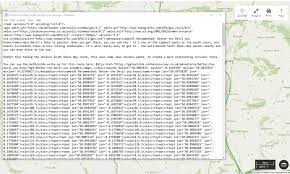
A GPX file is a type of file that contains information generated by a GPS browser or another navigation program with specific export functionality, relative to a precise route. It can be used to describe punctuated, stroked, or entire routes, defining information like the places toured, elevation, and weather.
How to Open Gpx Files on PC
If you’re using a Windows computer, follow these steps:
- Download And Install Gpxsee: Visit the Sourceforge page, click on the Download button, and wait for the file to download on your computer.
- Initiate the downloaded application (e.G., GPXSee-[Version]).
- Click on Yes, Next, I Agree, Next, and then Install and Close.
Open Gpx Files on Mac
If you’re using a Mac, follow these steps:
- Download And Install Gpxsee: Visit the Sourceforge page, click on the Download button, and wait for the file to download on your computer.
- Initiate the downloaded application (e.G., GPXSee-[Version]).
- Drag the GPXSee file into the Applications folder.
Open Gpx Files With Browser
If you don’t want to install a program but still want to open GPX files, you can use an online service like wTracks:
- Visit the wTracks website using your preferred browser.
- Choose whether to authorize or deny position tracking.
- Click on the Load button and select the GPX file to visualize.
Open Gpx Files on Smartphone And Tablet
If you’re using a smartphone or tablet, follow these steps:
- Android: Download and install the GPX Viewer app from Google Play or an alternative store. Tap on the app icon to open it, consent to access your common position, and tap on Open rows.
- Ios/ipados: Download and install the Open GPX Tracker app from the App Store. Tap on the app icon to open it, choose whether to always allow or agree only while using the app, then go out of the app and select the GPX file to visualize.
Open Gpx Files With Google Earth
If you’re familiar with Google Earth for planning your excursions, follow these steps:
- Open Google Earth on your computer.
- Go into the menu Rows > Open.
- Choose to create broken KML or LineString KML and regulate altitudes according to height.
Open Gpx Files With Google Maps
If you’re familiar with Google Maps for navigation, follow these steps:
- Access the Google Maps website using your browser.
- Click on the symbol ☰ situated in the top left corner of the search bar.
- Select Your places from the contextual menu.
- Choose to matter a new map without title and import the GPX file by dragging it into the map area or selecting it from your computer.
Conclusion
Opening GPX files is a straightforward process, whether you’re using a PC, Mac, smartphone, or tablet. By following these steps, you’ll be able to visualize your friend’s itinerary or create new routes with ease. So go ahead and explore the world of GPS navigation!
Faqs
- Q: What Are Gpx Files?
A: GPX files contain information generated by a GPS browser or another navigation program with specific export functionality, relative to a precise route. - Q: How do I Open Gpx Files on Pc?
A: Download and install the free software GPXSee from Sourceforge and follow the installation instructions. - Q: Can I Open Gpx Files on Mac?
A: Yes, download and install GPXSee from Sourceforge and drag it into the Applications folder. - Q: How do I Open Gpx Files With a Browser?
A: Use an online service like wTracks to visualize GPX files without installing a program. - Q: Can I Open Gpx Files on Smartphone And Tablet?
A: Yes, download and install specific apps (e.G., GPX Viewer for Android or Open GPX Tracker for iOS/iPadOS). - Q: How do I Open Gpx Files With Google Earth?
A: Access the Google Earth website, go into the menu Rows > Open, choose to create broken KML or LineString KML, and regulate altitudes according to height. - Q: Can I Open Gpx Files With Google Maps?
A: Yes, access the Google Maps website, click on the symbol ☰ situated in the top left corner of the search bar, select Your places, choose to matter a new map without title, and import the GPX file. - Q: What Are The Benefits of Opening Gpx Files?
A: By opening GPX files, you can visualize your friend’s itinerary or create new routes with ease, making navigation more convenient and enjoyable!


