
How to Open Iso Files on Pc: A Step-by-step Guide
Are you struggling to open ISO files on your computer? Don’t worry, we’ve got you covered! In this article, we’ll walk you through the steps to open ISO files on Windows 10 and Mac.
What is an Iso File?
Before we dive into the instructions, let’s quickly explain what an ISO file is. An ISO file is a compressed file that contains the contents of a CD, DVD, or Blu-ray disc. It’s like a virtual copy of a physical disk, but in digital format.
Opening Iso Files on Windows 10
If you’re using Windows 10, you can open ISO files directly from the operating system without needing any additional software. Here’s how:
Mounting an Iso File as a Virtual Drive
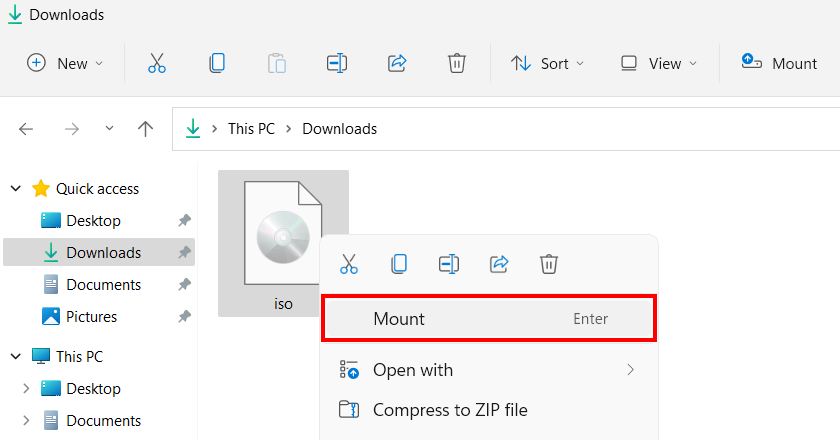
- Right-click on the ISO file and select Mount.
- A new virtual drive will be created, and you’ll see it listed in This PC.
- You can now access the files inside the ISO file just like you would with any other drive.
Opening an Iso File as a Regular File
- Right-click on the ISO file and select Open.
- The contents of the ISO file will be extracted, and you’ll see them listed in File Explorer.
Burning an Iso File to a CD or Dvd
- Insert a blank CD or DVD into your computer’s disc drive.
- Right-click on the ISO file and select Burn to Disc.
- Follow the prompts to burn the ISO file to the physical disc.
Opening Iso Files on Mac
If you’re using a Mac, you can use the built-in Diskimagemounter utility to open ISO files. Here’s how:
Mounting an Iso File as a Virtual Drive
- Right-click (or control-click) on the ISO file and select Open With > Diskimagemounter.
- A new virtual drive will be created, and you’ll see it listed in the Finder.
- You can now access the files inside the ISO file just like you would with any other drive.
Opening an Iso File as a Regular File
- Right-click (or control-click) on the ISO file and select Open.
- The contents of the ISO file will be extracted, and you’ll see them listed in the Finder.
Burning an Iso File to a CD or Dvd
- Insert a blank CD or DVD into your computer’s disc drive.
- Right-click (or control-click) on the ISO file and select Burn to Disc.
- Follow the prompts to burn the ISO file to the physical disc.
Alternative Software For Opening Iso Files
If you prefer using third-party software, there are several options available for both Windows and Mac:
- Virtual Clonedrive: A free utility that can create up to 8 virtual drives at a time.
- 7-Zip: A popular file archiver that can open ISO files.
- Imgburn: A free burning software that can also create ISO files from physical discs.
Conclusion
Opening ISO files on PC is a straightforward process, and you have several options to choose from. Whether you use the built-in operating system features or third-party software, we hope this guide has helped you understand how to work with ISO files on your computer.
Frequently Asked Questions (FAQs)
- Q: What is an Iso File?
A: An ISO file is a compressed file that contains the contents of a CD, DVD, or Blu-ray disc. - Q: How do I Open an Iso File on Windows 10?
A: You can mount the ISO file as a virtual drive by right-clicking on it and selecting “Mount.” Alternatively, you can open it as a regular file by right-clicking and selecting “Open.” - Q: How do I Burn an Iso File to a CD or Dvd on Windows 10?
A: Insert a blank CD or DVD into your computer’s disc drive, then right-click on the ISO file and select “Burn to Disc.” - Q: How do I Open an Iso File on Mac?
A: You can mount the ISO file as a virtual drive by right-clicking (or control-clicking) on it and selecting “Open with > DiskImageMounter.” Alternatively, you can open it as a regular file by right-clicking (or control-clicking) and selecting “Open.” - Q: What Software Can I Use to Open Iso Files?
A: There are several options available, including Virtual CloneDrive, 7-Zip, and ImgBurn.


