
How to Open Iso Files Without Burning Them: A Step-by-step Guide
Are you tired of burning CDs, DVDs, or Blu-ray discs just to install software or games? Do you want to explore the contents of an ISO file without wasting physical media? Look no further! In this article, we will guide you through the process of opening ISO files on Windows, Mac, smartphones, and tablets.
What Are Iso Files?
ISO files, also known as disc images, are exact copies of CDs, DVDs, or Blu-ray discs. They contain all the data from the original disc, including software, games, movies, and more. By mounting an ISO file, you can access its contents without having to burn a physical copy.
Opening Iso Files on Windows
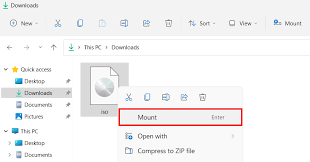
If you’re using Windows 8.X or later, you don’t need any additional software to open ISO files. Here’s how:
- Right-click on the ISO file and select Mount from the context menu.
- The ISO file will be mounted as a virtual drive, and its contents will be accessible through File Explorer.
If you’re using Windows 7 or earlier, you’ll need to download a third-party tool, such as WinCDEmu.
- Download and install WinCDEmu from the official website.
- Launch WinCDEmu and configure it to ask for permission before mounting an ISO file (optional).
- Right-click on the ISO file and select Mount from the context menu.
- The ISO file will be mounted as a virtual drive, and its contents will be accessible through File Explorer.
Opening Iso Files on Mac
If you’re using a Mac, you can open ISO files without any additional software:
- Double-click on the ISO file to mount it.
- The ISO file will be mounted as a virtual drive, and its contents will be accessible through Finder.
Note: If DiskImageMounter is not the default application for mounting ISO files, you may need to select it from the context menu.
Opening Iso Files on Smartphones And Tablets
If you have an Android device or an iPad/iPhone, you can use specialized apps to open ISO files:
- Download ZArchiver (Android) or iZip (iOS/iPadOS).
- Launch the app and locate the ISO file.
- Select the ISO file and choose to extract its contents.
Note: You may need to download a ZIP file containing the extracted data.
Opening Iso Files Online
If you don’t have access to a computer or mobile device, you can use an online tool called Archive Extractor:
- Visit the Archive Extractor website.
- Upload the ISO file or provide a URL to it.
- Wait for the file to be processed and download it as a ZIP file.
Conclusion
Opening ISO files without burning them is a simple process that requires minimal effort. Whether you’re using Windows, Mac, smartphones, or tablets, there are various tools and apps available to help you access the contents of an ISO file. Remember to always follow safe downloading practices and be cautious when opening unknown files.
Faqs
- Q: What is an Iso File?
A: An ISO file is a disc image that contains all the data from a CD, DVD, or Blu-ray disc. - Q: Can I Open Iso Files on my Smartphone or Tablet?
A: Yes, you can use specialized apps like ZArchiver (Android) or iZip (iOS/iPadOS). - Q: Do I Need to Burn an Iso File to Access Its Contents?
A: No, you can mount the ISO file as a virtual drive and access its contents without burning a physical copy. - Q: What if I’m Using Windows 7 or Earlier?
A: You’ll need to download a third-party tool like WinCDEmu to open ISO files. - Q: Can I Use Online Tools to Open Iso Files?
A: Yes, you can use Archive Extractor to upload and process ISO files online. - Q: Are Iso Files Safe to Open?
A: Generally, yes, but be cautious when opening unknown files or downloading software from the internet. - Q: Can I Extract Data From an Iso File Without Burning It?
A: Yes, you can use apps like ZArchiver (Android) or iZip (iOS/iPadOS) to extract data from an ISO file.


