
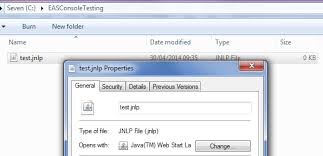
How to Open Jnlp Files: A Step-by-step Guide
Are you struggling to open JNLP files on your Windows or macOS computer? Look no further! In this article, we’ll provide a comprehensive guide on how to open JNLP files using Java 8 and OpenWebStart.
What Are Jnlp Files?
Before we dive into the instructions, let’s quickly explain what JNLP files are. JNLP stands for Java Network Launch Protocol, which is a type of file that contains information about a Java application. These files are typically used to launch Java-based applications on the web.
Opening Jnlp Files on Windows
If you’re using Windows, follow these steps to open JNLP files:
Step 1: Install Java 8
To open JNLP files, you need to have Java 8 installed on your computer. If you already have Java 8 installed, skip to Step 2.
- Go to the Oracle website and download the Java 8 installer.
- Run the installer and follow the prompts to install Java 8.
- Once installed, verify that Java 8 is installed by going to Start > Settings > System > About and checking if Java 8 is listed under “Installed Apps”.
Step 2: Install Openwebstart
If you’re using a version of Windows prior to Windows 10 or if you want to use a more modern and secure way to open JNLP files, install OpenWebStart.
- Go to the OpenWebStart website and download the installer.
- Run the installer and follow the prompts to install OpenWebStart.
- Once installed, verify that OpenWebStart is installed by going to Start > Settings > System > Apps & features and checking if OpenWebStart is listed under “Installed apps”.
Step 3: Open Jnlp Files
To open a JNLP file using Java 8 or OpenWebStart:
- Locate the JNLP file on your computer.
- Double-click the JNLP file to open it. If you have Java 8 installed, you should see a security prompt asking if you want to run the application. Click “Run” to execute the application.
- If you’re using OpenWebStart, you’ll see a security prompt asking if you want to run the application in a sandboxed environment. Click “Sandbox” to execute the application.
Opening Jnlp Files on Macos
If you’re using a Mac, follow these steps to open JNLP files:
Step 1: Install Java 8
To open JNLP files, you need to have Java 8 installed on your computer. If you already have Java 8 installed, skip to Step 2.
- Go to the Oracle website and download the Java 8 installer.
- Run the installer and follow the prompts to install Java 8.
- Once installed, verify that Java 8 is installed by going to System Preferences > Java and checking if Java 8 is listed under “Installed versions”.
Step 2: Install Openwebstart
If you’re using a Mac or want to use a more modern and secure way to open JNLP files, install OpenWebStart.
- Go to the OpenWebStart website and download the installer.
- Run the installer and follow the prompts to install OpenWebStart.
- Once installed, verify that OpenWebStart is installed by going to System Preferences > Java and checking if OpenWebStart is listed under “Installed applications”.
Step 3: Open Jnlp Files
To open a JNLP file using Java 8 or OpenWebStart:
- Locate the JNLP file on your computer.
- Double-click the JNLP file to open it. If you have Java 8 installed, you should see a security prompt asking if you want to run the application. Click “Open” to execute the application.
- If you’re using OpenWebStart, you’ll see a security prompt asking if you want to run the application in a sandboxed environment. Click “Sandbox” to execute the application.
Troubleshooting Tips
If you encounter any issues while trying to open JNLP files, try these troubleshooting tips:
- Check that Java 8 or OpenWebStart is installed correctly and up-to-date.
- Verify that the JNLP file is not corrupted by checking its integrity using a checksum tool like MD5 or SHA-256.
- Try running the JNLP file in a different environment, such as a virtual machine or a cloud-based service.
Conclusion
Opening JNLP files doesn’t have to be difficult. With these step-by-step instructions and troubleshooting tips, you should now know how to open JNLP files on both Windows and macOS using Java 8 and OpenWebStart.
Faqs
- Q: What is a JNLP file?
A: A JNLP file is a type of file that contains information about a Java application. - Q: Why do I need to install Java 8 or OpenWebStart to open JNLP files?
A: You need to have Java 8 or OpenWebStart installed on your computer to open JNLP files because they are used to launch Java-based applications. - Q: What is the difference between running a JNLP file in sandboxed mode and running it normally?
A: Running a JNLP file in sandboxed mode allows you to run the application in a secure environment without compromising your system’s security. - Q: How do I troubleshoot issues with opening JNLP files?
A: Try checking that Java 8 or OpenWebStart is installed correctly and up-to-date, verifying the integrity of the JNLP file using a checksum tool, and running the JNLP file in a different environment. - Q: Why can’t I open JNLP files on my Mac?
A: If you’re experiencing issues opening JNLP files on your Mac, try reinstalling Java 8 or OpenWebStart or checking for any system updates that may be causing the issue. - Q: How do I know if a JNLP file is corrupted?
A: You can check if a JNLP file is corrupted by using a checksum tool like MD5 or SHA-256 to verify its integrity.
Additional Resources
If you need further assistance with opening JNLP files, try these additional resources:
- Oracle’s Java documentation
- OpenWebStart’s official website
- Stack Overflow’s Q&A forum for programming-related questions
I hope this helps! If you have any other questions or need further clarification on any of the steps, feel free to ask.


