
How to Open Ods Files: A Step-by-step Guide
Are you struggling to open ODS files on your computer? Do you want to know the different ways to access these spreadsheet documents? Look no further! In this article, we will guide you through the process of opening ODS files using various methods and tools.
What Are Ods Files?
ODS files are a type of spreadsheet document that is native to LibreOffice Calc. They contain data and formatting information, just like Microsoft Excel files (.Xlsx). However, unlike .Xlsx files, ODS files are more versatile and can be easily shared with others.
Method 1: Using Libreoffice Calc
LibreOffice Calc is a free and open-source spreadsheet software that can open, edit, and create ODS files. Here’s how to do it:
- Download and install LibreOffice Calc from the official website.
- Open the program and select “Open” from the file menu.
- Navigate to the location of your ODS file and click on it to open it in Calc.
Method 2: Using Microsoft Excel
Microsoft Excel is another popular spreadsheet software that can also open ODS files. Here’s how to do it:
- Download and install Microsoft Office, including Excel, from the official website.
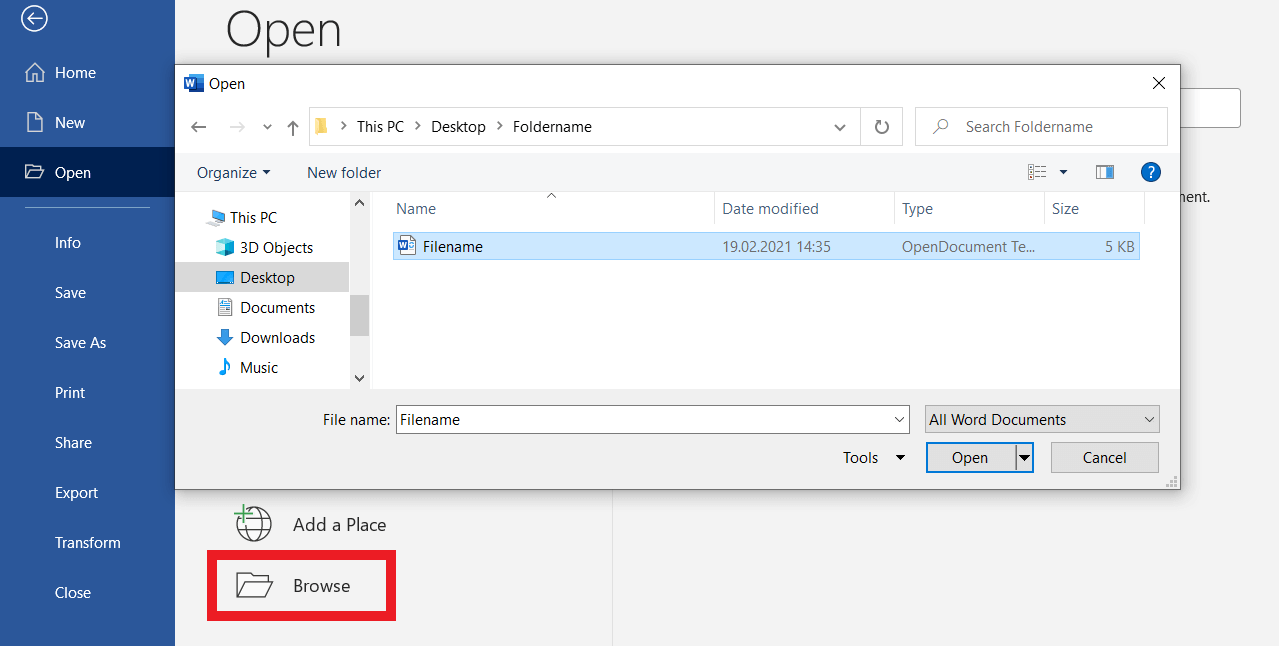
- Open Excel and select “Open” from the file menu.
- Navigate to the location of your ODS file and click on it to open it in Excel.
Method 3: Using Online Services
If you don’t have LibreOffice Calc or Microsoft Excel installed on your computer, you can still access your ODS files online. Here’s how:
- Go to Google Drive and upload your ODS file to the cloud.
- Open the file directly from Google Drive using the “Open with” feature.
- Alternatively, use a third-party online service like CloudConvert or SmallPDF to convert your ODS file to another format, such as Excel.
Method 4: Using Mobile Apps
If you want to access your ODS files on-the-go, you can download mobile apps specifically designed for this purpose. Here are some popular options:
- AndroOpen Office (Android): A faithful port of OpenOffice for Android devices.
- Microsoft Excel (Android/iOS/iPadOS): The official Excel app that allows you to create, view, and edit spreadsheets.
- Google Sheets (Android/iOS/iPadOS): A mobile version of Google Drive’s spreadsheet feature.
Method 5: Recovering Damaged Ods Files
Sometimes, your ODS file may become damaged due to various reasons. Don’t worry! You can still recover it using the following steps:
- Use a zip archiver like 7Zip to extract the contents of the ODS file.
- Locate and edit the “content.Xml” file within the extracted folder.
- Set the “table:Protected” attribute to false, allowing you to access and modify the spreadsheet data.
Method 6: Opening Password-protected Ods Files
If your ODS file is protected with a password, don’t worry! You can still open it using the following steps:
- Extract the contents of the ODS file using 7Zip or another zip archiver.
- Edit the “content.Xml” file and set the “table:Protected” attribute to false.
Conclusion
Opening ODS files is easier than you think! With these six methods, you can access your spreadsheet documents from various platforms and tools. Whether you’re a LibreOffice Calc user, a Microsoft Excel enthusiast, or someone who prefers online services, there’s an option for everyone. Remember to always save a copy of your file in case the original becomes damaged.
Frequently Asked Questions
Q: What is an ODS file?
A: An ODS file is a type of spreadsheet document native to LibreOffice Calc.
Q: Can I open ODS files with Microsoft Excel?
A: Yes, you can open ODS files using Microsoft Excel. However, the file may not be editable if it contains complex formatting or formulas.
Q: How do I recover a damaged ODS file?
A: You can use 7Zip to extract the contents of the ODS file and edit the “content.Xml” file to set the “table:Protected” attribute to false.
Q: Can I open password-protected ODS files?
A: Yes, you can open password-protected ODS files by extracting their contents using 7Zip or another zip archiver and editing the “content.Xml” file.
Q: Are there any mobile apps that can open ODS files?
A: Yes, there are several mobile apps available for Android and iOS devices that allow you to view and edit ODS files.
Q: Can I convert ODS files to other formats?
A: Yes, you can use online services like CloudConvert or SmallPDF to convert your ODS file to another format, such as Excel.


