
How to Open Rar Files on Android: A Step-by-step Guide
Are you tired of struggling to open RAR files on your Android device? Look no further! In this article, we will guide you through the process of opening RAR files on your smartphone or tablet using various apps.
What is a Rar File?
A RAR file is a compressed archive file that contains multiple files and folders. It’s like a ZIP file, but with more features and flexibility. RAR files are widely used to share large files over the internet, as they can be compressed to a smaller size without losing any data.
Why Can’t I Open My Rar File?
There are several reasons why you might not be able to open your RAR file on your Android device:
- You don’t have an app installed that supports RAR file extraction.
- The RAR file is password-protected, and you haven’t entered the correct password.
- The RAR file contains corrupted or damaged data.
How to Open Rar Files on Android
Don’t worry; we’ve got you covered! Here are some of the best apps for opening RAR files on Android:
Rar
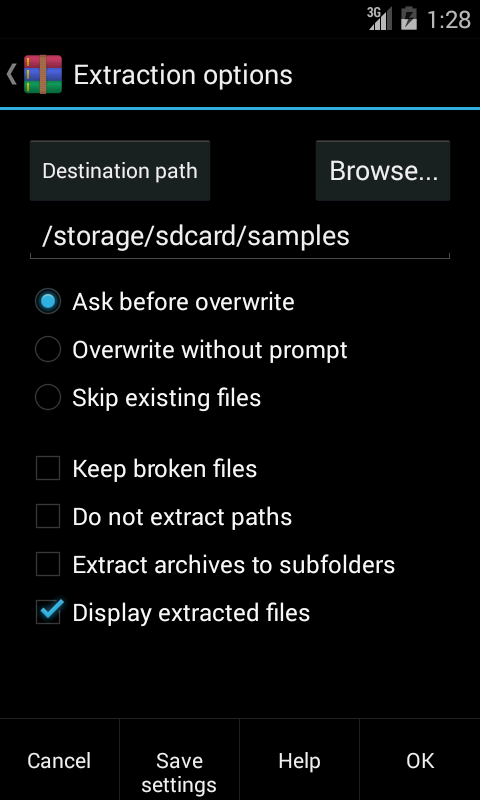
The first app we’ll discuss is RAR, developed by RARLAB. This app is free to download and use, but it contains ads. To remove the ads, you need to subscribe to a paid plan.
How to Use Rar:
- Download and install the RAR app from the Play Store.
- Open the app and grant it permission to access your device’s files.
- Tap on the “Open” button to select the RAR file you want to open.
- If the RAR file is password-protected, enter the correct password to unlock it.
- Once the RAR file is unlocked, you can extract its contents by tapping on the “Extract” button.
Zarchiver
Another popular app for opening RAR files on Android is ZArchiver. This app is free to download and use, with no ads or subscription fees.
How to Use Zarchiver:
- Download and install the ZArchiver app from the Play Store.
- Open the app and grant it permission to access your device’s files.
- Tap on the “Open” button to select the RAR file you want to open.
- If the RAR file is password-protected, enter the correct password to unlock it.
- Once the RAR file is unlocked, you can extract its contents by tapping on the “Extract” button.
Total Commander
If you’re looking for a more advanced app that can handle multiple file types, including RAR files, then Total Commander might be the perfect choice.
How to Use Total Commander:
- Download and install the Total Commander app from the Play Store.
- Open the app and grant it permission to access your device’s files.
- Tap on the “Open” button to select the RAR file you want to open.
- If the RAR file is password-protected, enter the correct password to unlock it.
- Once the RAR file is unlocked, you can extract its contents by tapping on the “Extract” button.
X-plore File Manager
Another app that supports opening and extracting RAR files is X-plore File Manager.
How to Use X-plore File Manager:
- Download and install the X-plore File Manager app from the Play Store.
- Open the app and grant it permission to access your device’s files.
- Tap on the “Open” button to select the RAR file you want to open.
- If the RAR file is password-protected, enter the correct password to unlock it.
- Once the RAR file is unlocked, you can extract its contents by tapping on the “Extract” button.
Conclusion
Opening RAR files on Android devices has never been easier! With these apps and step-by-step guides, you should be able to open and extract RAR files with ease. Remember to always check for updates and reviews before installing any app, and happy downloading!
Frequently Asked Questions (FAQs)
Q1: What is a Rar File?
A RAR file is a compressed archive file that contains multiple files and folders.
Q2: Why Can’t I Open my Rar File on Android?
You might not be able to open your RAR file because you don’t have an app installed that supports RAR file extraction, the RAR file is password-protected, or the RAR file contains corrupted data.
Q3: Which Apps Support Opening Rar Files on Android?
RAR, ZArchiver, Total Commander, X-plore File Manager, and WinZip are some of the popular apps that support opening RAR files on Android.
Q4: How do I Open a Password-protected Rar File on Android?
To open a password-protected RAR file on Android, you need to enter the correct password. If you’ve forgotten your password, try recovering it or contacting the person who created the RAR file.
Q5: Can I Extract Multiple Files From a Single Rar File?
Yes, most of the apps we mentioned support extracting multiple files from a single RAR file.
Q6: Are These Apps Free to Download And Use?
Some of the apps are free to download and use, while others have paid plans or subscription fees.


