
How to Open The Doors of Your Router
Are you tired of slow downloads and frustrated by error messages when trying to download files with programs like uTorrent or eMule? Do you have multiple sources available, but your download speed is still slow? If so, it’s likely that there’s an issue with your router configuration. Don’t panic! In this article, we’ll guide you through the process of opening the doors of your router to resolve these issues.
Understanding Router Configuration
Your router can be configured in different modes, including blocking or not consenting communication between certain software and external devices. This can affect download speeds and cause error messages. By configuring your firewall settings and port forwarding rules, you can unblock the doors that allow programs like uTorrent and eMule to function correctly.
Accessing Your Router Panel
To configure your router, you need to access its panel of administration. The process varies depending on the type of router you have. Here’s a step-by-step guide:
Step 1: Find Your Router IP Address
- Locate the label on the back or bottom of your router for the default IP address.
- If you can’t find it there, try checking the manual user guide.
- You can also check online resources specific to your router model.
Accessing The Panel Using Windows
- Open Command Prompt (cmd) by searching for it in the Start menu or typing ‘cmd’ in the Run dialog box.
- Type ‘ipconfig’ and press Enter.
- Look for the “Gateway” section, which contains the default IP address of your router.
Accessing The Panel Using Macos
- Click on the System Preferences icon on the Dock.
- Select Network from the list on the left-hand side.
- Click on Advanced and select TCP/IP.
- Find the Router section, which contains the default IP address.
Logging In to Your Router
Once you have the IP address, open a web browser (such as Chrome or Firefox) and enter it into the address bar. You’ll be prompted for your username and password. If you’re not sure what these are, check the manual user guide or try using the default login credentials.
Resetting Your Router (If Necessary)
If you’ve forgotten your login details or need to reset your router configuration, locate the small pinhole on the back of your router and hold it for 10-15 seconds. This will reset your router to its factory settings.
Configuring Port Forwarding
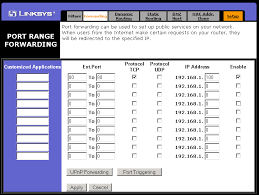
After logging in to your router, navigate to the Port Forwarding section (this may be labeled as “Port Triggering” or “Virtual Server”). Create a new rule by clicking on “Add New Rule.” Fill out the form with the following information:
- Name: Give this rule a name, such as “eMule” or “uTorrent.”
- Protocol: Choose TCP or UDP depending on which program you’re using.
- Internal Port: Enter the port number specified by your chosen program (usually 6881 for uTorrent and 4662 for eMule).
- External Port: Match the internal port number.
- IP Address: Select the IP address of the device running the program.
Practical Examples For Specific Router Brands
If you’re still unsure, consult the following guides specific to your router brand:
Tp-link Router Configuration
To configure a TP-Link router, follow these steps:
- Open the web browser and enter the default IP address of your TP-Link router (usually 192.168.0.1).
- Log in with your username and password.
- Click on “Advanced” at the top menu bar and select “Forwarding.”
- Fill out the form as described earlier.
Netgear Router Configuration
To configure a Netgear router, follow these steps:
- Open the web browser and enter the default IP address of your Netgear router (usually 192.168.0.50).
- Log in with your username and password.
- Click on “Advanced” at the top menu bar and select “Port Forwarding.”
- Fill out the form as described earlier.
Apple Router Configuration
To configure an Apple AirPort Extreme or Time Capsule, follow these steps:
- Open the Utility app (usually found in your Applications folder).
- Select the icon for your router.
- Click on “Modify” and enter your password.
- Navigate to the “Network” tab and click on “+”.
- Fill out the form as described earlier.
Tim/alice Router Configuration
To configure a TIM or Alice router, follow these steps:
- Open the web browser and enter the default IP address of your router (usually 192.168.0.100).
- Log in with your username and password.
- Click on “Advanced” at the top menu bar and select “Port Mapping.”
- Fill out the form as described earlier.
Vodafone Router Configuration
To configure a Vodafone router, follow these steps:
- Open the web browser and enter the default IP address of your router (usually 192.168.0.50).
- Log in with your username and password.
- Click on “Advanced” at the top menu bar and select “Internet.”
- Navigate to the “Port Triggering” section and click on “+”.
- Fill out the form as described earlier.
Fastweb Router Configuration
To configure a Fastweb router, follow these steps:
- Open the web browser and enter the default IP address of your router (usually 192.168.0.50).
- Log in with your username and password.
- Click on “Advanced” at the top menu bar and select “Port Mapping.”
- Fill out the form as described earlier.
Linkem Router Configuration
To configure a Linkem router, follow these steps:
- Open the web browser and enter the default IP address of your router (usually 192.168.0.50).
- Log in with your username and password.
- Click on “Network” at the top menu bar and select “Port Mapping.”
- Fill out the form as described earlier.
After configuring port forwarding, restart your router to apply these changes.
Conclusion
Configuring your router’s port forwarding settings can help resolve issues with slow downloads and error messages when using programs like uTorrent or eMule. This guide has provided a step-by-step walkthrough for accessing your router panel, resetting it if necessary, and configuring port forwarding rules specific to various router brands.


