
How to Open Wmv Files on Your Computer, Smartphone, or Tablet
Are you struggling to open a WMV file on your computer, smartphone, or tablet? You’re not alone! Many people face this issue when trying to play back video files in the WMV format. In this article, we’ll guide you through the steps to open WMV files on various devices and operating systems.
Why Can’t I Open My Wmv File?
Before we dive into the solutions, let’s quickly identify why your WMV file might not be opening. Here are a few possible reasons:
- Your device or computer doesn’t have a suitable player installed.
- The WMV file is corrupted or damaged.
- You’re trying to open the file on an unsupported operating system.
Opening Wmv Files on Windows Computers
If you’re using a Windows computer, here’s how you can open your WMV file:
Default Media Player (Windows 10)
If you have Windows 10 installed, you can use the default media player to play back your WMV file. To do this:
- Double-click on the WMV file.
- If it doesn’t open automatically, right-click on the file and select “Open with” > Film & TV.
Windows Media Player (All Windows Editions)
Alternatively, you can use Windows Media Player to play back your WMV file. To do this:
- Double-click on the WMV file.
- If it doesn’t open automatically, right-click on the file and select “Open with” > Windows Media Player.
Opening Wmv Files on Macos Computers
If you’re using a Mac computer, here’s how you can open your WMV file:
Quicktime Player (macOS)
You can use QuickTime Player to play back your WMV file. To do this:
- Double-click on the WMV file.
- If it doesn’t open automatically, right-click on the file and select “Open with” > QuickTime Player.
Vlc Media Player (macOS)
Alternatively, you can use VLC Media Player to play back your WMV file. To do this:
- Download and install VLC Media Player from the official website.
- Double-click on the WMV file to open it with VLC.
Opening Wmv Files on Android Smartphones
If you’re using an Android smartphone, here’s how you can open your WMV file:
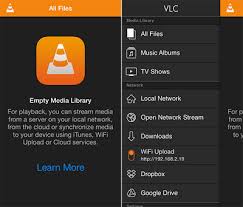
Vlc Media Player (Android)
You can use VLC Media Player to play back your WMV file. To do this:
- Download and install the VLC app from the Google Play Store.
- Tap on the WMV file to open it with VLC.
MX Player (Android)
Alternatively, you can use MX Player to play back your WMV file. To do this:
- Download and install the MX Player app from the Google Play Store.
- Tap on the WMV file to open it with MX Player.
Opening Wmv Files on Ios Devices
If you’re using an iPhone or iPad, here’s how you can open your WMV file:
Movie Player (iOS)
You can use Movie Player to play back your WMV file. To do this:
- Download and install the Movie Player app from the App Store.
- Tap on the WMV file to open it with Movie Player.
Conclusion
Opening a WMV file is not as complicated as you might think! By following these steps, you should be able to play back your video file on various devices and operating systems. Remember to always check for any updates or new versions of the media player before attempting to open your file.
Frequently Asked Questions (FAQs)
Here are some additional FAQs related to opening WMV files:
- Q: Why Won’t my Wmv File Play Back?
A: The most common reason is that the file is corrupted or damaged. Try re-downloading the file and then attempting to open it again. - Q: Can I Open a Wmv File on an Older Version of Windows?
A: Yes, you can use Windows Media Player to play back your WMV file on older versions of Windows. - Q: How do I Convert my Wmv File to Another Format?
A: You can use software like VLC or HandBrake to convert your WMV file to a different format.
Additional Tips And Resources
For more information on opening WMV files, you can check out the following resources:
- Microsoft’s Official Website for Windows Media Player.
- Apple’s Official Website for QuickTime Player.
- The VLC Website for VLC Media Player.
We hope this article has been helpful in resolving any issues you may have had with opening WMV files on your device!


