
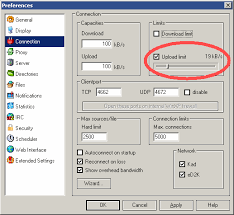
Optimizing Emule: Boosting Your Download Speed
Are you tired of waiting forever for your downloads to complete? Do you want to optimize your eMule experience and get the most out of it? Look no further! In this article, we’ll guide you through the process of optimizing eMule, ensuring a seamless and efficient download experience.
What You Need to Know Before Optimizing Emule
Before we dive into the optimization process, let’s cover some essential information. EMule is a peer-to-peer (P2P) file sharing client that connects you with other users on the internet. To optimize your eMule experience, you need to ensure that:
- Your router’s doors are open and configured correctly.
- You’re using an updated list of eD2K servers.
- You’ve connected to the Kad network.
- You’re controlling your upload and download speeds.
Step 1: Opening The Doors of Emule
To optimize your eMule experience, you need to ensure that the program’s doors are open and configured correctly. Here’s how:
- Open eMule and click on Options in the top-right corner.
- Select Connection from the left-hand menu.
- Click on Test doors and follow the instructions.
Step 2: Updating Your Ed2k Servers
To ensure a safe and efficient download experience, you need to use an updated list of eD2K servers. Here’s how:
- Open eMule and click on Server from the top menu.
- Delete all servers in the current list.
- Click on Update server and enter one of the following addresses:
- Http://Edk.Peerates.Net/servers.Met
- Http://Www.Gruk.Org/server.Met
- Http://Update.Adunanza.Net/servers.Met (for eMule AdunanzA users only)
- Wait a few seconds for the servers to update.
- Double-click on each server name and check that it turns green.
Step 3: Connecting to Kad
To connect to Kad, follow these steps:
- Open eMule and click on Kad from the top menu.
- Select Charge nodes in the left-hand menu.
- Click on Bootstrap and enter one of the following addresses:
- Http://Www.Emule-mods.It/download/nodes.Dat (from the Emule Mods forum)
- Http://Www.Nodes-dat.Com/dl.Php?load=nodes&trace=39513030.1944L
- Wait a few minutes for the connection to establish.
- Check that the arrow in the bottom-right corner turns green.
Understanding Your Upload And Download Speeds
To optimize your eMule experience, you need to control your upload and download speeds. Here’s how:
- Open eMule and click on Statistics from the top menu.
- Select Connections > Download > Session > Sources found in the left-hand menu.
- Check that the Troppe connections value is set to 0 (all sources have been contacted).
- Set Sources in tail between 2500 and 3500.
- Monitor your upload and download speeds using the Rapporto Up:Down total metric.
Optimizing Emule For Speed
To optimize your eMule experience, you need to ensure that:
- You’re not sharing unnecessary files.
- Your PC isn’t slowing down due to excessive resource usage.
Here’s how to optimize eMule for speed:
- Avoid sharing files with only one source (i.E., Yourself).
- Share files with multiple sources whenever possible.
- Prioritize your uploads by leaving the automatic settings untouched.
- Monitor your upload and download speeds using the Rapporto Up:Down total metric.
Additional Tips to Optimize Emule
To further optimize your eMule experience, consider these additional tips:
- Limit your upload speed to avoid overwhelming your connection.
- Use the offuscamento protocol to bypass blocks applied by some providers.
- Avoid sharing files with inferior dimensions (less than 10MB) or excessive sources (more than 20).
Conclusion
Optimizing eMule requires attention to detail and a basic understanding of how the program works. By following these steps and tips, you can ensure a seamless and efficient download experience.
Frequently Asked Questions
- Q: What Are The Benefits of Optimizing my Emule Experience?
A: Optimizing your eMule experience ensures faster downloads, reduced resource usage, and improved overall performance. - Q: How Often Should I Update my Ed2k Servers?
A: Update your eD2K servers whenever you notice a decrease in download speeds or encounter errors. - Q: Can I Use Multiple Kad Connections Simultaneously?
A: Yes, you can use multiple Kad connections, but be aware that excessive connections may slow down your PC. - Q: How do I Monitor my Upload And Download Speeds?
A: Use the Statistics menu in eMule to track your upload and download speeds. - Q: Can I Use Emule on a Mac or Linux Device?
A: Yes, you can use eMule on a Mac or Linux device using the official version or the leading mod of the program. - Q: What Are Some Common Mistakes to Avoid When Optimizing my Emule Experience?
A: Avoid sharing unnecessary files, prioritizing uploads over downloads, and exceeding resource usage limits. - Q: Can I Use Other File-sharing Clients Alongside Emule?
A: Yes, you can use multiple file-sharing clients simultaneously, but be aware of potential conflicts or performance issues. - Q: How do I Troubleshoot Common Errors in Emule?
A: Consult the official eMule documentation or seek assistance from online communities for troubleshooting guidance.


