
Optimizing Your Pc: Tips And Tricks
Are you tired of waiting for programs to load or files to transfer on your computer? You’re not alone! Many people struggle with slow PCs, but there are ways to optimize performance. In this article, we’ll explore tips and tricks to help you get the most out of your PC.
The Curse of a Fragmented Hard Drive
One reason for slow PCs is a fragmented hard drive. When files are saved on your computer, they’re not always stored in one contiguous block of space. Over time, this can lead to fragmentation, where pieces of files are scattered across different parts of the disk. This makes it harder for your computer to access and load files quickly.
Defragmenting Your Hard Drive
To combat this issue, you’ll want to defragment your hard drive. Defragmentation involves reorganizing files on your disk so that they’re stored in contiguous blocks of space. Tools like Auslogics Disk Defrag can help improve PC performance.
Removing Unnecessary Files
Another way to optimize PC performance is by removing unnecessary files, often referred to as “scrap” files. These files take up valuable space and slow down your computer. Use a tool like CCleaner to identify and delete these files.
Cleaning Up Your System Registry
The system registry is a database that stores information about programs installed on your PC. Over time, this registry can become cluttered with obsolete entries, causing problems when trying to run certain programs. Clean up your system registry using a tool like Wise Registry Cleaner.
Additional Tips And Tricks
Other tips for optimizing PC performance include:
- Freeing up Ram: Make sure your computer’s RAM (Random Access Memory) is not overloaded with unnecessary programs or files.
- Disabling Unnecessary Programs: Disable any programs set to launch automatically when you start your PC. This can help prevent unnecessary processes from running in the background and consuming system resources.
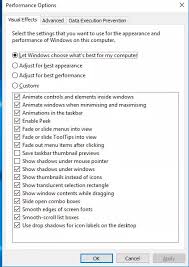
- Disabling Visual Effects And Animations: These visual effects and animations may look nice, but they can actually slow down your computer’s performance.
Optimizing Your Mac
If you’re using a Mac instead of a PC, don’t worry! You can still optimize your computer’s performance using similar techniques. Some tips for optimizing your Mac include:
- Running Maintenance Tasks: Regularly run maintenance tasks on your Mac to keep it running smoothly.
- Cleaning up System Logs: Clean up your system logs and remove any unnecessary entries.
- Updating Your Operating System: Make sure your Mac’s operating system is up-to-date, as this can help fix bugs and improve performance.
Conclusion
Optimizing PC or Mac performance doesn’t have to be a daunting task. By following these tips and tricks, you can help ensure that your computer runs smoothly and efficiently. Remember to defragment your hard drive, remove unnecessary files, clean up your system registry, and disable any unnecessary programs or visual effects.
Faqs
Here are some frequently asked questions about optimizing PC performance:
- What is Defragmentation?
Defragmentation is the process of reorganizing files on your hard drive so that they’re stored in contiguous blocks of space. - Why do I Need to Defragment my Hard Drive?
Defragmenting your hard drive can help improve your computer’s performance by reducing the time it takes to access and load files. - What is a System Registry, And Why Should I Clean it Up?
The system registry is a database that stores information about programs installed on your PC. Cleaning up this registry can help prevent problems when trying to run certain programs. - How do I Disable Unnecessary Programs From Launching Automatically?
To disable unnecessary programs from launching automatically, go to the Start menu and select “Settings” > “System” > “Start.” - What Are Some Other Tips For Optimizing PC Performance?
Some additional tips include freeing up RAM, disabling visual effects and animations, and keeping your operating system up-to-date.
Bonus Tip:
If you’re struggling with a slow computer, try running a virus scan or malware removal tool to ensure that your system is free from any infections.


