
Optimizing Utorrent: Boosting Your Bittorrent Speed
Are you tired of waiting for what feels like an eternity for your favorite files to download using uTorrent? Look no further! In this article, we’ll explore the best ways to optimize uTorrent and supercharge your BitTorrent speed.
Understanding Utorrent
Before we dive into the optimization process, it’s essential to understand how uTorrent works. UTorrent is a popular peer-to-peer (P2P) file-sharing client that allows users to download and upload files from other users on the internet. The program uses a distributed database to store information about available files, making it easier for users to find and share content.
Why Optimize Utorrent?
Optimizing uTorrent can significantly improve your BitTorrent speed and overall user experience. By tweaking the settings and configuring the program correctly, you can:
- Increase download speeds
- Reduce upload times
- Minimize lag and buffering
- Improve overall performance
Method 1: Automatic Configuration Using Terminal (Windows)
If you’re running Windows, you can use the terminal to automatically configure uTorrent. This method is quick and easy, and it’s a great starting point for optimizing your settings.
- Open the terminal on your Windows machine.
- Type
uTorrent -configand press Enter. - Select the “Automatic Configuration” option from the menu.
- Follow the prompts to configure uTorrent according to your internet connection speed.
Method 2: Manual Configuration (Windows)
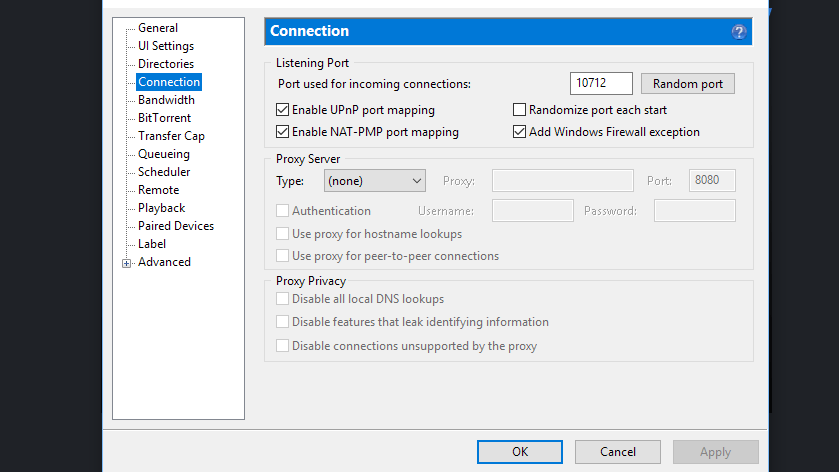
If you prefer a more manual approach, you can adjust the settings within the uTorrent client itself.
- Launch uTorrent on your Windows machine.
- Click on “Options” from the top menu bar.
- Select “Settings” from the dropdown menu.
- Adjust the following settings to optimize your download and upload speeds:
- Maximum download speed: Set this to 90% of your internet connection speed (or 0 for maximum speed).
- Maximum upload speed: Set this to 80% of your internet connection speed (or 0 for maximum speed).
- Maximum global connections: Set this to 400 for connections up to 10MB and 800 for connections above 20MB.
- Maximum peers connected per torrent: Calculate this by multiplying the maximum upload speed by 1.4.
Method 3: Optimizing Utorrent Web (Mac)
If you’re using a Mac with macOS Catalina or later, you’ll need to use the uTorrent Web client instead of the traditional desktop application.
- Launch uTorrent Web on your Mac.
- Click on the gear icon in the top-right corner.
- Select “Settings” from the dropdown menu.
- Adjust the following settings to optimize your download and upload speeds:
- Speed of download: Set this to 0 for maximum speed.
- Speed of loading: Set this to 0 for maximum speed.
Additional Tips
To further enhance your uTorrent experience, consider the following:
- Use a VPN (Virtual Private Network) to protect your privacy and encrypt your internet connection. This can also help you bypass geo-restrictions and access content that might be blocked in your region.
- Choose files with a high number of available sources to improve download speeds.
- Regularly update uTorrent to ensure you have the latest features and bug fixes.
Conclusion
Optimizing uTorrent is a simple process that can significantly boost your BitTorrent speed. By following the methods outlined above, you can customize the settings to suit your internet connection speed and preferences. Remember to also consider using a VPN for added security and flexibility. Happy downloading!


