
Optimizing Windows 10: A Comprehensive Guide
Are you tired of your computer running slowly? Do you want to enhance its performance without breaking the bank? Look no further! In this article, we will guide you through the process of optimizing Windows 10, providing you with tips and tricks to get the most out of your PC.
Understanding Windows 10 Optimization
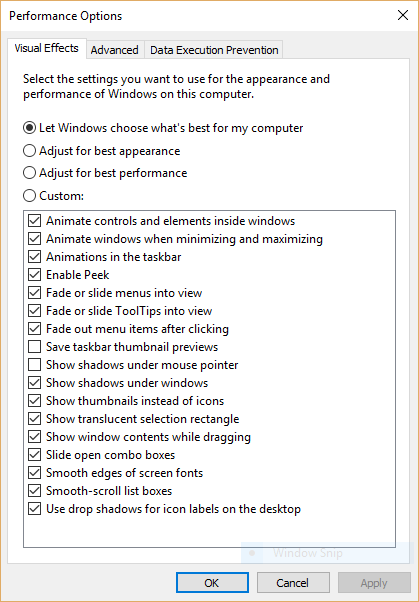
Before we dive into the nitty-gritty, it’s essential to understand what optimization means for Windows 10. Essentially, it involves fine-tuning the operating system to make it run faster, smoother, and more efficiently. This can be achieved by tweaking settings, disabling unnecessary features, and utilizing software tools.
Why Optimize Windows 10?
Optimizing Windows 10 has numerous benefits, including:
- Improved Performance: By optimizing your PC, you can expect a significant boost in performance, making it ideal for gaming, video editing, or other resource-intensive activities.
- Enhanced Security: A well-optimized system is more secure, as it’s less vulnerable to malware and other online threats.
- Increased Battery Life: For laptop users, optimization can lead to extended battery life, making it perfect for on-the-go computing.
Step 1: Defragment Your Ssd
One of the most crucial steps in optimizing Windows 10 is defragmenting your Solid-State Drive (SSD). This process ensures that your data is stored efficiently, leading to faster loading times and overall system performance.
To defragment your SSD:
- Press the Windows key + S to open the Search bar.
- Type “Disk Defragmenter” and select the result.
- Choose the drive you want to defragment (usually C:).
- Click “Optimize” and follow the prompts.
Step 2: Optimize Your Ram
Properly optimizing your RAM is essential for smooth system performance. Here’s how:
- Press the Windows key + R to open the Run dialog box.
- Type “msconfig” and press Enter.
- Go to the “Services” tab and select “Disk Defragmenter.”
- Click “Disable” to prevent it from running at startup.
Step 3: Clean Up Your Disk
A cluttered disk can slow down your system, so let’s clean it up!
- Press the Windows key + S to open the Search bar.
- Type “Cleaning disc” and select the result.
- Choose the drive you want to clean (usually C:).
- Select the files you want to delete and click “OK.”
Step 4: Disable Unnecessary Programs
Some programs might be running in the background, consuming resources without your knowledge. Let’s disable them!
- Press the Windows key + R to open the Run dialog box.
- Type “msconfig” and press Enter.
- Go to the “Startup” tab and select any unnecessary programs.
- Click “Disable” to prevent them from running at startup.
Step 5: Update Your Drivers
Outdated drivers can cause system instability, so let’s update them!
- Press the Windows key + X to open the Power User menu.
- Select “Device Manager.”
- Expand the categories and right-click on any outdated drivers.
- Click “Update driver” to install the latest versions.
Conclusion
Optimizing Windows 10 is a straightforward process that can significantly improve your PC’s performance. By following these steps, you’ll be able to:
- Defragment your SSD
- Optimize your RAM
- Clean up your disk
- Disable unnecessary programs
- Update your drivers
By implementing these tips and tricks, you’ll enjoy a faster, more efficient, and more secure computing experience.
Frequently Asked Questions
- Q: What’s The Best Way to Optimize my Windows 10 Pc?
A: Start by defragmenting your SSD, optimizing your RAM, cleaning up your disk, disabling unnecessary programs, and updating your drivers. - Q: How Often Should I Update my Drivers?
A: It’s essential to keep your drivers up-to-date regularly to ensure system stability and performance. - Q: Can I Optimize my Windows 10 PC For Gaming?
A: Yes! Optimizing your PC for gaming involves tweaking settings, disabling unnecessary features, and utilizing software tools designed specifically for gaming. - Q: How do I Disable Programs Running in The Background?
A: Press the Windows key + R to open the Run dialog box, type “msconfig,” and follow the prompts to disable unnecessary programs. - Q: Can I Use Third-party Software to Optimize my Windows 10 Pc?
A: Yes! There are many reputable third-party tools available that can help you optimize your PC. However, be cautious when using such software, as some may contain malware or compromise system security.
I hope this article has provided you with the knowledge and confidence to optimize your Windows 10 PC. Happy optimizing!


