
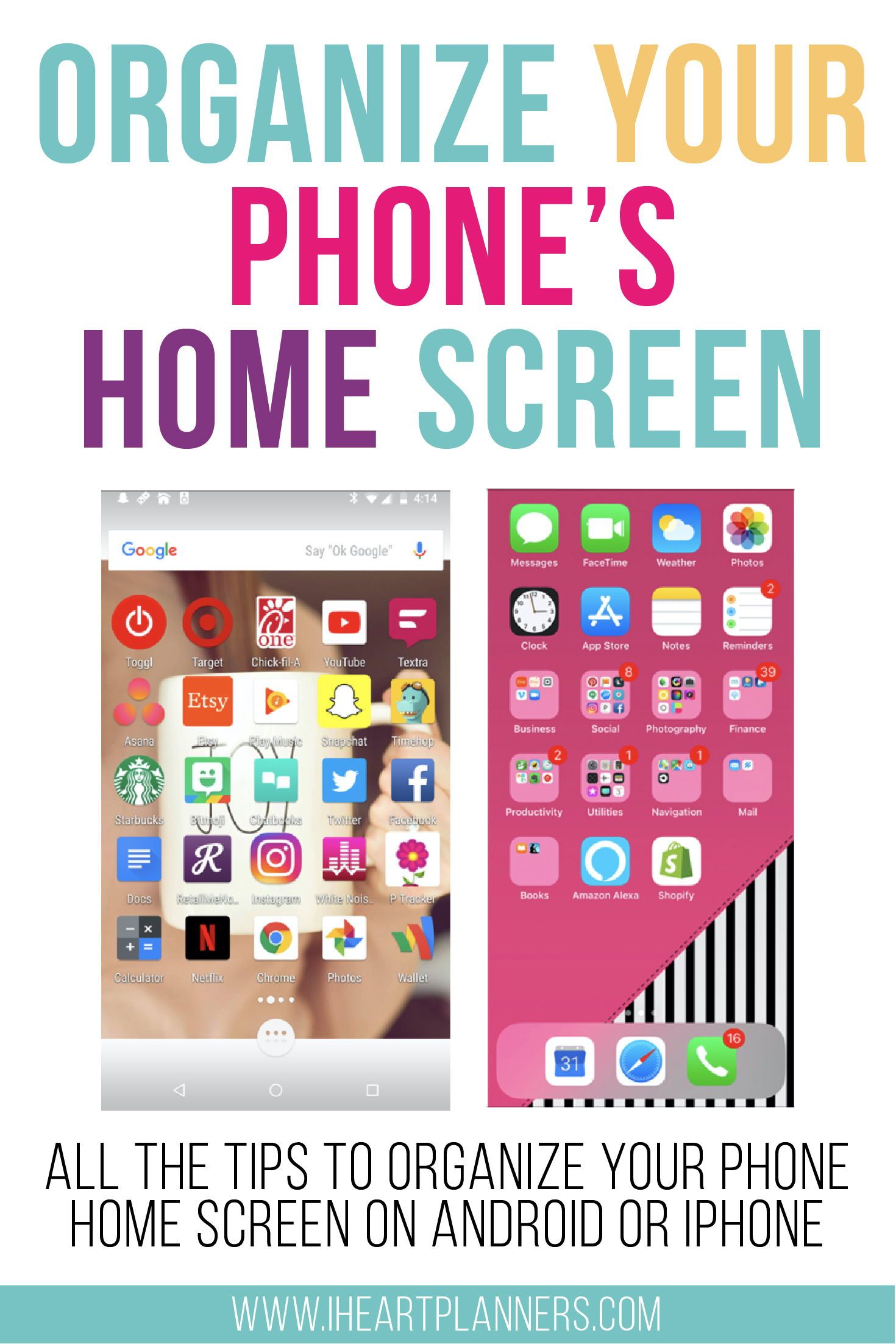
How to Customize Your Android Home Screen: A Comprehensive Guide
Are you tired of looking at the same old home screen on your Android device? Do you want to personalize it to your liking? Look no further! In this article, we will guide you through the process of customizing your Android home screen.
Choosing a Launcher
The first step in customizing your home screen is to choose a launcher. A launcher is an application that replaces the default home screen of your device, giving you more freedom to personalize it. Some popular launchers include Nova Launcher, Microsoft Launcher, and Apus Launcher.
Personalizing Your Home Screen
Once you have chosen a launcher, you can start personalizing your home screen. You can change the appearance of the icons, add widgets, and even create folders to organize your apps.
How to Add Icons to Your Home Screen
To add an icon to your home screen, follow these steps:
- Hold down on an empty spot on your home screen until the options menu appears.
- Tap on “Add” or “+” icon.
- Choose the app you want to add from the list of installed apps.
- Drag the icon to the desired location on your home screen.
How to Rearrange Icons on Your Home Screen
To rearrange icons on your home screen, follow these steps:
- Hold down on an empty spot on your home screen until the options menu appears.
- Tap on “Edit” or “Rearrange” icon.
- Drag and drop the icon to its new location.
How to Add Widgets to Your Home Screen
To add a widget to your home screen, follow these steps:
- Hold down on an empty spot on your home screen until the options menu appears.
- Tap on “Widgets” or “+” icon.
- Choose the widget you want to add from the list of available widgets.
- Drag and drop the widget to its new location.
Creating Folders
To create a folder, follow these steps:
- Hold down on an empty spot on your home screen until the options menu appears.
- Tap on “Edit” or “Rearrange” icon.
- Choose the apps you want to add to the folder by long-pressing on their icons and dragging them into the folder.
Personalizing Your Launcher
Each launcher has its own settings and features that can be customized to your liking. For example, Nova Launcher allows you to change the grid size, icon shape, and animation speed.
How to Change The Grid Size
To change the grid size on Nova Launcher, follow these steps:
- Open the Settings app.
- Tap on “Home screen” or “Grid size”.
- Choose the desired grid size from the list of options.
How to Change The Icon Shape
To change the icon shape on Nova Launcher, follow these steps:
- Open the Settings app.
- Tap on “Appearance” or “Icon shape”.
- Choose the desired icon shape from the list of options.
Adding a Background Image
You can add a background image to your home screen by going to Settings > Home screen > Background image and choosing an image from your gallery or downloading one from Google Play Store.
How to Add a Live Wallpaper
To add a live wallpaper, follow these steps:
- Open the Settings app.
- Tap on “Wallpaper” or “Live wallpaper”.
- Choose the desired live wallpaper from the list of options.
Conclusion
Customizing your Android home screen is easier than you think! By choosing a launcher and personalizing it to your liking, you can create a unique and functional home screen that reflects your personality.


