
How To Superimpose Two Videos: A Step-by-step Guide
Are you tired of editing videos on your computer or phone, only to end up with a messy timeline? Do you want to create stunning video mashups that showcase your creativity? Look no further! In this article, we’ll show you how to superimpose two videos like a pro.
What is Superimposition?
Superimposition is the process of overlaying one video on top of another. It’s a technique used in video editing to create visually appealing and engaging content. By combining two or more videos, you can add depth, context, and emotion to your footage.
Why Do You Need To Superimpose Two Videos?
There are many reasons why you might need to superimpose two videos:
- Adding Context: By overlaying one video on top of another, you can provide context and clarity to your story.
- Creating Visual Interest: Superimposition can add visual interest and break up the monotony of a single video.
- Enhancing Emotional Impact: By combining different videos, you can create an emotional impact that resonates with your audience.
Software For Superimposing Two Videos
There are many software options available for superimposing two videos. Here are some of the most popular ones:
- Clipchamp (Windows): A free video editing software that allows you to merge multiple videos into one.
- Imovie (macOS): A user-friendly video editing software that comes pre-installed on Macs.
- Wondershare Filmora: A professional-grade video editing software that offers advanced features and effects.
How To Superimpose Two Videos in Clipchamp
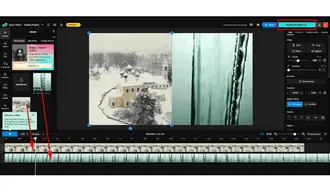
To superimpose two videos in Clipchamp, follow these steps:
- Initiate The Application: Launch Clipchamp on your Windows device.
- Create a New Video: Click on “Create a new video” and select the format of your choice.
- Drag And Drop Videos: Drag and drop both videos into the timeline, making sure to arrange them in the correct order.
- Adjust Opacity: Adjust the opacity of one video by clicking on the video and selecting the transparency option from the right-hand menu.
How To Superimpose Two Videos in Imovie
To superimpose two videos in iMovie, follow these steps:
- Initiate The Application: Launch iMovie on your Mac.
- Create a New Project: Click on “File” and select “New Project”.
- Import Videos: Import both videos into iMovie by clicking on “Import Media”.
- Drag And Drop Videos: Drag and drop both videos into the timeline, making sure to arrange them in the correct order.
- Adjust Opacity: Adjust the opacity of one video by clicking on the video and selecting the transparency option from the right-hand menu.
Other Software Options
There are many other software options available for superimposing two videos. Some popular ones include:
- Davinci Resolve: A professional-grade video editing software that offers advanced features and effects.
- Adobe Premiere Pro: A professional-grade video editing software that offers advanced features and effects.
How To Superimpose Two Videos on Android
To superimpose two videos on an Android device, you can use the following apps:
- Capcut: A free video editing app that allows you to merge multiple videos into one.
- Splice: A free video editing app that offers advanced features and effects.
- Inshot: A free video editing app that offers advanced features and effects.
How To Superimpose Two Videos on Iphone
To superimpose two videos on an iPhone, you can use the following apps:
- Imovie (iOS): A user-friendly video editing software that comes pre-installed on iPhones.
- Filmic Pro: A professional-grade video editing app that offers advanced features and effects.
How To Superimpose Two Videos on Tiktok
To superimpose two videos on TikTok, follow these steps:
- Launch The App: Launch TikTok on your device.
- Create a New Video: Click on the “+” icon at the bottom of the screen to create a new video.
- Select Videos: Select both videos you want to superimpose by clicking on them and arranging them in the correct order.
- Adjust Opacity: Adjust the opacity of one video by selecting it and adjusting the transparency option from the right-hand menu.
By following these steps, you can create stunning video mashups that showcase your creativity and add depth, context, and emotion to your story. Whether you’re a seasoned editor or just starting out, superimposing two videos is an essential skill to master. So why not give it a try?


