
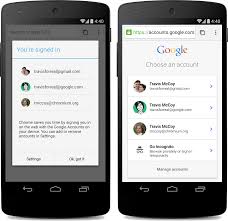
How to Associate a Phone Android to Google
Are you curious about how to connect your phone Android to Google and enjoy the benefits of synchronizing your data across devices? Look no further! In this article, we will guide you through a step-by-step process on how to associate a phone Android to Google.
Advantages of Associating a Phone Android to Google
Before we dive into the tutorial, let’s talk about the advantages of associating a phone Android to Google. Some of these benefits include:
- Synchronizing contacts, email, photos, videos, and other information on the Internet using Google’s cloud storage (free for up to 15 GB)
- Accessing services such as Gmail, YouTube, Meet, and more
- Using Google Drive to store and access files across devices
Step-by-step Guide: Associating a Phone Android to Google
To associate your phone Android to Google, follow these steps:
Step 1: Open The Settings App
Open the Settings app on your phone Android. This can be found in the menu of notifications, home screen, or app drawer.
Step 2: Select “Account”
Select the voice “Account” from the menu. You will see a list of connected accounts (Facebook, WhatsApp, etc.). Tap on the “+” icon to add a new account.
Step 3: Choose Google Account
Choose the option to add a Google account. Enter your Gmail address or phone number associated with your Google profile and tap “Next”.
Step 4: Sign In With Your Google Account
Enter your password to access your Google account. If you don’t remember your password, follow the instructions in our tutorial on how to recover your Google account.
Step 5: Confirm And Accept
Confirm that you want to add the Google account by tapping “Yes” and then “Accept”. Wait a few seconds for the information to sync and the process to complete.
How to Synchronize Data With Google Cloud Storage
To synchronize data between your phone Android and Google cloud storage, follow these steps:
Step 1: Open The Settings App
Open the Settings app on your phone Android. Go to “Account” > “Google”.
Step 2: Select Your Gmail Address
Select the Gmail address associated with your Google profile.
Step 3: Enable Synchronization
Enable synchronization for contacts, email, photos, videos, and other information you want to sync across devices.
Managing Multiple Google Accounts on Android
You can have multiple Google accounts associated with your phone Android. To manage these accounts:
Step 1: Open The Settings App
Open the Settings app on your phone Android.
Step 2: Select “Account”
Select the voice “Account”.
Step 3: Choose The Account You Want to Manage
Choose the account you want to manage and tap on it.
Step 4: Manage Your Google Accounts
Manage your Google accounts by adding, removing, or editing them as needed.
Installing The Play Store on Android
If you don’t have the Google Play store installed on your phone Android:
Step 1: Follow Our Tutorial
Follow our tutorial on how to install the Google Play store on your phone Android.
Getting Started With Google Services on Android
To get started with Google services on your phone Android, follow these steps:
Step 1: Install The Google Play Store
Install the Google Play store from our tutorial above.
Step 2: Sign In With Your Google Account
Sign in to your Google account using the steps outlined above.
Conclusion
Associating a phone Android to Google is easy and can be done in just a few simple steps. By following this guide, you’ll be able to:
- Synchronize data across devices
- Access services like Gmail, YouTube, Meet, and more
- Use Google Drive to store and access files
We hope this tutorial has been helpful in answering your questions about how to associate a phone Android to Google.
Frequently Asked Questions
Here are some frequently asked questions related to associating a phone Android to Google:
Q: How do I add a Google account on my phone Android?
A: To add a Google account, follow the steps outlined above in our tutorial.
Q: Can I have multiple Google accounts associated with my phone Android?
A: Yes, you can have multiple Google accounts associated with your phone Android. Follow the steps outlined above to manage these accounts.
Q: How do I enable synchronization for data between my phone Android and Google cloud storage?
A: To enable synchronization for data between your phone Android and Google cloud storage, follow the steps outlined above in our tutorial.
Q: Can I access Google services without installing the Play Store on my phone Android?
A: Yes, you can access some Google services without installing the Play Store. However, we recommend installing the Play Store to access all Google services.
Q: How do I recover my Google account if I’ve forgotten my password?
A: Follow our tutorial on how to recover your Google account if you’ve forgotten your password.
Q: Can I use multiple Google accounts for different apps on my phone Android?
A: Yes, you can use multiple Google accounts for different apps on your phone Android. Follow the steps outlined above to manage these accounts.
Recommended Tutorials
If you need further guidance on how to associate a phone Android to Google or access specific Google services, we recommend checking out our tutorials below:
- How to Install the Google Play Store on Your Phone Android
- Getting Started with Google Services on Android: A Step-by-Step Guide
- Managing Multiple Google Accounts on Your Phone Android
We hope you find these resources helpful in getting started with using Google services on your phone Android.


