
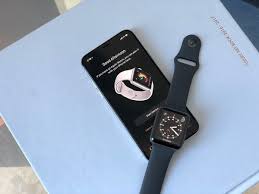
How to Match Apple Watch to Iphone: A Step-by-step Guide
Are you one of the many Apple enthusiasts who have recently purchased an Apple Watch? If so, you’re probably eager to learn how to match it to your iPhone. Well, you’ve come to the right place! In this article, we’ll take a deep dive into the world of Apple Watch and iPhone matching, covering everything from the initial setup process to troubleshooting common issues.
Why Match Your Apple Watch to Iphone?
Before we dive into the nitty-gritty, let’s talk about why matching your Apple Watch to your iPhone is essential. By doing so, you’ll be able to:
- Seamlessly transfer data between devices
- Enjoy a more streamlined user experience
- Take advantage of advanced features like Handoff and Universal Clipboard
Pre-matching Operations
Before we proceed with the matching process, there are a few pre-matching operations that need to be completed. These include:
- Activating Your Apple Watch: Make sure your Apple Watch is turned on and paired with your iPhone.
- Updating Your Iphone And Apple Watch: Ensure both devices have the latest software updates installed.
- Backing Up Your Apple Watch: Perform a backup of your Apple Watch to prevent any data loss during the matching process.
Matching Apple Watch to Iphone Automatically
Now that we’ve covered the pre-matching operations, let’s move on to the automatic matching process. Here’s how to do it:
- Select The Language And Region: Choose the language and region for your Apple Watch.
- Approach Your Iphone: Bring your iPhone close to your Apple Watch.
- Wait For The Matching Screen: Wait for the matching screen to appear on both devices.
- Tap Start: Tap the “Start” button on your Apple Watch.
- Configure Settings: Configure settings, such as setting up Wi-Fi and Bluetooth connections.
Matching Apple Watch to Iphone Manually
If you encounter any issues with the automatic matching process or prefer a more manual approach, don’t worry! Here’s how to match your Apple Watch to your iPhone manually:
- Select The Language And Region: Choose the language and region for your Apple Watch.
- Approach Your Iphone: Bring your iPhone close to your Apple Watch.
- Wait For The Matching Screen: Wait for the matching screen to appear on both devices.
- Tap Start: Tap the “Start” button on your Apple Watch.
- Configure Settings: Configure settings, such as setting up Wi-Fi and Bluetooth connections.
Matching Apple Watch to New Iphone
Have you recently upgraded to a new iPhone? If so, here’s how to match your Apple Watch:
- Backup Your Apple Watch: Backup your Apple Watch to prevent any data loss.
- Transfer Data: Transfer data from your old iPhone to your new one.
- Match Your Apple Watch: Match your Apple Watch to your new iPhone.
Matching Apple Watch to Two Iphones
Can you match an Apple Watch to two iPhones? Unfortunately, the answer is no. Each Apple Watch can be matched to only one iPhone at a time.
Troubleshooting Common Issues
Have you encountered any issues with matching your Apple Watch to your iPhone? Don’t worry! Here are some troubleshooting tips:
- Check For Software Updates: Ensure both devices have the latest software updates installed.
- Restart Your Devices: Restart both devices and try again.
- Reach Out to Apple Support: Contact Apple support for further assistance.
Conclusion
Matching your Apple Watch to your iPhone is a straightforward process that requires some basic setup and configuration. By following this guide, you should be able to successfully match your devices and enjoy the benefits of seamless data transfer, advanced features, and a more streamlined user experience.
Frequently Asked Questions (FAQs)
- Q: What Are The Benefits of Matching my Apple Watch to my Iphone?
A: The benefits include seamless data transfer, advanced features like Handoff and Universal Clipboard, and a more streamlined user experience. - Q: How do I Match my Apple Watch to my Iphone Automatically?
A: To match your Apple Watch to your iPhone automatically, follow the steps outlined in this guide. - Q: Can I Match my Apple Watch to Two Iphones?
A: Unfortunately, no. Each Apple Watch can be matched to only one iPhone at a time. - Q: What Should I do if I Encounter Issues With Matching my Apple Watch to my Iphone?
A: Try restarting your devices, checking for software updates, and reaching out to Apple support for further assistance.
Common Problems Solved
- Apple Watch Not Matching With Iphone: Check for software updates, restart your devices, or reach out to Apple support.
- Data Transfer Issues: Ensure both devices have the latest software updates installed and try restarting your devices.
- Matching Process Stuck: Try restarting your devices or reaching out to Apple support.
Common Solutions
- Update Your Iphone And Apple Watch: Ensure both devices have the latest software updates installed.
- Restart Your Devices: Restart both devices and try again.
- Reach Out to Apple Support: Contact Apple support for further assistance.


